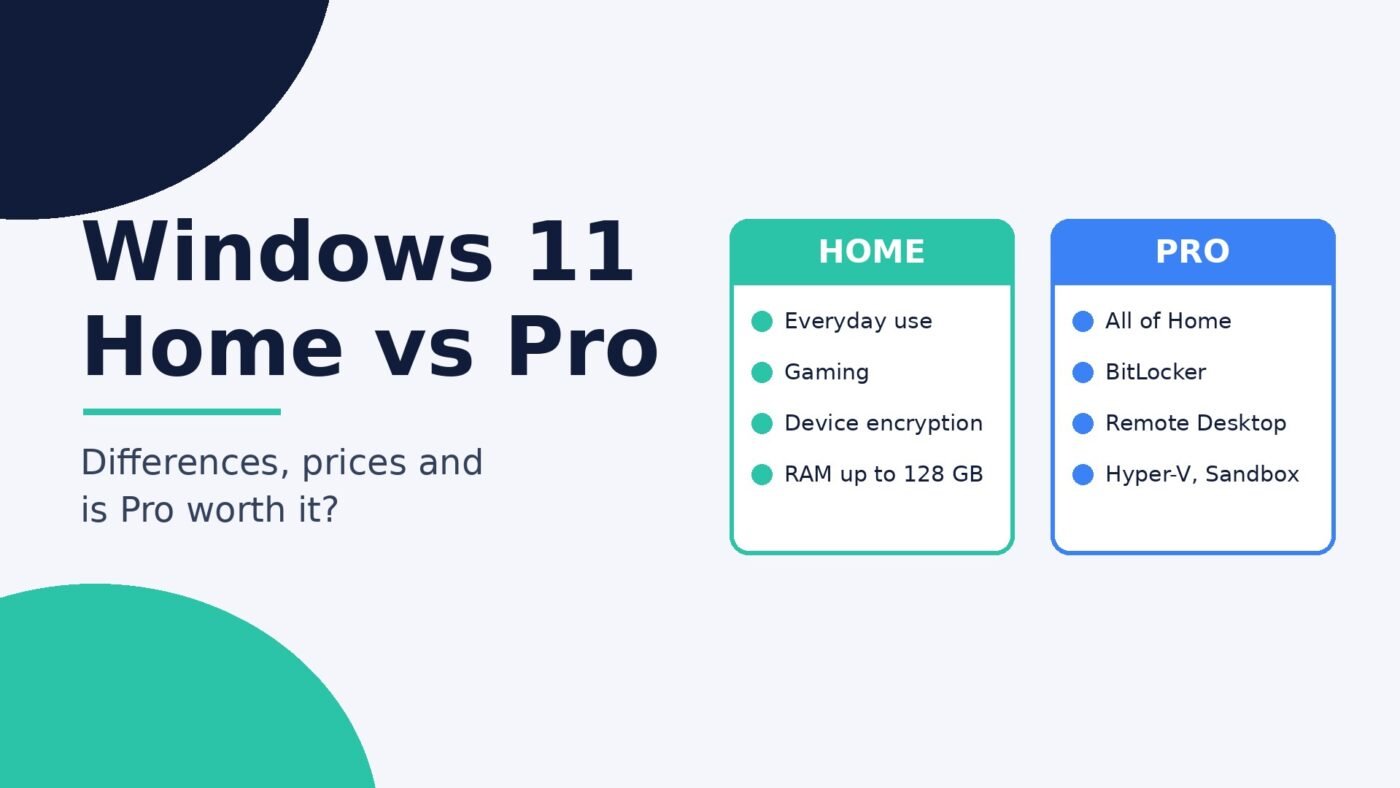
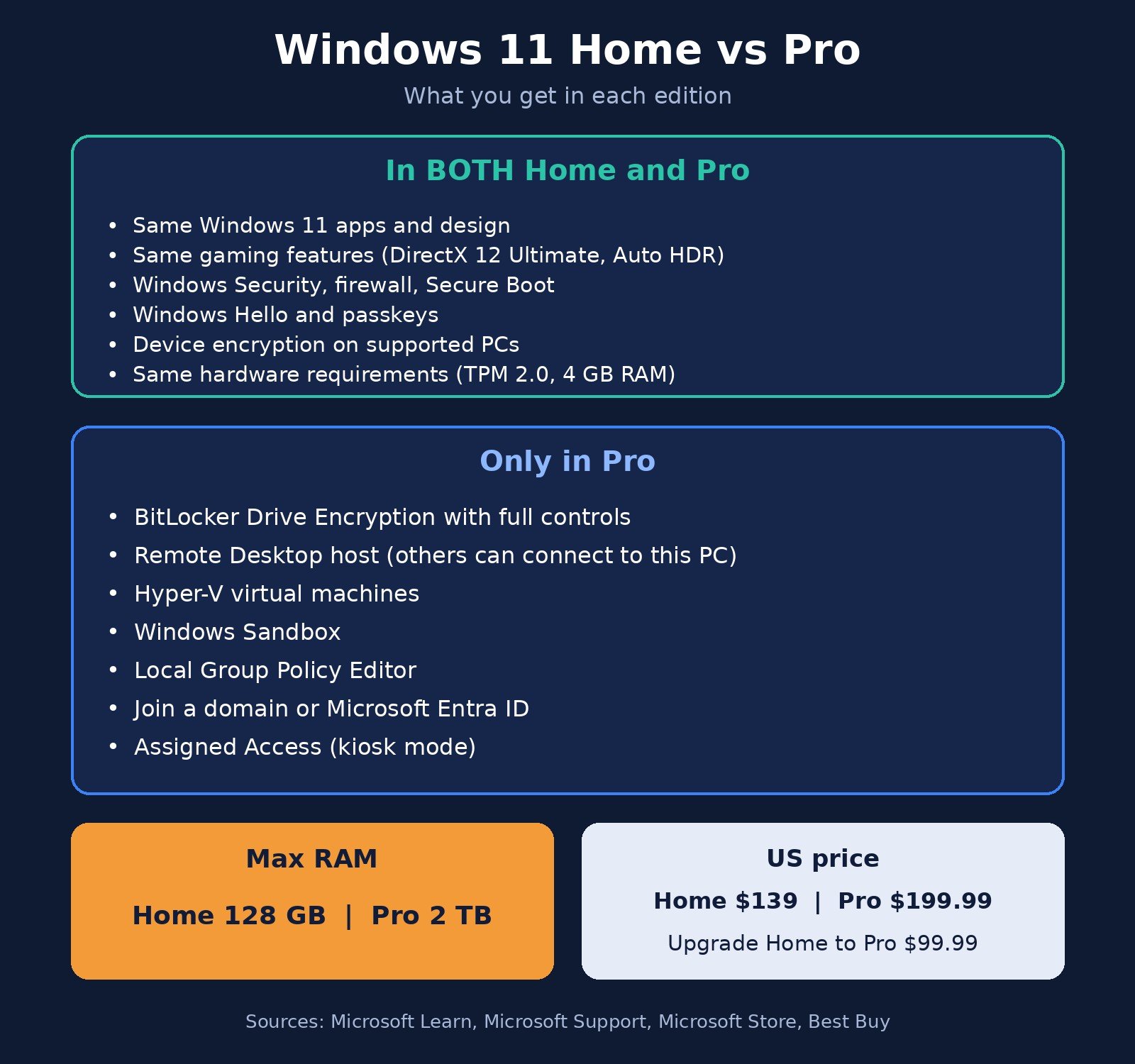
Windows 11 Home and Windows 11 Pro run the same Windows, with the same look, apps, games and everyday security. Pro adds tools most home users never touch: full BitLocker drive encryption, the ability to be controlled through Remote Desktop, the Hyper-V and Windows Sandbox virtualization features, the Local Group Policy Editor, and the ability to join a company domain or Microsoft Entra ID. Pro also supports far more RAM (2 TB vs 128 GB). If you don’t know you need one of those, Home is the better value.
Most laptops and prebuilt desktops ship with Home, so the question usually comes up in one of three moments: you’re buying a new PC and see a Pro option that costs more, you’re building a PC and need to buy a license, or a work tool or tutorial just told you “this requires Windows 11 Pro.” This guide walks through every real difference, what each edition costs, whether Pro is faster for gaming, and how to upgrade without reinstalling.
Windows 11 Home vs Pro at a glance
The table below lists the differences that matter for individuals and small businesses. Each row is backed by Microsoft documentation linked in the sections that follow.
| Feature | Windows 11 Home | Windows 11 Pro |
|---|---|---|
| Core Windows 11 experience (Start menu, Snap layouts, Widgets, Microsoft Store) | Yes | Yes |
| Gaming features (DirectX 12 Ultimate, Auto HDR, DirectStorage, Game Bar) | Yes | Yes |
| Windows Security, firewall, Secure Boot, Windows Hello | Yes | Yes |
| Device encryption (automatic, on supported hardware) | Yes | Yes |
| BitLocker Drive Encryption with full controls | No | Yes |
| Remote Desktop: connect to other PCs | Yes | Yes |
| Remote Desktop: be the PC others connect to (host) | No | Yes |
| Hyper-V virtual machines | No | Yes |
| Windows Sandbox | No | Yes |
| Local Group Policy Editor | No | Yes |
| Join an Active Directory domain or Microsoft Entra ID | No | Yes |
| Assigned Access (kiosk mode) | No | Yes |
| Maximum RAM supported | 128 GB | 2 TB |
| Microsoft Store price (US, full license) | $139.00 | $199.99 |
Notice how short the Pro-only list is. Everything you see and use day to day is identical. The differences live in security management, remote access, virtualization and IT administration.
What Windows 11 Pro adds
BitLocker Drive Encryption
This is the difference people ask about most, and it’s also the most misunderstood. Home is not unencrypted. Microsoft’s Device Encryption support page explains that Device Encryption “enables BitLocker encryption automatically for the Operating System drive and fixed drives,” and that it is available on a wider range of devices than BitLocker, including those running Windows Home. When you set up a supported PC with a Microsoft account, it’s turned on automatically and the recovery key is saved to that account.
What Pro adds is full BitLocker Drive Encryption, which the same Microsoft page says is available on Pro, Enterprise and Education. In practice that means the BitLocker control panel: choosing which drives to encrypt, encrypting removable drives such as USB sticks (BitLocker To Go), managing recovery keys yourself, and using BitLocker when Device Encryption isn’t supported on your hardware. Microsoft notes Device Encryption needs a usable TPM, a configured recovery environment and Secure Boot; if your PC fails one of those checks, Home gives you no built-in encryption at all, while Pro still offers BitLocker.
Remote Desktop hosting
Both editions include the Remote Desktop Connection app, so a Home PC can connect to another computer. The difference is which PC can be controlled. Microsoft’s Remote Desktop documentation states that Windows Home editions “can’t serve as Remote Desktop hosts, though they can be used as clients.” Microsoft’s How to use Remote Desktop guide says the same thing in plainer terms: the PC you want to connect to must be running Windows Pro.
So if you want to sit on the couch with a laptop and log in to your desktop in the office, it’s the desktop that needs Pro. If you only ever need occasional remote help, third-party remote-support apps and Microsoft’s Quick Assist work on Home, though they behave differently from a full Remote Desktop session.
Hyper-V and Windows Sandbox
Hyper-V is Microsoft’s built-in tool for running virtual machines, meaning a complete second operating system in a window. Microsoft’s Hyper-V requirements page lists Windows 11 Professional or Enterprise as the client editions that can enable it, along with a 64-bit processor with second-level address translation (SLAT), virtualization turned on in the BIOS or UEFI, and at least 4 GB of RAM.
Windows Sandbox is a lighter cousin: a throwaway copy of Windows that opens in seconds and erases everything when you close it. It’s handy for opening a suspicious download or testing an app without touching your real system. Microsoft’s Windows Sandbox documentation lists Pro, Enterprise, Pro Education/SE and Education as supported editions and states that Sandbox “is currently not supported on Windows Home edition.”
Home users aren’t locked out of virtual machines entirely. Third-party virtualization apps run on Home, and a Microsoft Q&A answer points to Oracle VirtualBox as an option. You just don’t get Microsoft’s built-in tools.
Group Policy Editor
The Local Group Policy Editor (gpedit.msc) is a settings console with hundreds of switches that don’t appear in the regular Settings app, such as controlling how Windows Update behaves or locking down features for other users of the PC. Windows Central’s Home vs Pro comparison lists it as Pro-only. Many tweak guides online start with “open gpedit,” which is a common reason Home users first discover the edition gap.
Business management: domain join, Entra ID and kiosk mode
Microsoft’s Upgrade Windows Home to Windows Pro page names “the ability to join a domain or Microsoft Entra ID” as one of Pro’s main additions. That matters if your employer manages laptops centrally: a Home PC usually can’t be enrolled the way IT expects. Windows Central’s comparison table also lists Assigned Access (a kiosk mode that locks a PC to one app) and Windows Autopilot support as Pro features. If you run a small shop with a shared front-desk PC, kiosk mode is the one in this group you might actually use.
Higher hardware limits
According to Microsoft’s memory limits for Windows releases, Windows 11 Home supports up to 128 GB of physical RAM, while Windows 11 Pro supports up to 2 TB. For context, that’s far more memory than most home PCs have. If you’re building a workstation for large local AI models or heavy virtualization and plan to go past 128 GB, that alone forces Pro. Our guide to RAM vs VRAM explains which kind of memory actually limits local AI work.
What Windows 11 Home already gives you
It’s easy to read a feature list and assume Home is stripped down. It isn’t. Microsoft’s official Home vs Pro comparison shows Home and Pro sharing device encryption, Find my device, firewall and network protection, internet protection, parental controls, Secure Boot, Windows Hello and the Windows Security app. Both editions also get the same Windows 11 features listed on that page, from Snap layouts and Phone Link to Live Captions, Auto HDR and DirectStorage.
Home also handles all the everyday maintenance you’d expect. You can boot into Safe Mode, free up disk space, update your graphics drivers and sign in with a passkey exactly the same way on either edition.
How much each edition costs
If Windows came with your PC, the license is already included in the price. You only buy Windows separately when you build a PC, replace a drive without a license, or upgrade editions. At the time of writing, Microsoft’s US store lists:
- Windows 11 Home: $139.00
- Windows 11 Pro: $199.99
- Upgrade from Home to Pro: $99.99, the price shown on Best Buy’s Windows 11 Pro upgrade listing and the figure Windows Central reports for the Microsoft Store upgrade
Prices can change and vary by country, so check the store before you buy. One thing worth knowing: buying Home first and upgrading later costs more in total than buying Pro outright, so if you already know you need a Pro feature for a new build, buy Pro from the start.
Be careful with very cheap “Windows 11 Pro keys” from marketplace sellers. Microsoft’s store listing describes its own product as the version “designed for PCs that need a new license for Windows.” We can’t verify third-party key sellers, so we don’t recommend any.
Is Windows 11 Pro faster or better for gaming?
No. Pro doesn’t add any speed or gaming features. Microsoft’s comparison page lists gaming technologies such as DirectX 12 Ultimate, Auto HDR, DirectStorage, optimizations for windowed games and the Xbox Game Bar as Windows 11 features, not Pro extras. Windows Central puts it plainly: paying extra for Pro won’t make your PC faster.
Gaming performance comes from your hardware and drivers. If a game runs poorly, check which GPU you have and update its driver before you think about changing Windows editions.
Who should choose which edition
Windows 11 Home is enough if you:
- Browse, stream, do schoolwork, use Microsoft 365 or Google Workspace, and play games
- Run a side hustle from a laptop with web apps, invoicing tools and video calls
- Are happy with automatic device encryption tied to your Microsoft account
- Never need to remotely log in to this PC
Windows 11 Pro is worth it if you:
- Need to reach this PC from elsewhere with Remote Desktop
- Want BitLocker controls, encrypted USB drives, or encryption on hardware where Device Encryption isn’t supported
- Run virtual machines with Hyper-V or want Windows Sandbox for testing files
- Need your employer’s IT team to join the PC to a domain or Microsoft Entra ID
- Want Group Policy controls or a locked-down kiosk PC for a shop or reception desk
- Plan to install more than 128 GB of RAM
A simple rule: if you can’t name the Pro feature you need, you don’t need Pro. You can always upgrade later without reinstalling.
How to check your edition and upgrade Home to Pro
Check which edition you have
- Open Settings.
- Go to System > About (or System > Activation).
- Look at the Edition line under Windows specifications. It will say Windows 11 Home or Windows 11 Pro.
Upgrade without reinstalling
Microsoft’s official upgrade guide describes two routes. Both apply to an activated copy of Windows 11 Home, so activate Home first if it isn’t.
- If you have a Pro product key: go to Settings > System > Activation, select Change next to Change product key, enter the 25-character key and select Next.
- If you don’t have a key: in Settings > System > Activation, expand Upgrade your edition of Windows, select Open Store, buy the upgrade while signed in with your Microsoft account, then install and restart when prompted.
Your files and apps stay in place, but back up anything important first, as you would before any system change.
A note on setup and Microsoft accounts
Microsoft’s Windows 11 specifications page says both Windows 11 Home and Windows 11 Pro for personal use require an internet connection and a Microsoft account during initial device setup. So “Pro lets me skip the Microsoft account” isn’t a reliable reason to pay more for a personal PC. The hardware requirements, including TPM 2.0, 4 GB of RAM and 64 GB of storage, are the same for both editions.
Frequently asked questions
What is the main difference between Windows 11 Home and Pro?
Windows 11 Pro includes everything in Home plus business and power-user tools: BitLocker Drive Encryption, Remote Desktop hosting, Hyper-V, Windows Sandbox, the Group Policy Editor, and domain or Microsoft Entra ID join. Pro also supports up to 2 TB of RAM versus 128 GB on Home. Everyday features, apps and games are the same.
Is Windows 11 Pro worth it for a home user?
Usually not. Home already includes device encryption, Windows Security, Windows Hello and every gaming feature. Pro is worth the extra cost only if you need a specific Pro feature, such as connecting to this PC with Remote Desktop, running Hyper-V virtual machines, or joining a work domain.
Is Windows 11 Pro better for gaming?
No. Gaming features like DirectX 12 Ultimate, Auto HDR and DirectStorage are part of Windows 11 itself, and Pro adds no performance boost. Your graphics card, processor and drivers decide how games run.
How much does it cost to upgrade from Windows 11 Home to Pro?
The Home-to-Pro upgrade is $99.99 in the US. A full Windows 11 Pro license is $199.99 and Windows 11 Home is $139.00 on Microsoft’s store. Prices vary by country and can change.
Can I use Remote Desktop on Windows 11 Home?
Partly. A Home PC can connect to another computer using the Remote Desktop Connection app, but it can’t be the PC you connect to. The computer being controlled must run Windows Pro, Enterprise or Education.
Does upgrading to Windows 11 Pro delete my files?
No. Microsoft’s upgrade process changes the edition in place through Settings or the Microsoft Store and finishes with a restart. Backing up first is still a smart precaution.

The Teck Hustlers Editorial Team covers technology, business, finance and gaming news for readers who want the story behind the headline. Every article is researched, written and edited by our in-house team, checked against company announcements, filings and reputable reporting, and updated when new facts emerge. We focus on what each development means for founders, professionals, investors and everyday users. Have a tip or a correction? Reach us through our contact page.