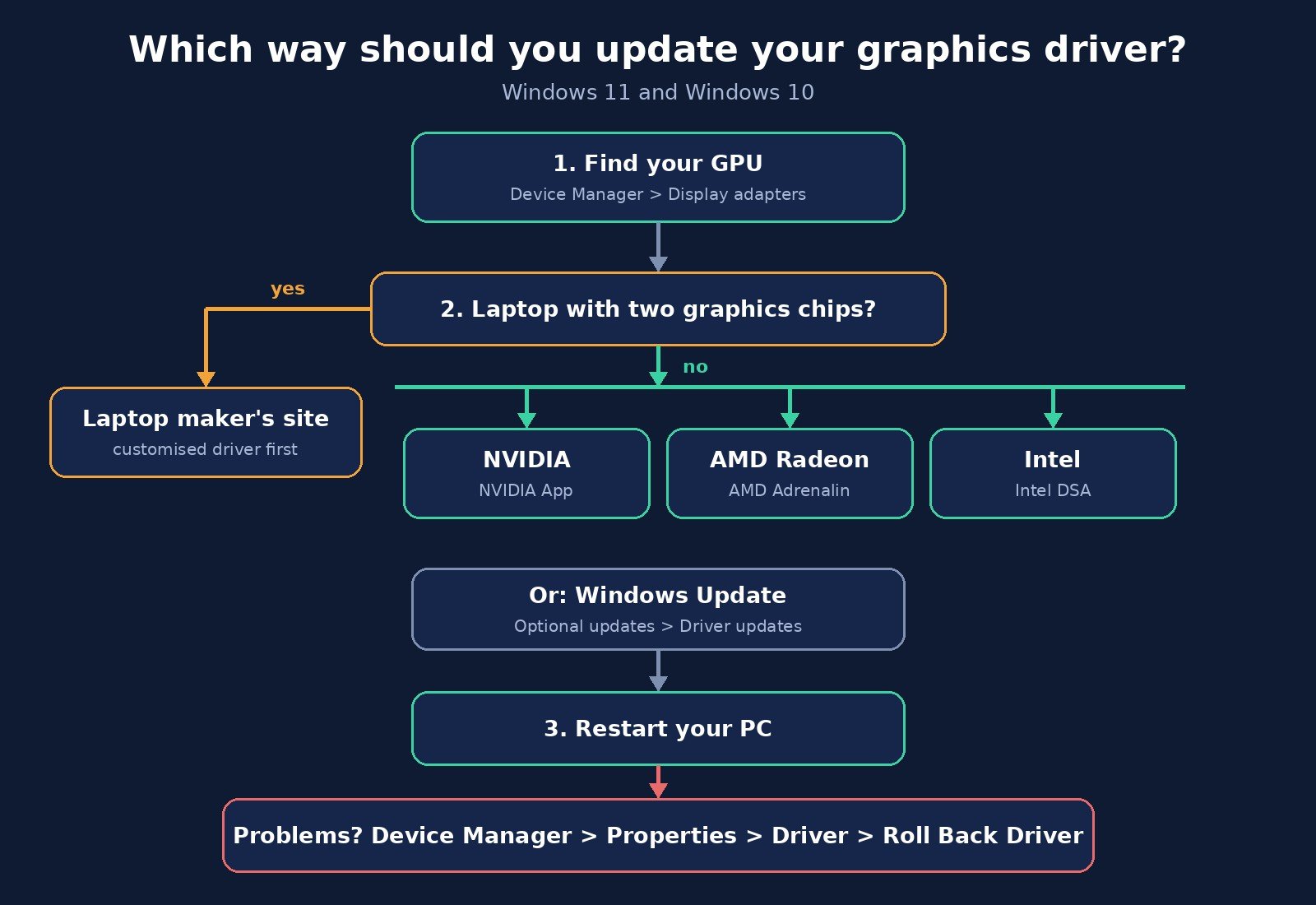
To update your graphics driver on Windows, use the official tool for your GPU: the NVIDIA App for NVIDIA cards, AMD Software: Adrenalin Edition for Radeon graphics, or Intel Driver & Support Assistant for Intel graphics. If you just want the simplest route, Windows Update can also install a tested driver for you. Whichever path you take, restart afterwards, and if the new driver causes problems, Device Manager lets you roll back to the previous one in a minute.
This guide walks through every method step by step, explains which one to pick for your PC, and covers what to do when an update goes wrong. It is written for Windows 11 and Windows 10, with a short note for Mac users at the end.
Before you start: find out which GPU you have
A graphics driver is the software that lets Windows and your games talk to your graphics chip. Each brand ships its own driver, so the first step is knowing whose chip is inside your PC. Many laptops have two: a basic Intel or AMD chip built into the processor and a separate NVIDIA or AMD card for heavier work.
The quickest check is Device Manager. Right-click the Start button, choose Device Manager, and expand Display adapters. Every graphics chip in the machine is listed there by name. If you want more ways to check, including Task Manager and the DirectX Diagnostic Tool, see our guide on how to check what GPU you have.
Two quick housekeeping steps before any driver install:
- Save your work and close games and creative apps. The screen may flicker or go black for a few seconds while the driver swaps over. That is normal.
- Use an administrator account. Installing and rolling back drivers needs admin rights on Windows.
Which update method should you use?
There is no single “best” method. The right one depends on what you use your PC for and what kind of machine it is.
| Method | Best for | How fresh the driver is | Effort |
|---|---|---|---|
| Windows Update | Everyday users who want hands-off updates | Tested and stable, but often behind the latest release | Lowest |
| NVIDIA App | Gamers and creators with NVIDIA GeForce or RTX cards | Latest Game Ready or Studio driver | Low |
| AMD Software: Adrenalin Edition | Radeon graphics cards and Ryzen chips with Radeon graphics | Latest AMD release | Low |
| Intel Driver & Support Assistant | Intel integrated graphics and Intel Arc cards | Latest Intel generic driver | Low |
| Laptop maker’s support site | Laptops, especially with two graphics chips | Customised for your model, sometimes older | Medium |
| Device Manager (manual) | Fixing a single device or installing a downloaded driver | Whatever you point it to | Medium |
A simple rule: if you play new games or edit video, use your GPU brand’s own app. If you mostly browse, work in documents and stream video, Windows Update is usually enough.
Method 1: Update graphics drivers with Windows Update
Microsoft says the best way to get driver updates in Windows is automatically through Windows Update, and it lists video cards among the hardware it covers. Drivers delivered this way have been through Microsoft’s distribution process, which makes them a safe default, though they usually lag behind the newest version on the GPU maker’s site.
Steps on Windows 11
- Open Settings and select Windows Update.
- Select Check for updates and install anything waiting.
- Go to Advanced options, then Optional updates.
- Expand Driver updates. If you see a display or graphics driver, tick it and select Download & install.
- Restart when prompted.
On Windows 10 the path is similar: Settings, Update & Security, Windows Update, then View optional updates.
If nothing shows up under optional updates, it does not mean your driver is broken. It just means Windows has nothing newer to offer, and you can move on to the brand-specific methods below.
Method 2: Update NVIDIA drivers with the NVIDIA App
For GeForce and RTX graphics cards, the NVIDIA App is NVIDIA’s own tool for keeping drivers current. It also handles in-game settings, the performance overlay and screen recording, but you can ignore those features if all you want is the driver.
- Download the NVIDIA App from NVIDIA’s website and install it.
- Open it and go to the Drivers section.
- If a new driver is available, select Download, then Install when it is ready.
- Let the installer finish. Your screen may blink a few times.
- Restart your PC if the installer asks you to.
Game Ready or Studio driver?
NVIDIA offers two driver tracks. According to NVIDIA, Game Ready drivers are tuned with game developers and tested for new game releases, while Studio drivers are aimed at reliability and performance in creative apps (NVIDIA). Pick Game Ready if gaming is your main use. Pick Studio if you mostly edit video, render 3D or stream, and you prefer stability over day-one game tweaks. You can switch between them later.
If you would rather not install an app, NVIDIA’s website also has a manual driver download page where you choose your card series, model and Windows version, then run the installer yourself.
Method 3: Update AMD drivers with AMD Software: Adrenalin Edition
AMD Radeon graphics cards, and Ryzen processors with built-in Radeon graphics, get their drivers through AMD Software: Adrenalin Edition. AMD’s driver download page offers an Auto-Detect and Install tool for Windows 11 and 64-bit Windows 10 (version 1809 and later) that checks your hardware and fetches the right package.
If you already have Adrenalin installed
- Right-click the desktop and open AMD Software: Adrenalin Edition, or find it in the Start menu.
- Look for the driver update notice on the home screen, or open the settings and check for updates.
- Download and install the new version, then restart if asked.
If you are installing for the first time
- Go to AMD’s driver page and download the Auto-Detect and Install tool.
- Run it on the PC you want to update. It identifies your Radeon graphics and downloads the matching driver.
- Follow the installer prompts and restart.
You can also search for your exact product on the same AMD page and download the driver package manually if the auto-detect tool does not recognise your hardware.
Method 4: Update Intel graphics drivers with Intel Driver & Support Assistant
Most laptops and many desktops have Intel graphics built into the processor, and Intel also makes Arc graphics cards. Intel’s free Driver & Support Assistant (often shortened to Intel DSA) detects your Intel hardware and shows a list of available updates.
- Download and run Intel Driver & Support Assistant from Intel’s support site.
- Install it and let it scan your system.
- It opens a page listing available updates for your Intel products. Download and install the graphics driver.
- Restart your PC.
Intel DSA covers most Intel hardware, not just graphics, so it may also offer Wi-Fi or Bluetooth driver updates. Those can be worth installing too, especially if you have had connection problems.
Method 5: Update a graphics driver through Device Manager
Device Manager is the built-in Windows tool for managing hardware. It can search for a driver automatically or install one you already downloaded. Microsoft’s official steps are:
Automatic search
- Right-click the Start button and select Device Manager.
- Expand Display adapters.
- Right-click your graphics chip and select Update driver.
- Choose Search automatically for drivers. If Windows finds a newer one, it installs it.
Manual install from a downloaded file
- Download the driver from your GPU or laptop maker’s website. Make sure it matches your version of Windows. If it comes as a compressed file, extract it.
- In Device Manager, right-click the graphics chip and select Update driver.
- Choose Browse my computer for drivers, point it to the folder you extracted, and select Next.
If Windows says “The best drivers for your device are already installed,” that only means it found nothing newer in the places it checked. It does not mean you have the latest version from NVIDIA, AMD or Intel. For that, use the brand tools above.
Most NVIDIA, AMD and Intel driver downloads are full installers you simply run, so you will rarely need the manual Device Manager route for graphics. It is most useful when a laptop maker gives you a driver folder rather than an installer.
Laptops: check the manufacturer’s support page first
Laptops are the one place where “always grab the newest driver from the chip maker” is not automatically the best advice. Many laptop makers customise graphics drivers for their models, particularly on machines that switch between a built-in chip and a separate graphics card to save battery. Those customised drivers are published on the laptop maker’s own support site, usually under your model or serial number.
A sensible order for laptops is:
- Check the laptop maker’s support page or its preinstalled update app for a graphics driver.
- Run Windows Update and install any optional driver updates.
- Only then try the NVIDIA, AMD or Intel tool, and if the chip maker’s installer says your system is not supported, go back to the laptop maker’s version.
If you game on a laptop and the maker’s driver is many months old, the GPU brand’s app is often fine to use. Just make a note of your current driver version first so you know what to roll back to if something breaks.
What to do if a new graphics driver causes problems
Most driver updates go smoothly, but occasionally a new version brings flickering, black screens, crashes in one specific game, or a missing display. Here is how to undo it.
Roll back to the previous driver
- Open Device Manager and expand Display adapters.
- Right-click your graphics chip and select Properties.
- Open the Driver tab and select Roll Back Driver.
- Pick a reason, select Yes, and restart if prompted.
Microsoft notes you must be signed in with administrator permissions to roll back drivers. If the Roll Back button is greyed out, Windows does not have an older driver saved, so you will need to download the previous version from the GPU maker instead.
Reinstall the driver from scratch
If rolling back does not help, a clean reinstall often does. In Device Manager, right-click the graphics chip, select Uninstall device, confirm, and restart. Microsoft says Windows will try to reinstall a driver for the device automatically after the restart. Then install the driver you want with your GPU brand’s tool.
For AMD graphics, AMD also offers the AMD Cleanup Utility to remove leftover driver files before a fresh install. NVIDIA’s installer has a clean installation option in its custom install settings that does a similar job.
If your problems are bigger than graphics, such as the whole PC locking up, our guide to fixing Windows 11 freezing randomly covers other causes worth checking. And because graphics drivers often carry the audio driver for HDMI and DisplayPort sound, a driver change can sometimes knock out sound through your monitor or TV. If that happens, see no sound on Windows 11.
Should you use a third-party “driver updater” app?
We do not recommend them for graphics drivers. The official tools from Microsoft, NVIDIA, AMD and Intel are free and pull drivers straight from the companies that make the hardware. Third-party updaters add another company between you and the driver, sometimes push generic or wrong versions, and some bundle extra software or upsell paid plans. If an app or pop-up claims your PC has dozens of “outdated drivers” and asks you to pay to fix them, close it.
How often should you update your graphics driver?
You do not need to install every release the day it comes out. A practical approach:
- Gamers: update when a big game you plan to play launches, or when a release notes a fix for something you have noticed.
- Creators: stick with a driver that works and update when your editing or 3D app recommends it.
- Everyone else: let Windows Update handle it, and check the GPU brand’s app if you hit a display bug.
Always update when you set up a new PC or install a new graphics card, since the driver Windows installs out of the box may be basic or old. It is also worth checking your driver if a new monitor will not run at its full refresh rate, alongside checking your cable (our HDMI vs DisplayPort guide explains which ports support what).
What about Mac?
Macs do not have separate graphics driver downloads. Apple delivers graphics updates as part of macOS, so the way to update them is Software Update. Apple recommends using the latest macOS that is compatible with your Mac to keep it secure, stable and compatible.
Frequently asked questions
How do I know if my graphics driver needs updating?
Open your GPU brand’s app (NVIDIA App, AMD Adrenalin or Intel Driver & Support Assistant). Each one tells you whether a newer driver is available. Common signs you may need one are a new game crashing on launch, screen flicker, or a monitor not offering its full resolution or refresh rate.
Does Windows update graphics drivers automatically?
Yes, Windows Update can install graphics drivers, and Microsoft calls it the best way to get driver updates. Check Optional updates under Windows Update’s advanced options for display driver updates. The versions it offers are usually stable but not always the newest.
Is it safe to update graphics drivers?
Yes, when you use official sources: Windows Update, the NVIDIA App, AMD Software: Adrenalin Edition, Intel Driver & Support Assistant, or your laptop maker’s support site. If anything goes wrong, Device Manager’s Roll Back Driver option returns you to the previous version.
Will updating my graphics driver delete my games or files?
No. A graphics driver update replaces only the driver software. Your games, files and saves are not touched. Some brand apps may reset custom graphics settings after a clean install, so note any settings you rely on first.
Do I need to restart after updating a graphics driver?
Not always, but it is a good idea. Many installers finish without a restart, while others ask for one. Restarting makes sure every app picks up the new driver.
What does “The best drivers for your device are already installed” mean?
It means Device Manager found nothing newer in the places it searched. It does not check NVIDIA, AMD or Intel’s latest releases, so use the brand’s own app if you want the newest driver.
Should I install Game Ready or Studio drivers?
Game Ready drivers are tested for new game releases, and Studio drivers focus on reliability in creative apps, according to NVIDIA. Choose Game Ready for gaming and Studio for video editing, 3D or streaming work.
The bottom line
Updating a graphics driver takes a few minutes once you know which chip you have. Use the NVIDIA App, AMD Adrenalin or Intel Driver & Support Assistant for the latest version, Windows Update for a hands-off stable one, and your laptop maker’s site if you are on a laptop with two graphics chips. Skip third-party driver updater apps, restart after installing, and if something breaks, Roll Back Driver in Device Manager gets you back to where you were.

The Teck Hustlers Editorial Team covers technology, business, finance and gaming news for readers who want the story behind the headline. Every article is researched, written and edited by our in-house team, checked against company announcements, filings and reputable reporting, and updated when new facts emerge. We focus on what each development means for founders, professionals, investors and everyday users. Have a tip or a correction? Reach us through our contact page.