Turn around almost any monitor or graphics card and you will see two video ports that look nearly the same job: HDMI and DisplayPort. Both carry video and audio, both handle 4K, and both work fine for everyday use. The real difference shows up at the edges: high refresh rate gaming, TVs and soundbars, laptops with USB-C, and multi-monitor desks. This guide gives you the short answer first, then a spec table, a “which port for which setup” section, and a cable checklist so you buy the right cable once.
HDMI vs DisplayPort: which is better?
Neither is better for every setup. DisplayPort is usually the better choice for a PC connected to a monitor, especially for high refresh rate gaming and running more than one monitor. HDMI is usually the better choice for TVs, game consoles, soundbars and home theater gear, because those devices are built around it. The rule that matters most is simple: use the newest version both your source and your display support, then use a cable certified for that version.
The quick difference
HDMI comes from the consumer electronics world. It is the standard port on TVs, consoles, streaming boxes, AV receivers and projectors, and it carries extras that matter in a living room, such as eARC for sending audio to a soundbar and CEC so one remote can switch devices on together. The HDMI Forum lists features like eARC, Variable Refresh Rate (VRR) and Auto Low Latency Mode (ALLM) as part of the current HDMI specification.
DisplayPort comes from the PC world and is managed by VESA, the display standards group. It is common on graphics cards and desktop monitors, and it is also the video signal inside many USB-C, USB4 and Thunderbolt ports. According to DisplayPort.org, its Multi-Stream Transport (MST) feature lets one DisplayPort output drive several screens, and laptops that use Thunderbolt and USB4 carry DisplayPort over those single cables.
In practice: if the device came from a TV aisle, expect HDMI. If it came from a PC parts list, expect DisplayPort to be the better-equipped port.
HDMI vs DisplayPort spec comparison
Both standards have had many versions. These are the four you are most likely to meet on hardware sold today. Bandwidth is the headline number: more bandwidth means higher resolution, higher refresh rate and more color depth before compression has to step in.
| Version | Max bandwidth | Certified cable to look for | Where you will see it |
|---|---|---|---|
| HDMI 2.1 (2.1b) | Up to 48 Gbps (HDMI.org) | Ultra High Speed HDMI Cable | Current TVs, PS5 and Xbox Series X, most recent GPUs and many gaming monitors |
| HDMI 2.2 | Up to 96 Gbps (HDMI Forum) | Ultra96 HDMI Cable | Newest spec, released June 2025; check whether a device advertises “Ultra96” |
| DisplayPort 1.4 | Up to 32.4 Gbps (Engadget) | VESA-certified DP cable (DP8K) | Many monitors and older graphics cards |
| DisplayPort 2.1 (2.1b) | Up to 80 Gbps with UHBR20 (VESA) | DP54, DP80 or DP80LL | Newer high-end GPUs and high refresh rate monitors |
Two notes on that table. First, DisplayPort 2.1 has tiers: VESA says DP40 cables support up to 40 Gbps (UHBR10) and DP80 cables support up to 80 Gbps (UHBR20), so a “DisplayPort 2.1” sticker alone does not tell you the top speed. Second, HDMI 2.2 is new. The Ultra96 feature name is meant for products that support 64, 80 or 96 Gbps under HDMI 2.2, so look for that label rather than assuming any new TV or monitor has it.
Version matters more than the port name
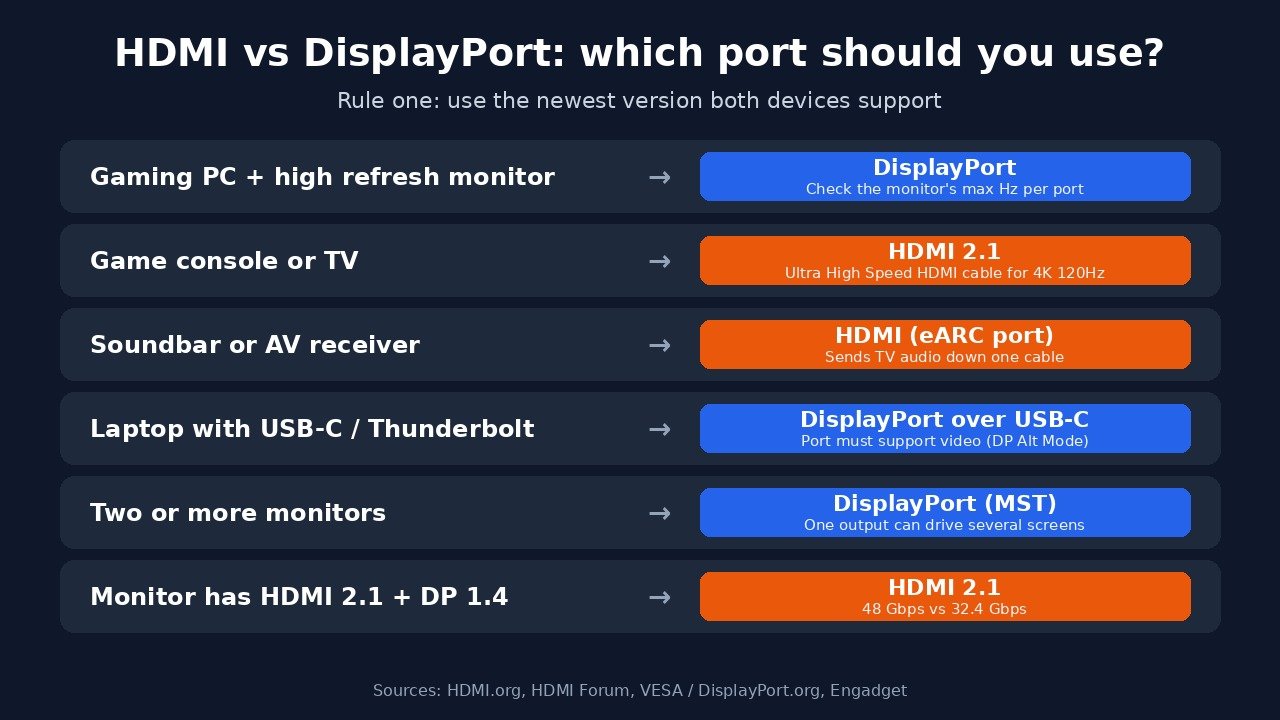
A lot of “DisplayPort is better” advice assumes you are comparing the newest DisplayPort with an older HDMI. That is often true on PC monitors, but not always. The trap to watch for is a monitor or graphics card with HDMI 2.1 and DisplayPort 1.4. Going by the figures above, HDMI 2.1 offers up to 48 Gbps while DisplayPort 1.4 tops out at 32.4 Gbps, so in that pairing the HDMI port has more headroom.
That is why the useful question is not “which port is better?” but “what is the best version that both ends support?” A connection only runs at the speed of its weakest link: the output on your PC, the input on your display, and the cable between them.
A quick way to check:
- Look up your graphics card or laptop’s spec page and note the HDMI and DisplayPort versions. If you are not sure which GPU you have, our guide on how to check what GPU you have walks through it.
- Look up your monitor or TV’s spec page for its input versions and its maximum refresh rate at each input. Many monitors only reach their top refresh rate on one port.
- Pick the port where both sides have the newest version, then buy a cable certified for it.
Real hardware shows how close the two have become. NVIDIA’s GeForce RTX 5090 spec page lists DisplayPort 2.1b with UHBR20 at up to 4K 480Hz or 8K 165Hz with DSC (Display Stream Compression), and HDMI 2.1b at up to 4K 480Hz or 8K 120Hz with DSC. On that card, DisplayPort only pulls ahead at the 8K end.
Which port should you use for your setup?
Gaming PC with a high refresh rate monitor
Use DisplayPort in most cases. Graphics cards and gaming monitors are built around it, and on monitors with DisplayPort 1.4 or 2.1 that port usually unlocks the highest refresh rate. The exception is the version trap above: if your monitor’s HDMI 2.1 input supports a higher refresh rate than its DisplayPort input, use HDMI. Your monitor’s manual or spec sheet will list the maximum refresh rate per port.
Game console or TV
Use HDMI. Consoles and TVs connect over HDMI, and the console-friendly features such as VRR and ALLM are part of the HDMI specification. For 4K at 120Hz on a current console you want an HDMI 2.1 input on the TV and an Ultra High Speed HDMI cable. If you are still choosing the TV itself, our OLED vs QLED guide covers the panel side of that decision.
Soundbar or home theater receiver
Use HDMI, and specifically the TV port labelled eARC (or ARC). eARC lets the TV send audio from its own apps and from other inputs down one HDMI cable to the soundbar or receiver. DisplayPort does not have an equivalent return channel. If audio goes missing on a PC connected to a TV or monitor, check which device Windows is sending sound to; our no sound on Windows 11 fixes cover that.
Laptop with USB-C or Thunderbolt
Your USB-C port may already be a DisplayPort output. Many laptops send video over USB-C using DisplayPort Alt Mode, and DisplayPort.org notes that Thunderbolt and USB4 carry DisplayPort too. That means a USB-C to DisplayPort cable, or a monitor with a USB-C input, can be the cleanest option, often with charging over the same cable. Not every USB-C port supports video, so check for a DisplayPort or Thunderbolt symbol or your laptop’s spec page. Our USB-C vs Thunderbolt explainer goes deeper on which ports do what.
Two or more monitors
DisplayPort has the edge. With MST, one DisplayPort output can drive more than one screen, either through a dock or by daisy-chaining monitors that have a DisplayPort out port (DisplayPort.org). HDMI has no built-in daisy-chaining, so each HDMI screen needs its own output. Support depends on your computer and operating system as well as the monitors, so check your laptop or Mac’s support page before buying monitors specifically for daisy-chaining.
Office or side hustle desk
For a 1080p or 1440p monitor at 60Hz to 75Hz used for documents, spreadsheets, editing or calls, either port works and you will not see a difference in picture quality. Use whichever port your computer and monitor share, and spend your effort on a sensible monitor size and a good chair instead.
Cables: what to buy
Most “my monitor will not hit 144Hz” or “the screen keeps blacking out” problems come down to an old or uncertified cable, not the port. Both standards now have official certification names you can look for on the box:
- Ultra High Speed HDMI Cable: the certified cable for HDMI 2.1 and up to 48 Gbps (HDMI.org).
- Ultra96 HDMI Cable: the new certified cable for HDMI 2.2, supporting up to 96 Gbps; every certified length is tested and carries a certification label (HDMI Forum).
- DP80: VESA-certified DisplayPort cable for UHBR20 and up to 80 Gbps (VESA).
- DP80LL: a newer active “low loss” version that VESA says supports UHBR20 over cables up to three meters, about three times the length of passive DP80 cables (VESA).
Practical tips: keep high-bandwidth cables as short as your desk allows, buy from a brand that shows the certification label, and do not pay extra for “gold” marketing on a cable for a 60Hz office monitor. If your setup only needs 4K at 60Hz, nearly any certified modern cable is enough.
Adapters and converters
Adapters work, but direction matters. Many graphics cards can send an HDMI signal out of a DisplayPort port, so a simple DisplayPort-to-HDMI adapter or cable usually works when the PC is the source. Going the other way, from an HDMI source to a DisplayPort-only monitor, normally needs an active converter with its own chip, and some need USB power. Adapters can also cap you at the adapter’s own version, so a cheap one may limit refresh rate or drop features like VRR. If a high refresh rate matters, use a direct cable with matching ports wherever you can.
HDMI vs DisplayPort FAQ
Is DisplayPort better than HDMI?
For PC monitors, DisplayPort is usually better because graphics cards and gaming monitors support it well and it can drive multiple screens from one output. For TVs, consoles and soundbars, HDMI is better because those devices use it and it adds eARC and CEC. When a device has HDMI 2.1 but only DisplayPort 1.4, the HDMI port has more bandwidth.
Is DisplayPort or HDMI better for gaming?
On a gaming PC with a monitor, DisplayPort is usually the safer choice for the highest refresh rates. On a console or a TV, use HDMI 2.1, which supports gaming features such as VRR and ALLM. Check your monitor’s spec sheet, because some monitors reach their maximum refresh rate on only one of the two ports.
What is the difference between HDMI 2.1 and DisplayPort 1.4?
HDMI 2.1 supports up to 48 Gbps of bandwidth, while DisplayPort 1.4 supports up to 32.4 Gbps. If both ports are available on your monitor and graphics card, HDMI 2.1 has more headroom for high resolution and refresh rate, as long as you use an Ultra High Speed HDMI cable.
What about HDMI 2.2 and DisplayPort 2.1?
They are the newest versions of each standard. HDMI 2.2, released in June 2025, supports up to 96 Gbps with an Ultra96 cable. DisplayPort 2.1 supports up to 80 Gbps with UHBR20 and a DP80 cable. You only benefit if your source, display and cable all support the same top tier.
Does HDMI or DisplayPort have better picture quality?
At the same resolution, refresh rate and color depth, the picture looks the same. Both are digital connections. Differences only appear when one connection lacks the bandwidth for a setting, which forces a lower refresh rate, lower color depth or compression.
Do I need a new cable?
You need a new cable if you are moving to a higher bandwidth version, for example 4K at 120Hz over HDMI 2.1 or UHBR20 over DisplayPort 2.1. Look for the certified names on the box: Ultra High Speed or Ultra96 for HDMI, and DP54, DP80 or DP80LL for DisplayPort.
Can I use HDMI and DisplayPort at the same time?
Yes. A graphics card can drive one monitor over DisplayPort and another over HDMI at the same time. That is a common way to run two screens from one PC.
The bottom line
Use DisplayPort for a PC and monitor, especially for high refresh rate gaming or multiple screens. Use HDMI for TVs, consoles, soundbars and anything in the living room. Before you settle on either, check the version on both ends: an HDMI 2.1 port can beat a DisplayPort 1.4 port, and the newest HDMI 2.2 and DisplayPort 2.1 speeds only appear with a matching certified cable. Get those three pieces lined up, and either port will give you the picture you paid for.

The Teck Hustlers Editorial Team covers technology, business, finance and gaming news for readers who want the story behind the headline. Every article is researched, written and edited by our in-house team, checked against company announcements, filings and reputable reporting, and updated when new facts emerge. We focus on what each development means for founders, professionals, investors and everyday users. Have a tip or a correction? Reach us through our contact page.