TL;DR: USB-C vs Thunderbolt isn’t an either-or choice, because they describe different things. USB-C is the oval, reversible connector shape. Thunderbolt (versions 3, 4 and 5) is a high-speed connection standard from Intel that uses that same USB-C connector. A plain USB-C port might only manage 480 Mbps or 10 Gbps, while Thunderbolt 4 guarantees 40 Gbps and Thunderbolt 5 offers 80 Gbps (up to 120 Gbps in one direction). Look for the lightning-bolt icon or the spec sheet, and buy cables rated for the speed you need.
The USB-C vs Thunderbolt question confuses almost everyone who has bought a new laptop, dock or cable in the last few years. Two ports can look identical yet behave completely differently: one drives two 4K monitors and an external SSD at full speed, the other barely charges your phone. This guide explains the difference in plain English, compares the main versions in a table and shows how to tell which port you actually have.
The short answer: shape vs. standard
- USB-C (USB Type-C) is a connector: the physical plug and port. It is reversible, small and used by phones, laptops, tablets and accessories.
- USB 2.0, USB 3.2 and USB4 are data standards that can run over a USB-C connector, at very different speeds.
- Thunderbolt 3, 4 and 5 are Intel standards that also use the USB-C connector, with stricter, guaranteed minimum capabilities.
So every Thunderbolt 3, 4 or 5 port is a USB-C port, but not every USB-C port is a Thunderbolt port. (Older Thunderbolt 1 and 2 used the Mini DisplayPort shape and are rare today.)
USB-C vs Thunderbolt: speed and features compared
| Standard (over USB-C) | Max data speed | Notes |
|---|---|---|
| USB 2.0 | 480 Mbps | Common on cheap phones and charging-only ports |
| USB 3.2 Gen 1 / Gen 2 | 5 / 10 Gbps | Typical on mid-range laptops and many hubs |
| USB 3.2 Gen 2×2 | 20 Gbps | Less common, mostly desktop PCs and fast SSDs |
| USB4 (USB 40Gbps) | 20 or 40 Gbps | Built on Intel’s Thunderbolt protocol; display and PCIe support vary by device |
| USB4 Version 2.0 (USB 80Gbps) | 80 Gbps | Needs 80 Gbps certified cables |
| Thunderbolt 3 | 40 Gbps | Launched 2015; first Thunderbolt version on USB-C |
| Thunderbolt 4 | 40 Gbps | Same top speed as TB3 but with stricter guaranteed minimums |
| Thunderbolt 5 | 80 Gbps (up to 120 Gbps one way) | Bandwidth Boost for high-refresh displays; up to 240 W charging |
The USB-IF, the group behind USB, says USB4 is “based on the Thunderbolt protocol specification contributed by the Intel Corporation” and supports up to 80 Gbps over 80 Gbps certified cables. In other words, modern USB and Thunderbolt are close cousins, and good USB4 ports can work with many Thunderbolt 3 devices.
What Thunderbolt 4 guarantees that USB-C doesn’t
The biggest practical difference is predictability. A “USB-C” label tells you almost nothing about speed, video output or charging. Thunderbolt certification, managed by Intel through the Thunderbolt Technology Community, sets minimum requirements. For Thunderbolt 4, Intel’s published minimums include:
- 40 Gbps data transfer
- Support for two 4K displays or one 8K display
- PCIe data at up to 32 Gbps (useful for fast external SSDs and GPU enclosures)
- Laptop charging on at least one port, plus up to 15 W for powered accessories
- Support for docks with up to four Thunderbolt ports and waking the computer from sleep through a dock
- Intel VT-d based DMA protection against certain physical attacks
Thunderbolt 5, which Intel announced in 2023, doubles bandwidth to 80 Gbps in both directions and can boost to 120 Gbps in one direction for demanding displays. It also supports charging of up to 240 W.
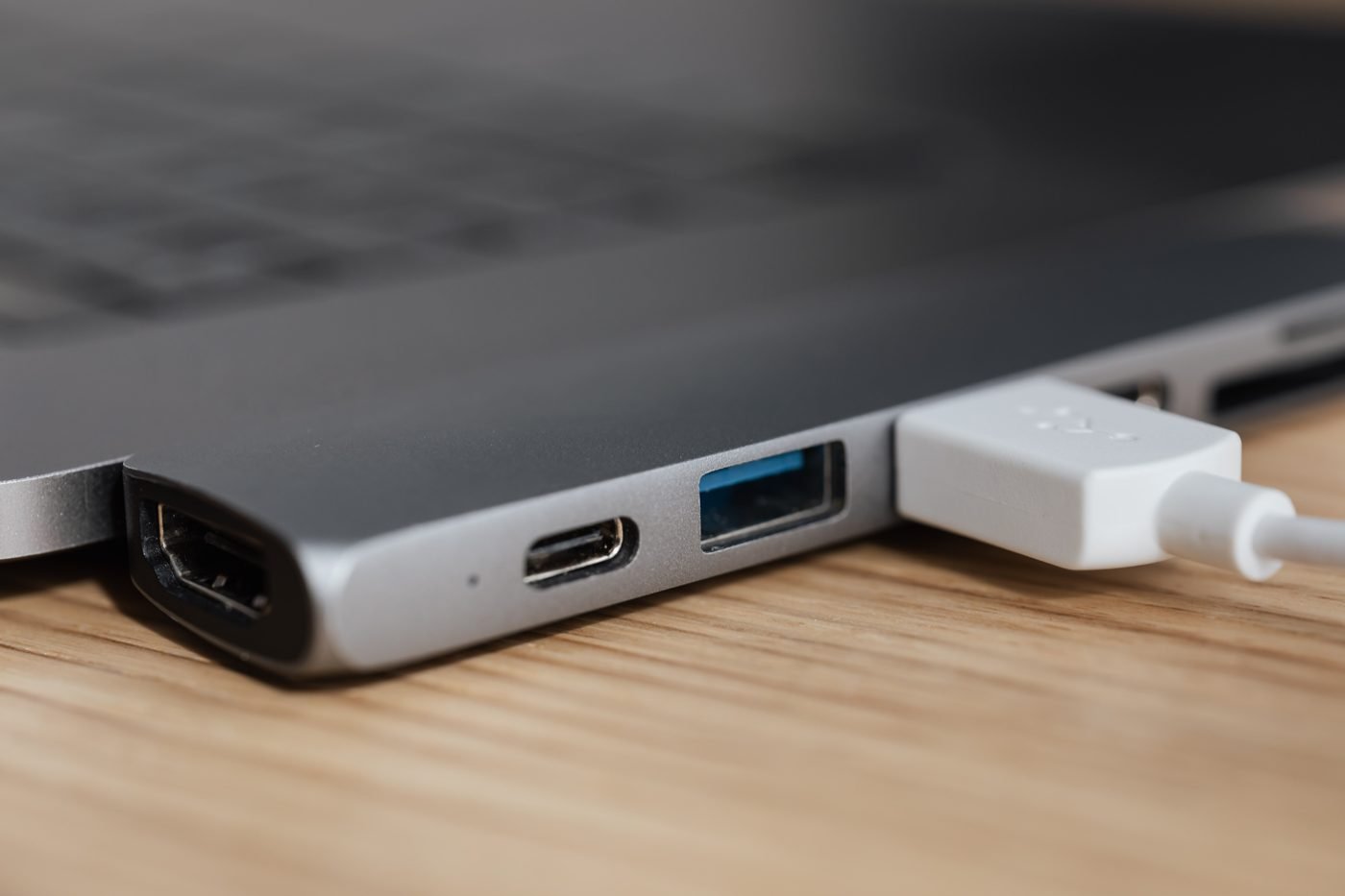
How to tell which port you have
1. Look for the icon
Thunderbolt ports usually have a small lightning-bolt symbol next to them, sometimes with a number. USB ports may show the USB trident logo, often with a speed such as “10” or “40”. Many laptops, including Macs, skip icons entirely, so don’t rely on this alone.
2. Check the spec sheet
Search for your exact model on the manufacturer’s site and look for “Thunderbolt 4”, “Thunderbolt 5”, “USB4” or “USB 3.2 Gen 2.” Note that some laptops have one Thunderbolt port and one slower USB-C port side by side.
3. Check in the operating system
- Windows 11: look for a “Thunderbolt Control Center” app or a USB4 entry under Settings > Bluetooth & devices > USB. Device Manager may also list Thunderbolt or USB4 controllers.
- Mac: open System Information (hold Option and click the Apple menu) and select Thunderbolt/USB4.
The same Windows tools are useful for other hardware checks too, like finding what GPU you have or your laptop battery health.
Cables matter as much as ports
A fast port connected through a slow cable runs at the cable’s speed. Many USB-C cables bundled with phones are USB 2.0 only, which is fine for charging but slow for data and unable to carry video. Charging is a separate rating too: standard USB-C cables carry up to 60 W, while cables rated for 100 W or 240 W are needed for power-hungry laptops under USB Power Delivery. If you want full speed, buy a cable labelled for Thunderbolt 4/5 or USB 40Gbps/80Gbps.
Which do you actually need?
| Your use | What’s enough |
|---|---|
| Charging, keyboard, mouse, phone sync | Any USB-C port |
| External hard drive or basic SSD | USB 3.2 Gen 2 (10 Gbps) |
| Single external monitor | USB-C with DisplayPort Alt Mode, or USB4 |
| Two 4K monitors through one dock | Thunderbolt 4 or a capable USB4 port |
| Fast NVMe enclosures, video editing, eGPU | Thunderbolt 4 or 5 |
| High-refresh 4K/8K displays, future-proofing | Thunderbolt 5 or USB 80Gbps |
Common myths
- “USB-C is always fast.” No. The connector says nothing about speed; some USB-C ports are USB 2.0.
- “Thunderbolt devices only work with Thunderbolt ports.” Many Thunderbolt docks and drives fall back to slower USB modes on regular ports, but some (like certain eGPUs) need Thunderbolt or USB4.
- “Thunderbolt 4 is faster than Thunderbolt 3.” Both top out at 40 Gbps. Thunderbolt 4’s advantage is guaranteed features, not raw speed.
Bottom line
USB-C is the plug; Thunderbolt is a premium standard that rides on it. For everyday charging and accessories, any USB-C port works. For docks, multiple monitors and fast external storage, look for Thunderbolt 4, Thunderbolt 5 or USB4 on the spec sheet, and pair it with a cable rated for the same speed. If you’re also upgrading your network, our guide to Wi-Fi 7 covers the wireless side, and our unified memory vs SSD explainer helps with Mac buying decisions.

The Teck Hustlers Editorial Team covers technology, business, finance and gaming news for readers who want the story behind the headline. Every article is researched, written and edited by our in-house team, checked against company announcements, filings and reputable reporting, and updated when new facts emerge. We focus on what each development means for founders, professionals, investors and everyday users. Have a tip or a correction? Reach us through our contact page.