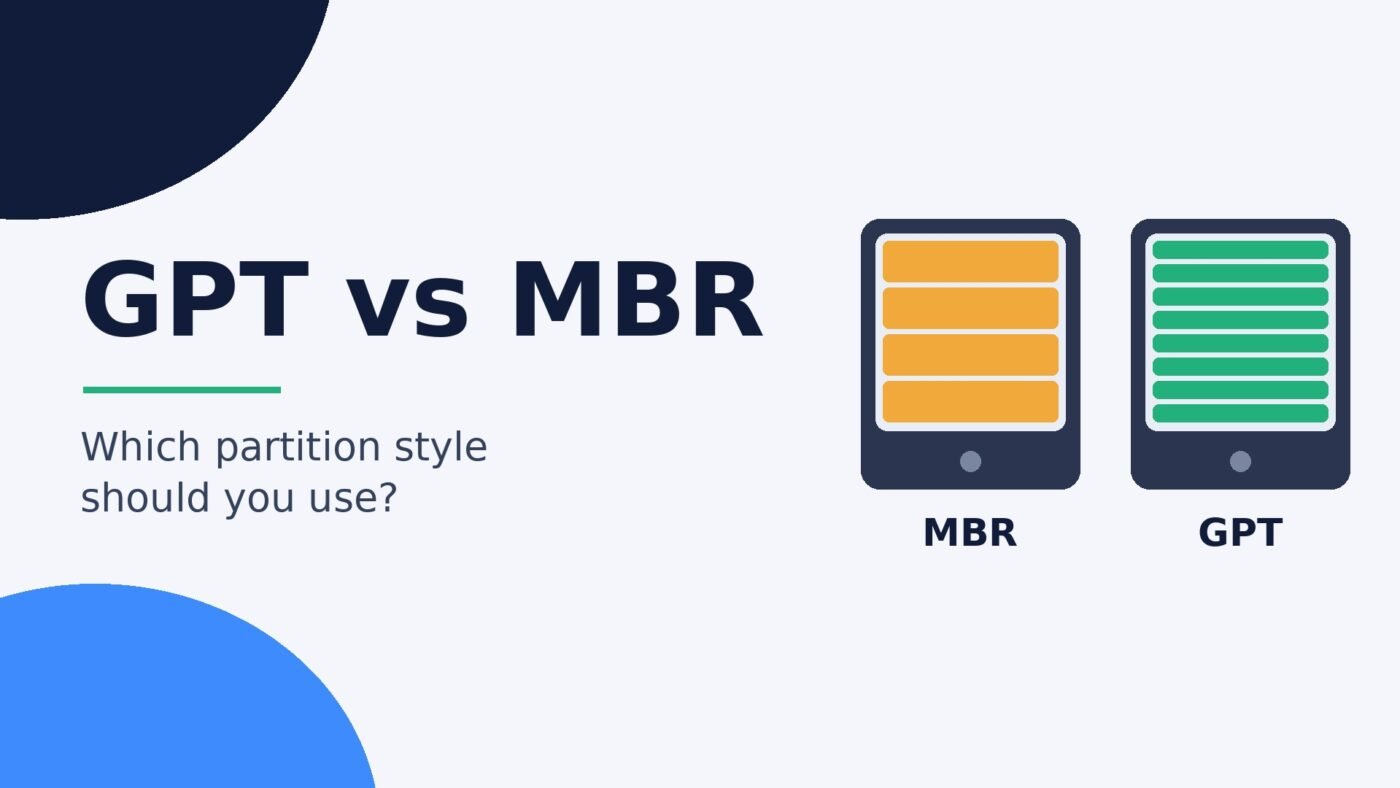
Use GPT for almost every drive you set up today: new SSDs and hard drives, any disk larger than 2 TB, and the system drive of any PC that boots in UEFI mode, which includes every Windows 11 PC. Use MBR only when an old PC boots in legacy BIOS mode or an older device specifically needs it. MBR tops out at 2 TB and four primary partitions, while GPT handles far larger disks, up to 128 partitions in Windows and keeps a backup copy of its partition table.
Windows asks you to choose between MBR and GPT when you initialize a new drive, and the Windows installer complains loudly if the wrong one is in place. The choice isn’t about speed or which is “better” in the abstract. It comes down to how your PC starts up and how big the disk is. This guide explains both partition styles in plain terms, shows which one to pick for common setups, and walks through how to check and convert a disk safely. Every specific limit links to the official source, mostly Microsoft’s own documentation.
GPT vs MBR at a glance
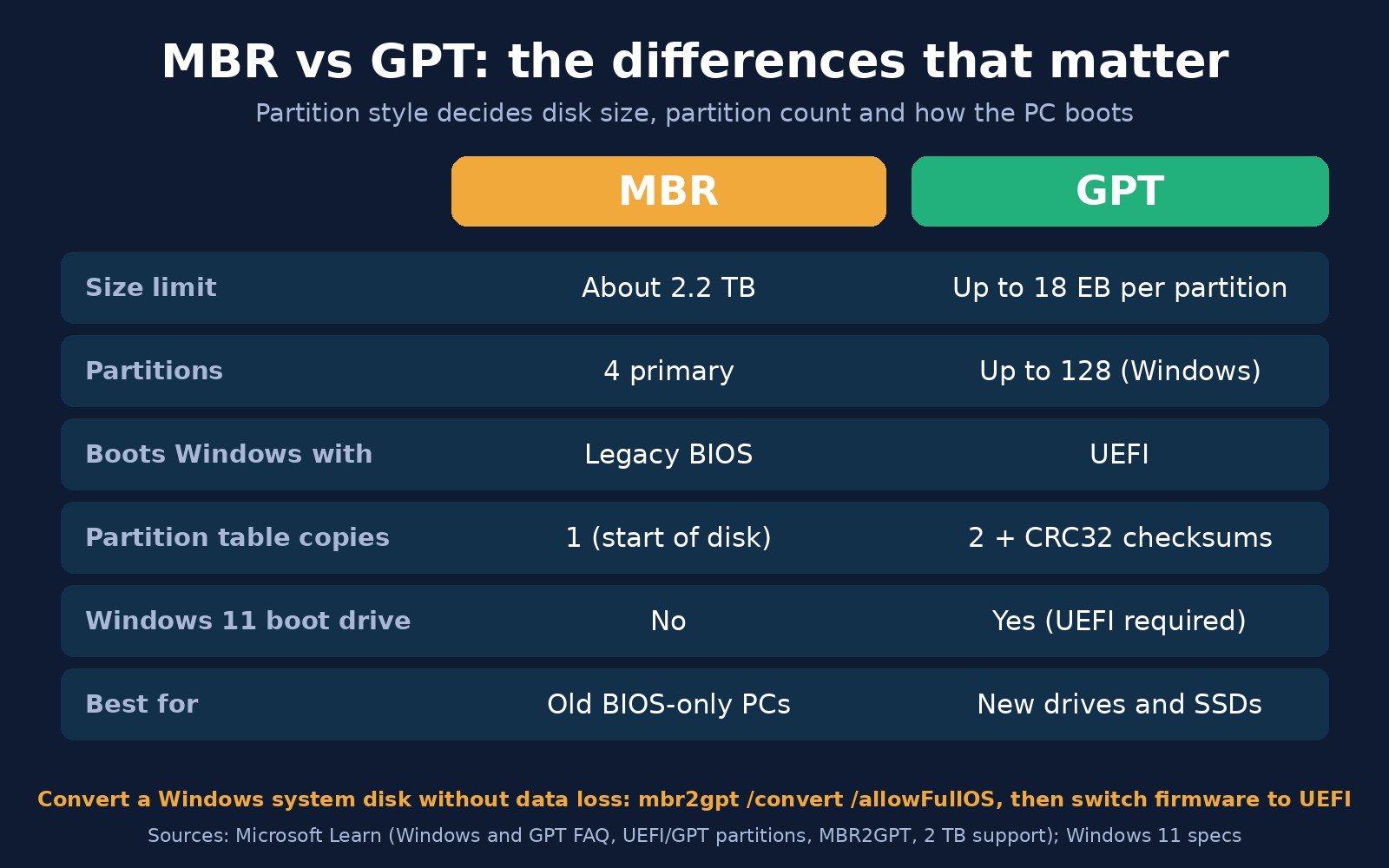
Limits below come from Microsoft’s guide to converting between GPT and MBR, its Windows and GPT FAQ and its UEFI/GPT partition requirements.
| Feature | MBR (Master Boot Record) | GPT (GUID Partition Table) |
|---|---|---|
| Largest usable disk | 2 TB (about 2.2 TB with 512-byte sectors) | Far larger; Windows supports partitions up to 18 exabytes |
| Partitions | 4 primary, or 3 primary plus an extended partition holding logical drives | Up to 128 in Windows, no extended partitions needed |
| Boot firmware for Windows | Legacy BIOS (or UEFI in CSM/legacy mode) | UEFI |
| Copies of the partition table | One, at the start of the disk | Primary and backup, with CRC32 checksums |
| Windows 11 system drive | No (Windows 11 needs UEFI) | Yes |
| Best for | Old BIOS-only PCs and devices that require it | New drives, SSDs, disks over 2 TB, modern PCs |
What MBR and GPT actually are
Before a drive can hold files, it has to be divided into one or more partitions: separate areas that Windows shows as drives such as C: or D:. A partition style is the map that records where each partition starts and ends. MBR and GPT are two different formats for that map.
MBR (Master Boot Record)
MBR dates back to the early IBM PC era. Its partition table lives in the very first sector of the disk and has room for only four entries, so, as Microsoft’s GPT FAQ explains, anything beyond four partitions needs a workaround called an extended partition that is subdivided into logical drives. MBR stores partition positions as 32-bit sector counts. The largest number that fits in 32 bits is 4,294,967,295, and with standard 512-byte sectors that works out to about 2.2 TB, which Microsoft describes as the 2 TB barrier. On a 3 TB disk set up as MBR, Windows can only use the first 2 TB.
GPT (GUID Partition Table)
GPT was introduced as part of the UEFI firmware standard that replaced the old PC BIOS. Each partition gets a globally unique ID (GUID) and a readable name, and the Windows and GPT FAQ notes that GPT keeps a primary and a backup partition table and protects its header with a CRC32 checksum, so damage to one copy can be detected and repaired from the other. Windows allows up to 128 partitions on a GPT drive, each up to 18 exabytes (about 18.8 million terabytes). In practice, the limit you will hit is the size of the drive, not GPT.
Every GPT disk also starts with a “protective MBR”: a dummy MBR entry (type 0xEE) that spans the whole disk. According to Microsoft, it exists so that old MBR-only disk tools see the disk as already in use instead of treating it as empty and overwriting it.
Partition style is not the same as file system
People often mix up GPT/MBR with NTFS/exFAT. They are different layers. The partition style (GPT or MBR) maps the partitions on the disk; the file system (NTFS, exFAT, FAT32) organises the files inside each partition. A GPT disk can hold NTFS and exFAT partitions side by side, and so can an MBR disk. If you are deciding how to format a partition, see our guide to NTFS vs exFAT vs FAT32.
Key differences between GPT and MBR
Disk size
This is the difference most people run into. MBR can’t address space beyond about 2.2 TB on a disk with 512-byte sectors, so the extra capacity on a larger drive simply goes unused. Microsoft says plainly that MBR is limited to disks of 2 TB or smaller and isn’t recommended for larger drives. With 4 TB, 8 TB and larger hard drives now common for backups and storage, GPT is the only sensible choice for them.
Number of partitions
MBR gives you four primary partitions. A typical Windows install already uses several (a system partition, the Windows partition and a recovery partition), so adding a couple of data partitions or a second operating system quickly pushes you into extended and logical partitions. GPT removes that juggling: Windows supports up to 128 partitions per disk.
How the PC boots: UEFI vs BIOS
The partition style of your system drive has to match the firmware mode the PC boots in. Microsoft’s GPT FAQ states that systems booting with UEFI require the boot partition to be on a GPT disk, while its BIOS deployment guide says Windows does not support booting from GPT on BIOS-based computers, which must use MBR. Other drives in the same PC that you don’t boot from can be either style.
This matters most for Windows 11. Microsoft’s Windows 11 system requirements list “UEFI, Secure Boot capable” firmware, and Secure Boot only works in UEFI mode, which in turn needs a GPT system disk. If you are trying to turn on Secure Boot for Windows 11 or a game’s anti-cheat, our guide on how to enable Secure Boot covers the full sequence.
Reliability
MBR keeps a single partition table at the start of the disk. If that sector is damaged or overwritten, the partitions become hard to find even though the data is still there. GPT’s backup table at the end of the disk and its checksums give recovery tools a second copy to work from. It isn’t a substitute for backups, but it removes one single point of failure.
Compatibility
Modern Windows, macOS and Linux all read GPT disks. Windows Vista and later can use GPT disks for data, and 64-bit editions can boot from them on UEFI systems, according to the Windows and GPT FAQ. Very old systems such as 32-bit Windows XP see only the protective MBR and can’t use a GPT disk at all. On a Mac, Apple’s Disk Utility instructions tell you to choose GUID Partition Map (Apple’s name for GPT) when erasing a drive.
Speed
Partition style doesn’t make a drive faster or slower. It is only a map read when the disk is mounted. What you may notice is the firmware mode: Microsoft notes that UEFI can speed up boot and shutdown times and can provide additional security advantages compared with legacy BIOS. For real speed differences between drives, compare SSD vs HDD instead.
GPT or MBR: which should you use?
Start from how the drive will be used. For nearly everyone on a PC built or bought in the last decade, the answer is GPT.
| Situation | Use | Why |
|---|---|---|
| New NVMe or SATA SSD for Windows 10/11 | GPT | Needed to boot in UEFI mode; Windows 11 requires UEFI |
| Second internal drive for games or storage | GPT | No boot requirement, but no reason to accept MBR limits |
| Any disk larger than 2 TB | GPT | MBR can’t use space beyond about 2.2 TB |
| Dual boot Windows and Linux on a UEFI PC | GPT | More partitions, both systems share the EFI system partition |
| Old PC that only has legacy BIOS (no UEFI option) | MBR for the boot drive | BIOS-mode Windows can’t boot from GPT |
| External drive used only with modern PCs and Macs | GPT | Supported by current Windows, macOS and Linux |
| USB stick or drive for an old TV, car stereo or other gadget | Check the device; MBR if unsure | Some older devices only recognise MBR drives |
How to check whether a disk is GPT or MBR
Microsoft’s MBR2GPT documentation describes three ways to check on Windows. None of them change anything on the disk.
Disk Management
- Right-click the Start button and choose Disk Management (or press Windows + R, type
diskmgmt.mscand press Enter). - In the bottom pane, right-click the disk label on the left (for example “Disk 0”) and choose Properties.
- Open the Volumes tab and look at Partition style. It says either GUID Partition Table (GPT) or Master Boot Record (MBR).
Command Prompt (diskpart)
- Open Command Prompt as administrator and type
diskpart. - Type
list diskand press Enter. - Look at the Gpt column. An asterisk (*) means the disk is GPT; a blank means MBR. Type
exitwhen you’re done.
PowerShell
Open PowerShell and run Get-Disk | ft -Auto. The Partition Style column shows GPT, MBR or RAW (not yet initialized) for each disk.
To see whether Windows itself booted in UEFI or legacy mode, open System Information (msinfo32) and check BIOS Mode. “UEFI” goes with a GPT system disk; “Legacy” goes with MBR. Our Secure Boot guide shows this screen step by step.
How to convert MBR to GPT (and back)
There are two very different ways to convert, and picking the wrong one can wipe a drive. Back up anything important before either.
Convert your Windows system drive without losing data: MBR2GPT
Windows includes a tool called MBR2GPT that, according to Microsoft, converts a disk from MBR to GPT “without modifying or deleting data on the disk”. It is meant for the system disk (the one Windows boots from) and can’t convert non-system disks. Before it changes anything, it checks that the disk:
- has no more than three primary partitions and no extended or logical partitions,
- has one active system partition with a valid Windows boot entry,
- has a little free space at the start and end for the GPT tables.
If BitLocker is on, suspend it first; Microsoft notes you’ll need to delete and recreate the BitLocker protectors after conversion. Then:
- Open Command Prompt as administrator.
- Run
mbr2gpt /validate /allowFullOS. If it reports that validation completed successfully, the disk can be converted. - Run
mbr2gpt /convert /allowFullOS. The tool creates an EFI system partition, installs the UEFI boot files and rewrites the partition table. - Restart, open your firmware settings and switch the boot mode from Legacy/CSM to UEFI. Microsoft warns that the converted disk can only boot in UEFI mode, so skipping this step leaves the PC unable to start Windows until you change it.
Make sure the PC actually supports UEFI before converting. Microsoft’s guide to booting in UEFI or BIOS mode shows how to reach the firmware menus, including Shift + Restart > Troubleshoot > Advanced options > UEFI Firmware Settings from inside Windows.
Convert an empty or data-only drive: Disk Management, diskpart or PowerShell
For a second drive, the built-in tools can switch partition style only when the disk doesn’t contain any partitions or volumes. That means everything on it gets deleted, so copy the files off first.
- Disk Management: delete every volume on the disk, then right-click the disk and choose Convert to GPT Disk (or Convert to MBR Disk).
- diskpart:
list disk,select disk N,clean(this erases the disk), thenconvert gpt. - PowerShell:
Clear-Disk -Number N -RemoveData, thenInitialize-Disk -Number N -PartitionStyle GPT.
Double-check the disk number before running clean or Clear-Disk. Choosing the wrong one erases the wrong drive. A brand-new drive usually shows as “Not initialized” in Disk Management; Microsoft’s Disk Management guide shows how to initialize it and choose GPT in one step.
GPT to MBR
Going back to MBR works the same way as the second method: delete all partitions, then convert. There is no built-in Windows tool to convert GPT to MBR while keeping data. Only do it if an old BIOS-only PC or a device genuinely requires MBR.
Fixing “The selected disk is not of the GPT partition style”
This Windows Setup error means the installer was started in UEFI mode, but the target disk is MBR. Microsoft’s Windows Setup guidance gives two ways out:
- Keep the disk as MBR: restart and boot the installer in legacy BIOS mode. This isn’t an option for Windows 11, which requires UEFI.
- Switch the disk to GPT: convert with MBR2GPT to keep data, or delete the partitions and let Setup create a GPT layout, which erases the drive.
If Setup complains about the opposite, that the disk is GPT, the installer was started in legacy BIOS mode. On a modern PC, restart, open the boot menu and pick the entry that starts with “UEFI”, such as the “UEFI: USB Drive” option Microsoft describes, rather than the plain or “BIOS” entry for the same drive.
When Setup builds a GPT layout itself, it creates the partitions UEFI needs: an EFI system partition formatted as FAT32 (at least 200 MB on most drives, 300 MB on 4K-native drives), a 16 MB Microsoft Reserved partition, the Windows partition and a recovery partition. Don’t delete these small partitions later to reclaim space; to free room safely, see how to free up space on Windows 11.
GPT vs MBR: frequently asked questions
Should I use MBR or GPT for an SSD?
Use GPT for an SSD. Being an SSD doesn’t change the answer: GPT is needed to boot Windows in UEFI mode, which Windows 11 requires, and it avoids MBR’s 2 TB and four-partition limits. Partition style has no effect on SSD speed.
Is GPT better than MBR?
For modern PCs, yes. GPT supports much larger disks, up to 128 partitions in Windows, and keeps a backup partition table with checksums. MBR is only better when an old BIOS-only computer or an older device can’t work with GPT.
Can I convert MBR to GPT without losing data?
Yes, for the Windows system disk. Microsoft’s built-in MBR2GPT tool converts it without deleting data, as long as it has three or fewer primary partitions. After converting, switch the firmware to UEFI mode. Converting other disks with Disk Management or diskpart requires deleting all partitions first.
Does Windows 11 need GPT?
For the drive Windows 11 boots from, effectively yes. Windows 11 requires UEFI firmware that is Secure Boot capable, and Windows boots in UEFI mode only from a GPT disk. Extra data drives in the same PC can still be MBR.
What happens if I use MBR on a disk larger than 2 TB?
Windows can only use the first 2 TB or so. On a 3 TB MBR disk, the remaining space can’t be partitioned. Initialize the disk as GPT instead to use its full capacity.
Should a USB flash drive be GPT or MBR?
Either works on current Windows, macOS and Linux; Microsoft says Windows versions after XP support GPT on detachable disks such as USB drives. If the drive will be used with older TVs, cameras or car stereos, MBR is the safer choice because some older devices only recognise MBR. The file system (usually exFAT) matters more for compatibility than the partition style.
The bottom line
GPT is the default for a reason. It removes MBR’s 2 TB and four-partition limits, stores a backup of its partition table, and is what UEFI firmware, Secure Boot and Windows 11 expect. Pick MBR only when an old BIOS-only PC or a picky device leaves you no choice. If you already have an MBR system drive, MBR2GPT can convert it in place, but back up first and remember to switch the firmware to UEFI afterwards. For help choosing an edition for that freshly set-up drive, see Windows 11 Home vs Pro.

The Teck Hustlers Editorial Team covers technology, business, finance and gaming news for readers who want the story behind the headline. Every article is researched, written and edited by our in-house team, checked against company announcements, filings and reputable reporting, and updated when new facts emerge. We focus on what each development means for founders, professionals, investors and everyday users. Have a tip or a correction? Reach us through our contact page.