The quickest safe way to free up space on Windows 11 is to open Settings, go to System, then Storage, and select Cleanup recommendations. Windows lists temporary files, large or unused files, files already synced to the cloud, and apps you rarely use, and shows how much space each would recover. After that, turn on Storage Sense so temporary files and old Recycle Bin items are cleared automatically, and run Disk Cleanup with Clean up system files for leftover Windows Update files. Only move on to advanced fixes, such as turning off hibernation, if you still need room.
Below, every built-in method is listed in a safe order, with what each one deletes and the folders you should never touch. You do not need a third-party “PC cleaner”.
First, see what is using your space
- Check free space: open File Explorer from the taskbar and select This PC. Each drive appears under Devices and drives with a bar showing how full it is, as Microsoft describes.
- See the breakdown: go to Start > Settings > System > Storage. Windows groups usage into categories such as Apps & features, Temporary files, Documents, Pictures and System & reserved. Select Show more categories to see the full list.
- Watch the colour: Microsoft says you are in a low disk state when the capacity bar on the Storage page turns red.
Low disk space is not just an annoyance. Microsoft notes that a full drive can cause slower performance and trouble installing Windows updates. If your PC has also been hanging, our guide to fixing Windows 11 freezing randomly covers the other common causes.
Every method at a glance
“Space you can recover” is deliberately qualitative because it depends entirely on your PC. Windows shows the exact amount before you confirm most of these cleanups.
| Method | What it removes or changes | Space you can recover | Risk | Can you undo it? |
|---|---|---|---|---|
| Cleanup recommendations | Temporary files, large/unused files, cloud-synced copies, unused apps (you choose) | Low to high, shown before you confirm | Low | Deleted files: no. Apps: reinstall |
| Temporary files | Windows Update leftovers, thumbnails, caches, optionally Recycle Bin and Downloads | Low to high | Low (check Downloads box) | No, but caches rebuild |
| Storage Sense | Temp files, old Recycle Bin items, optionally old Downloads and local OneDrive copies | Ongoing, prevents build-up | Low | Turn it off any time |
| Disk Cleanup (system files) | Old update files, previous Windows installation, logs | Medium to high after big updates | Low to medium (removes rollback) | No |
| Uninstall apps and games | Programs you no longer use | Often the largest single win | Low | Reinstall |
| Move large files to another drive | Videos, photos, downloads, archives | Medium to high | Low | Yes, move them back |
| OneDrive Files On-Demand | Local copies of cloud files (kept online) | Depends on OneDrive size | Low (needs internet to open) | Yes |
| Turn off hibernation | hiberfil.sys (about the size of your RAM) | Medium to high on PCs with lots of RAM | Medium (no hibernate or hybrid sleep) | Yes, one command |
| Component store cleanup (DISM) | Superseded Windows component versions | Low to medium | Medium with /ResetBase | No |
| Compress the drive / Compact OS | Stores files compressed (nothing deleted) | Medium | Low to medium (small CPU cost) | Yes |
| Reduce System Restore space | Older restore points | Varies | Medium (fewer restore points) | Partly |
Easy, safe fixes to try first
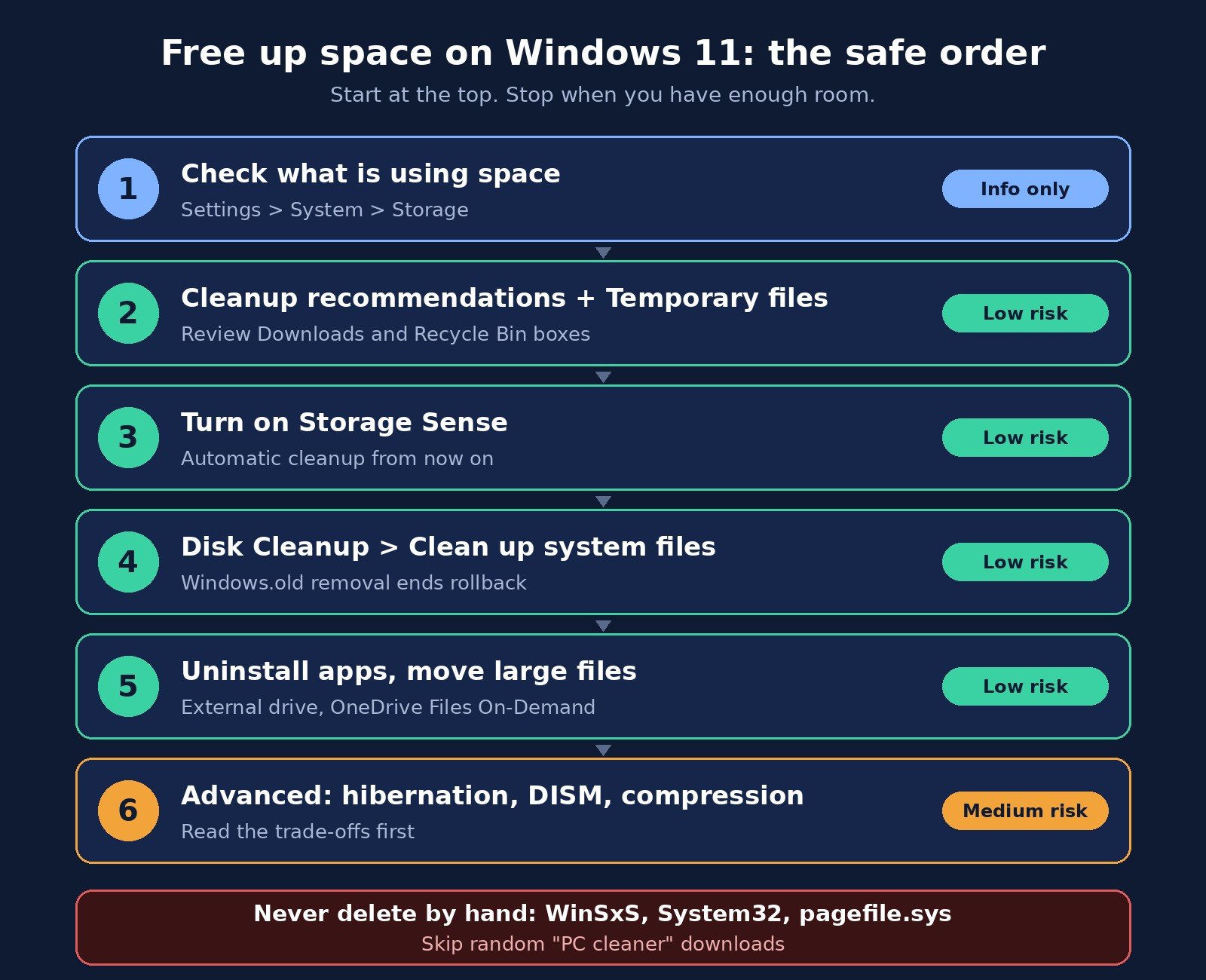
Microsoft’s own advice is to try the methods in order and check your free space after each step. Here is that order, with the details that matter.
1. Run Cleanup recommendations
- Go to Start > Settings > System > Storage > Cleanup recommendations.
- Review each category: Temporary files, Large or unused files, Files synced to the cloud and Unused apps.
- Tick only the items you are sure about, then select Clean up under each section.
Look carefully at Large or unused files: it can include things you want to keep, such as a video archive or backup. Move those instead of deleting them.
2. Clear temporary files
- Go to Start > Settings > System > Storage and select Temporary files.
- Wait for Windows to calculate sizes, then tick the categories you want to remove, such as Windows Update Cleanup, Delivery Optimization Files, Thumbnails and Temporary files.
- Select Remove files.
Two boxes deserve a second look. Downloads deletes everything in your Downloads folder, which may include installers or documents you still need. Recycle Bin permanently removes anything you deleted earlier. If you see Previous Windows installation(s), read the Windows.old note below before ticking it.
3. Turn on Storage Sense
Storage Sense is Windows 11’s automatic cleaner. According to Microsoft, it is off by default, and once turned on with default settings it runs when your device is low on disk space and clears unnecessary temporary files. Your Downloads folder and OneDrive files are left alone unless you tell it otherwise.
- Go to Start > Settings > System > Storage and switch Storage Sense on.
- Select Storage Sense to open its settings.
- Under Run Storage Sense, choose how often it runs (for example every week or every month instead of only when space is low).
- Choose how long items stay in the Recycle Bin and Downloads folder before removal. Set Downloads to Never if you use it as a working folder.
- Select Run Storage Sense now for an immediate cleanup.
Keep in mind that Storage Sense only works on your system drive (usually C:), and it only runs when you are signed in and have been online for more than 10 minutes, per the same Microsoft page.
4. Run Disk Cleanup with “Clean up system files”
- Open Start, type disk cleanup and open it.
- Pick your C: drive and select OK.
- Select Clean up system files, pick C: again, and wait while it recalculates.
- Tick the categories you want to remove, select OK, then Delete files.
A note on Windows.old: after a major upgrade, Windows keeps your previous installation in a Windows.old folder so you can roll back. Microsoft explains that if it has been fewer than 10 days since you upgraded, the previous version is listed as something you can delete, but deleting it cannot be undone and you will no longer be able to go back. Remove it only once you are happy the new version works. You can also remove it from Settings > System > Storage > Temporary files > Previous Windows Installation(s).
5. Empty the Recycle Bin and tidy Downloads
Deleted files sit in the Recycle Bin and still take up space. Right-click the Recycle Bin on your desktop and choose Empty Recycle Bin once you are sure nothing in it is needed. Then open your Downloads folder, switch to Details view, sort by Size, and delete old installers, ZIP files and disk images you have already used.
6. Uninstall apps and games you do not use
- Go to Start > Settings > Apps > Installed apps.
- Use the Sort by menu and choose Size (large to small).
- Select the three-dot menu next to an app you no longer use and choose Uninstall.
Games are often the biggest items here. To keep a game but free your C: drive, check whether its launcher can move the install to another drive.
Move files instead of deleting them
7. Find and move your largest files
- Open File Explorer and go to your Videos, Pictures, Music and Downloads folders, which Microsoft says usually contain the largest files.
- Select View > Details, then right-click an empty area and choose Sort by > Size.
- Select the files you want to move, choose Cut, open your external drive, USB stick or SD card, and choose Paste.
Using an SD card on a laptop? Here is how to insert or remove an SD card in your PC safely. If you import phone photos, our guide on transferring photos from iPhone to PC shows how to choose where they land.
8. Save new files to another drive
If your PC has a second drive, tell Windows to use it by default: go to Start > Settings > System > Storage > Advanced storage settings > Where new content is saved and choose a different drive for new apps, documents, music, photos, videos and maps. Existing files stay put.
9. Turn on OneDrive Files On-Demand
If you use OneDrive, Files On-Demand keeps a small placeholder on your PC and the full file in the cloud, downloading it only when you open it. Storage Sense can manage this automatically. Microsoft notes that starting with Windows 11 version 22H2, the default is to make OneDrive files online-only if not opened for more than 30 days, and this setting never permanently deletes anything. Files marked Always keep on this device are left alone. The trade-off is that online-only files need an internet connection to open.
Advanced options (use with care)
Each of these has a trade-off, so use them only if the easy fixes were not enough. Most require an administrator Command Prompt: open Start, type cmd, right-click Command Prompt and choose Run as administrator.
10. Turn off (or shrink) the hibernation file
Windows keeps a hidden file called hiberfil.sys in the root of your C: drive so it can hibernate. Microsoft says its size is approximately equal to the amount of RAM installed, so it can be large on PCs with plenty of memory. (Not sure how much RAM you have or what it does? Our RAM vs VRAM explainer covers the basics.)
- To remove it, run
powercfg.exe /hibernate offin an administrator Command Prompt. - To shrink it instead, run
powercfg /h /type reduced, which Microsoft says reduces the file by 30%. - To bring it back, run
powercfg.exe /hibernate on.
Trade-off: with hibernation off you cannot hibernate, and hybrid sleep stops working. Microsoft warns you may lose data if power is lost while hybrid sleep would otherwise have protected you. If you hibernate a laptop often, leave it on.
11. Clean up the Windows component store (WinSxS)
The WinSxS folder often looks huge, and it is tempting to delete it. Do not. Microsoft warns that deleting files from WinSxS may severely damage your system so that your PC might not boot or update. Instead, use the cleanup tool Microsoft provides:
Dism.exe /online /Cleanup-Image /StartComponentCleanupWindows runs a similar cleanup on a schedule, but it waits at least 30 days after an update before removing older component versions. Running the command yourself removes them straight away. Microsoft also documents a stronger /ResetBase switch, but after using it you cannot uninstall any existing updates, so most people should skip it. The Windows Update Cleanup option in Disk Cleanup also helps reduce the component store.
12. Compress your drive or use Compact OS
Compression shrinks files without deleting anything. Microsoft describes two built-in options:
- Compress the drive: in File Explorer, right-click your C: drive, choose Properties, tick Compress this drive to save disk space, then Apply. Microsoft says this does not delete the contents of the drive and you can undo it later by clearing the box.
- Compact OS: compresses only Windows system files. Run
Compact.exe /CompactOS:alwaysin an administrator Command Prompt. In Microsoft’s own size comparison for Windows 10 Home x64 (version 1607), Compact OS cut the base footprint from 15.06GB to 11.3GB. Results on your Windows 11 PC will differ. To undo it, runCompact.exe /CompactOS:never.
Compressed files are decompressed as they are read, which uses some processor time; keep that in mind on older, slower PCs.
13. Limit how much space System Restore uses
Restore points let you roll Windows back after a bad driver or update, and Microsoft notes that the default space they use is relative to the size of the drive. To change it, press Windows + R, type sysdm.cpl, open the System Protection tab, select your C: drive, choose Configure, and lower the Max Usage slider. The same screen has a Delete button that removes all restore points for that drive. Keep at least some space allocated: restore points are a useful safety net, for example before you update graphics drivers.
14. Leave reserved storage alone (usually)
In the Storage page you may see System & reserved taking a big chunk. Part of that is reserved storage, space Windows sets aside so updates can install even when your drive is nearly full. When Microsoft introduced it, the company said it would start at about 7GB and vary with use. Microsoft documents a DISM command that can disable it (DISM.exe /Online /Set-ReservedStorageState /State:Disabled), but turning it off means future updates compete with your files for space.
What you should never delete
- The WinSxS folder or anything inside it. Use DISM or Disk Cleanup instead.
- System32, the Windows folder, or Program Files folders by hand. Uninstall apps from Settings so their files and registry entries are removed properly.
- pagefile.sys and swapfile.sys. These are Windows’ virtual memory files. Windows manages them automatically.
- Files in AppData you do not recognise. Apps keep settings, saves and mail data there.
- Random “PC cleaner” or “registry cleaner” downloads. The built-in tools cover the same ground, and unknown cleaners can bundle unwanted software.
One more check: Microsoft also suggests running a scan with Windows Security if space keeps disappearing for no clear reason, because malware can consume significant drive space.
When cleaning is not enough
If your C: drive fills up again within weeks of a thorough cleanup, the drive is too small for how you use your PC. Your options:
- Add a second drive (internal on most desktops, or external for laptops) and point new content and game libraries at it.
- Upgrade to a larger SSD. If you are still on a hard drive, an SSD upgrade also makes the whole PC feel faster. See our SSD vs HDD comparison to choose.
- Reset Windows as a last resort. Microsoft notes that if you still cannot install updates because of low disk space after trying its steps, resetting or reinstalling Windows might help. Back up first.
Frequently asked questions
How do I free up space on Windows 11 quickly?
Go to Settings > System > Storage > Cleanup recommendations, tick the temporary files, unused apps and large files you do not need, and select Clean up. Then empty the Recycle Bin. Both steps are quick and safe.
What is taking up so much space on my C: drive?
Open Settings > System > Storage and select Show more categories. Windows breaks usage down into apps, temporary files, documents, pictures, videos and System & reserved. Games, videos, Downloads and update leftovers are the usual culprits.
Is it safe to delete temporary files in Windows 11?
Yes. Temporary files listed in Settings > System > Storage > Temporary files are not needed for Windows to run, and caches such as thumbnails rebuild automatically. Just check the Downloads and Recycle Bin boxes, because those contain your own files.
Is Disk Cleanup still available in Windows 11?
Yes. Type “disk cleanup” in the Start menu to open it. Select Clean up system files to include Windows Update leftovers and previous Windows installations.
Can I delete the Windows.old folder?
Yes, once you are happy with your current version of Windows. Remove it from Settings > System > Storage > Temporary files > Previous Windows Installation(s), or with Disk Cleanup. Deleting it cannot be undone and removes the option to roll back to your previous version.
Does Storage Sense delete my personal files?
Not by default. With default settings, Storage Sense clears temporary files and old Recycle Bin items only. It touches your Downloads folder or OneDrive files only if you change those settings,, and online-only OneDrive files stay in the cloud.
Should I turn off hibernation to save space?
Only if you never use hibernate. The hibernation file is roughly the size of your RAM, so turning it off with powercfg /hibernate off can free a lot of space, but hibernate and hybrid sleep will stop working. You can turn it back on with powercfg /hibernate on.
The bottom line
To free up space on Windows 11, start in Settings > System > Storage: run Cleanup recommendations, clear temporary files, and switch on Storage Sense so the mess does not build up again. Run Disk Cleanup’s system file cleanup after big updates, uninstall what you do not use, and move large files to another drive or the cloud. Save advanced fixes like turning off hibernation for when you really need the room, never delete system folders by hand, and if the drive keeps filling up, get a bigger one.

The Teck Hustlers Editorial Team covers technology, business, finance and gaming news for readers who want the story behind the headline. Every article is researched, written and edited by our in-house team, checked against company announcements, filings and reputable reporting, and updated when new facts emerge. We focus on what each development means for founders, professionals, investors and everyday users. Have a tip or a correction? Reach us through our contact page.