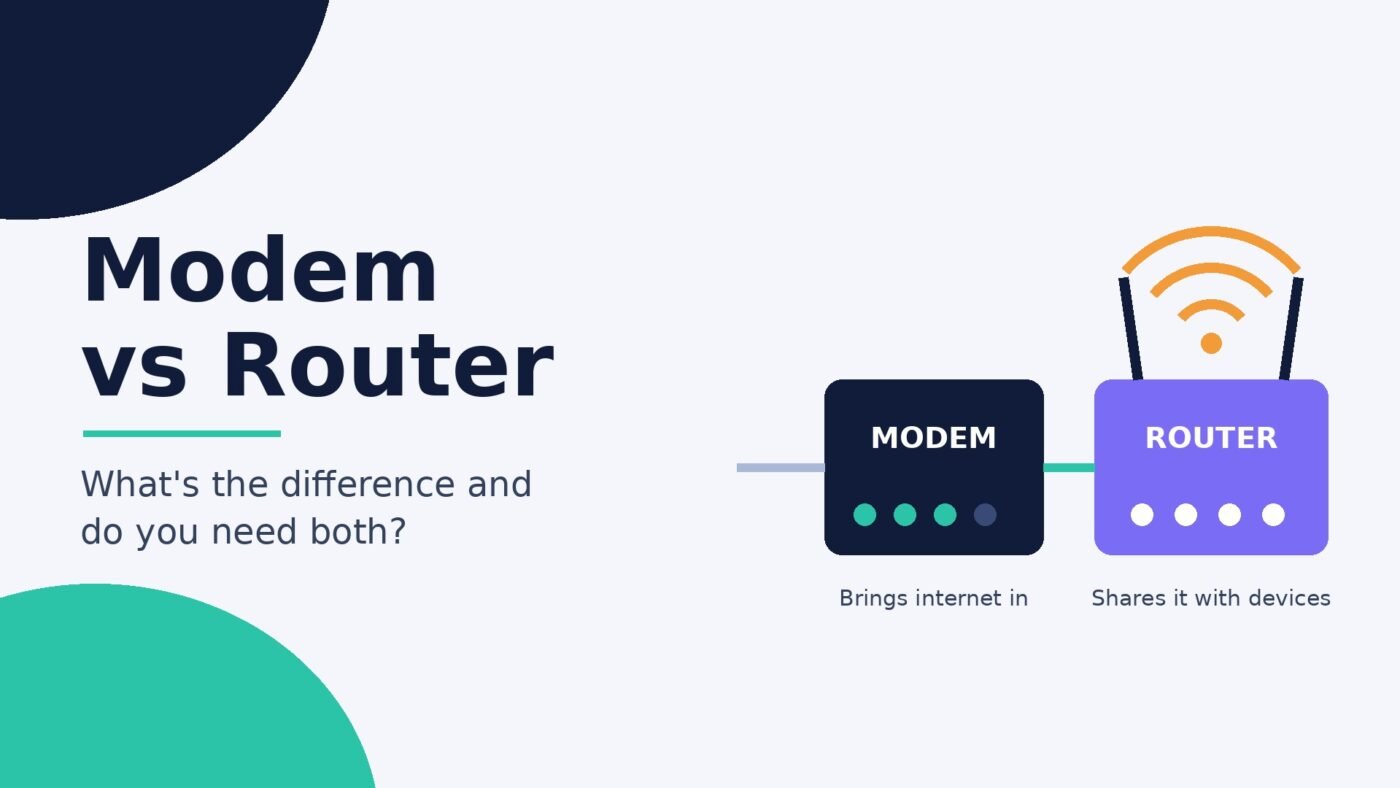
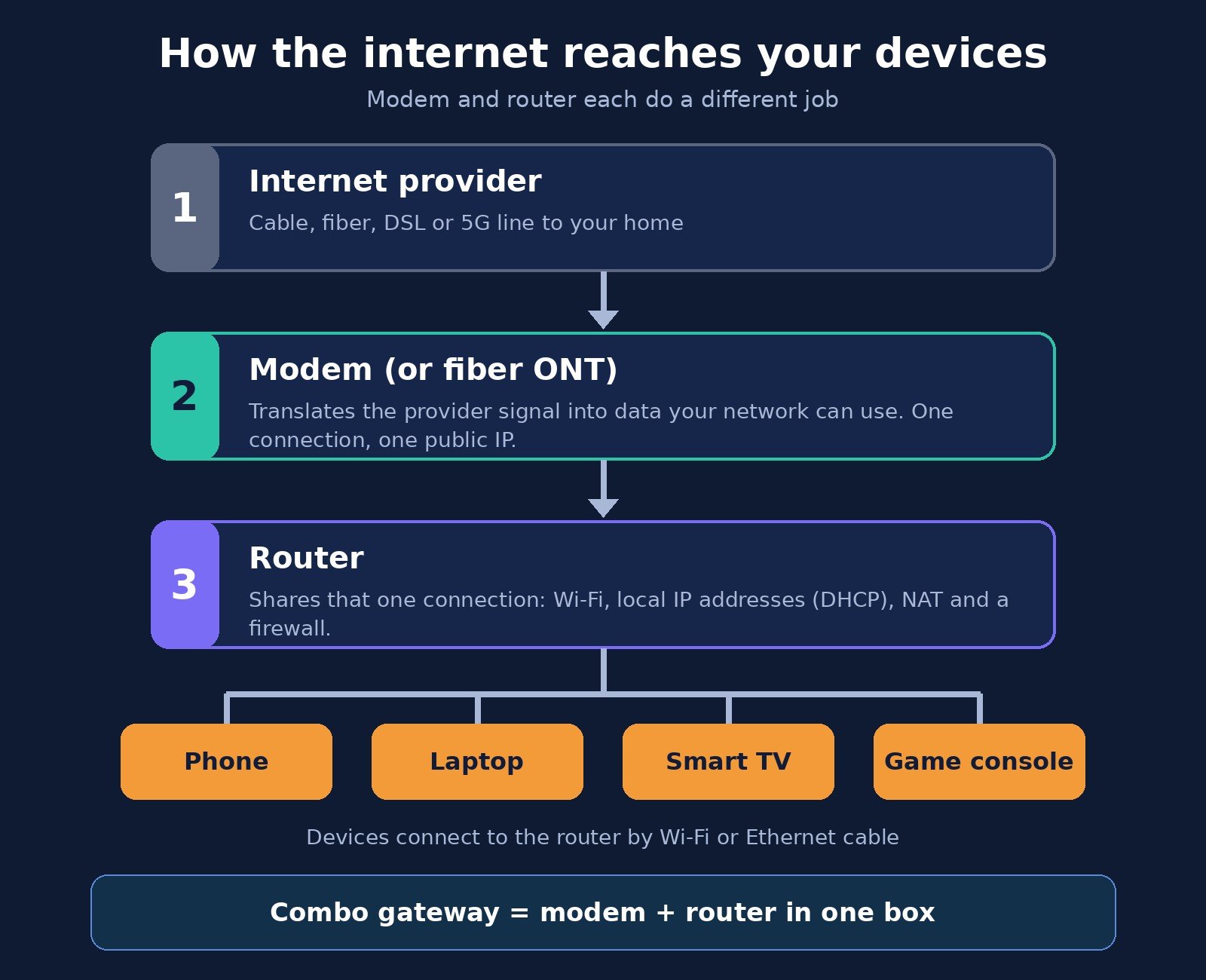
A modem connects your home to your internet service provider (ISP) and brings the internet in. A router takes that single connection and shares it with all your devices, over Wi-Fi and Ethernet cables, while giving each device its own local address and blocking unwanted traffic from outside. You need both jobs done to get Wi-Fi on more than one device, but they’re often built into one box, usually called a gateway or modem-router combo.
If you’ve ever stared at the blinking boxes behind your TV and wondered which one does what, or whether you’re paying for equipment you don’t need, this guide is for you. It covers what each device actually does, how to tell which one you have, when a combo box is enough, and how to figure out which one is to blame when your internet acts up.
What a modem does
The word modem is short for modulator-demodulator. Your ISP delivers internet over a physical line, such as a coaxial cable, a phone line or a fiber-optic strand, and the signal on that line isn’t something your laptop or phone can understand directly. The modem translates between the two. It converts the ISP’s signal into standard digital data your network can use, and converts your outgoing data back into a form the ISP’s network can carry.
A modem gives you one connection to the internet. On its own it usually has a single Ethernet port, it doesn’t create Wi-Fi, and it doesn’t hand out addresses to a houseful of devices. Think of it as the front door: everything coming in or going out passes through it, but it doesn’t decide which room things go to.
Modem types depend on your connection
The kind of modem you need depends on how the internet reaches your home:
- Cable internet: uses a cable modem connected to the coaxial line. Cable modems follow a standard called DOCSIS. According to CableLabs, the group that develops it, DOCSIS 3.1 supports download speeds of up to 10 Gbps and upload speeds of up to 1 Gbps. Your actual speed is set by your plan, not the modem’s maximum.
- Fiber internet: uses a device usually called an ONT (optical network terminal) instead of a traditional modem. It does the same basic job, turning the light signal on the fiber into Ethernet, and the ISP normally installs it.
- DSL: uses a DSL modem connected to a phone line.
- 5G home internet and other fixed wireless: uses a gateway that receives a wireless signal from the provider’s network. These almost always have the router built in.
This matters when you shop: a cable modem won’t work on a DSL line, and a fiber ONT isn’t something you swap for a store-bought model.
What a router does
The router sits between the modem and your devices and builds your home network, often called a local area network or LAN. It does several jobs at once:
- Shares one connection with many devices. Your ISP typically gives your home one public IP address. The router uses a technique called NAT (network address translation) so your phone, laptop, TV and smart speaker can all share it.
- Hands out local addresses. Using DHCP, the router gives each device a private IP address. These come from ranges reserved for private networks in RFC 1918, which is why home addresses so often start with 192.168 or 10. Our guide on how to find your IP address shows the difference between your private and public address.
- Creates Wi-Fi. Wireless routers broadcast your network name and protect it with a password, sometimes called a network security key.
- Directs traffic. When a video arrives from the internet, the router makes sure it reaches the TV that asked for it and not your phone.
- Adds basic protection. Most routers include a firewall that blocks unsolicited incoming connections, plus settings such as guest networks and parental controls.
A router can’t reach the internet by itself. Without a modem (or ONT) feeding it, it can still connect your devices to each other, for example to print or share files, but nothing gets out to the wider internet.
Modem vs router: side-by-side comparison
| Feature | Modem | Router |
|---|---|---|
| Main job | Connects your home to your ISP | Shares that connection with your devices |
| Plugs into | The ISP’s line (coax, phone line, fiber via ONT) | The modem, using an Ethernet cable |
| Creates Wi-Fi | No (unless it’s a combo) | Yes, if it’s a wireless router |
| IP address it deals with | Your public address from the ISP | Private addresses for each device, plus NAT |
| Number of devices | Usually one connection | Many, wired and wireless |
| Security features | Minimal | Firewall, Wi-Fi password, guest network, parental controls |
| Depends on your ISP type | Yes, must match cable, DSL or fiber | No, works with any modem that has Ethernet |
| Works alone? | Yes, for one wired device | Only for a local network, no internet |
Do you need both a modem and a router?
For almost every home, yes, you need both functions. The modem is what gets you online at all, and the router is what lets more than one device use the connection and gives you Wi-Fi.
The one exception is if you only ever connect a single computer with an Ethernet cable. In that case you could plug it straight into a standalone modem and get online. But you’d have no Wi-Fi, no way to add a phone or TV, and no router firewall between that computer and the internet, so it’s rarely a good idea.
What you don’t necessarily need is two separate boxes. Many ISPs hand out a single device that does both jobs.
Modem-router combo (gateway) vs separate devices
A combo unit, which ISPs often call a gateway or hub, puts the modem and router in one case. Separate devices mean a standalone modem plus a router you choose yourself. Both work. The trade-off is simplicity versus control.
Why a combo might suit you
- One box, one power plug and fewer cables.
- Easier setup, and your ISP can often troubleshoot it remotely.
- Fine for small homes, apartments and light to moderate use.
Why separate devices might suit you
- You can upgrade the router, for example to a newer Wi-Fi standard like Wi-Fi 7, without replacing the modem, or replace a failed modem without touching your Wi-Fi setup.
- You can put the router in a better central spot, since the modem has to sit near where the line enters the house.
- Third-party routers and mesh systems often offer more settings, stronger coverage options and longer software support than basic ISP gateways.
- If you move to a provider with a different connection type, you usually only need a new modem; your router and Wi-Fi network name can stay the same.
Quick decision guide
| Your situation | Good fit |
|---|---|
| Small apartment, a few devices, want it simple | ISP combo gateway |
| Larger home with dead zones | Modem plus a mesh Wi-Fi system |
| Gaming, streaming on many screens, home office | Separate modem and a capable router |
| Fiber or 5G home internet | Use the provider’s ONT or gateway; add your own router or mesh if coverage is weak |
| You like tinkering with settings | Separate devices |
How to tell what box you have
Look at the back of the device and the label underneath. A few clues:
- Standalone modem: one input for the ISP line (a round screw-on coax connector for cable, or a small phone-style jack for DSL) and usually just one Ethernet port. No Wi-Fi name or password printed on the label.
- Standalone router: no coax or phone jack at all. It has one Ethernet port marked WAN or Internet (often a different color) plus several LAN ports, and usually a sticker with a default Wi-Fi name and password.
- Combo gateway: has the ISP input and several Ethernet ports, and its label lists a Wi-Fi network name and password. Many also say “gateway” or “modem/router” in the model description.
- Fiber ONT: a small box, often wall-mounted, with a green or blue fiber cable going in and one Ethernet port coming out, usually connected to a separate router or gateway.
If you’re still unsure, search the model number printed on the label. The manufacturer’s product page will say whether it’s a modem, a router or both.
Is the modem or the router causing your internet problems?
When the internet drops or slows down, knowing which box is at fault saves you a long support call. Work through these steps in order:
- Check the lights. On the modem, look for the online, internet or globe light. If it’s off, red or blinking for a long time, the modem isn’t getting a connection from your ISP. If the modem looks fine but no devices can get online, suspect the router.
- Restart both, in order. Unplug the modem and router. Plug the modem back in first and wait until its online light is steady, then plug in the router. This forces a fresh connection on both.
- Test with a cable. Connect a laptop directly to the modem (or ONT) with an Ethernet cable. If the internet works well this way but not over Wi-Fi, the router or its Wi-Fi is the bottleneck. If it’s still down or slow, the problem is the modem, the line or the ISP.
- Check for an outage. Your ISP’s app or status page will usually show known outages in your area.
- Look at the device itself. If only one computer has trouble, the issue may be on that device. Our guide to fixing Wi-Fi that keeps disconnecting on Windows 11 covers the common causes.
If your problem is weak signal in certain rooms rather than no internet at all, the modem isn’t the culprit. That’s a router coverage problem, which is where mesh systems and extenders come in.
Renting vs buying your own modem and router
Many ISPs rent you their gateway for a monthly fee or include it in the plan. Buying your own can pay off over time, but check two things first:
- Compatibility. For cable internet, your modem must be on your ISP’s approved device list and support the speed tier you pay for. Fiber and 5G providers typically require their own ONT or gateway. You can always use your own router behind whatever the ISP provides.
- What you’re actually paying. In the U.S., internet providers must show a broadband label at the point of sale that lists prices and fees, under FCC rules. Your bill or online account should also show any equipment charge, so you can compare it with the cost of buying.
If you buy a modem, keep the ISP’s box until the new one is activated and working, then return the rental so the charge stops.
Bridge mode and double NAT, explained simply
If you add your own router behind an ISP combo gateway, you end up with two routers in a row. Both are handing out addresses and doing NAT, which is called double NAT. Everyday browsing usually works fine, but it can cause trouble with some online games, video calls, port forwarding and certain smart home devices.
The usual fix is to put the ISP gateway in bridge mode (some brands call it modem mode or passthrough). This switches off the gateway’s router features so it behaves like a plain modem and your own router does all the routing and Wi-Fi. The setting lives in the gateway’s admin page or the ISP’s app. Not every ISP gateway offers it, so check your provider’s support pages. If yours doesn’t, you can usually still turn off the gateway’s Wi-Fi so you don’t have two competing networks.
Where mesh Wi-Fi and extenders fit
Mesh systems and extenders are about spreading the router’s Wi-Fi further, not about connecting to your ISP. A mesh system replaces or works alongside your router with several units placed around the home. An extender repeats an existing Wi-Fi signal into a weak spot. Our explainer on how Wi-Fi extenders work covers when one helps and when it doesn’t. Either way, you still need a modem or ONT to bring the internet in.
Frequently asked questions
What is the difference between a modem and a router in simple terms?
A modem brings the internet into your home from your provider. A router shares that internet with your devices, creates your Wi-Fi network and keeps your devices separated from the outside internet. The modem is the connection; the router is the distribution.
Can I use a router without a modem?
Not for internet access. A router needs a modem, ONT or ISP gateway upstream to reach the internet. Without one, it can only create a local network so your devices can talk to each other, for example to share files or use a network printer.
Can I use a modem without a router?
Yes, but only for one device connected by Ethernet cable. You won’t get Wi-Fi or be able to connect more devices, and you lose the firewall a router provides, so most people should use both.
Is a modem-router combo as good as separate devices?
For small homes and everyday use, a combo is usually fine. Separate devices give you more flexibility: you can place the router in a better spot, upgrade Wi-Fi without replacing the modem, and choose features your ISP’s gateway may not offer.
Which one gives me Wi-Fi, the modem or the router?
The router. A standalone modem doesn’t create Wi-Fi at all. If your single ISP box gives you Wi-Fi, it’s a combo device with a router built in.
Do I need a new modem if I get a faster internet plan?
Possibly. Your modem must support the speed tier you pay for. Check your ISP’s list of supported devices for your plan, or ask them. Your router also needs to handle the speed if you want to use it over Wi-Fi or Ethernet.
Should I restart the modem or the router first?
Restart the modem first, wait until its online light is steady, then restart the router. Doing it in that order lets the router get a fresh connection from the modem once the modem is back online.
Bottom line
The modem gets you online and the router shares that connection with everything in your home. Every home with Wi-Fi needs both jobs done, but they can live in one box. If you’re in a smaller space and happy with your ISP’s gateway, there’s no need to change anything. If you want better coverage, more control or the freedom to upgrade one piece at a time, a separate modem and router (or mesh system) is the more flexible setup. And when the internet goes down, a cable test straight into the modem will tell you which box to blame.

The Teck Hustlers Editorial Team covers technology, business, finance and gaming news for readers who want the story behind the headline. Every article is researched, written and edited by our in-house team, checked against company announcements, filings and reputable reporting, and updated when new facts emerge. We focus on what each development means for founders, professionals, investors and everyday users. Have a tip or a correction? Reach us through our contact page.