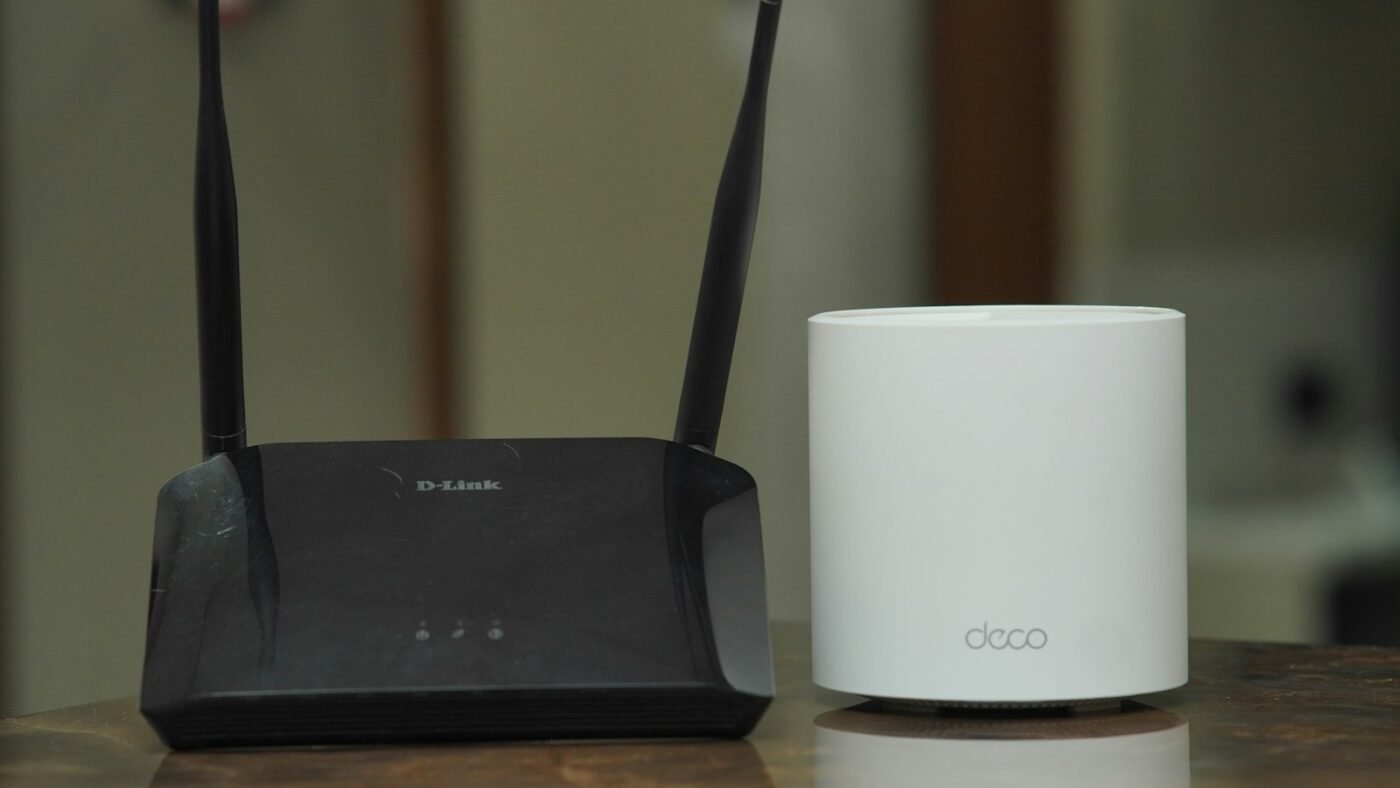
A Wi-Fi extender receives your router’s wireless connection and passes traffic between that router and devices farther away. It can make a weak corner of your home usable, but it does not increase the speed of your internet plan. Its own connection back to the router is just as important as the signal your phone sees.
Think about an upstairs desk where websites barely load. An extender can provide a nearby wireless connection for the laptop, but only if the extender itself receives a usable signal. Plugging it into the very room with no coverage often moves the problem rather than fixing it.
An extender still needs the right wireless credentials during setup; see what a network security key is if that prompt is confusing. Before buying new hardware, our Windows 11 Wi-Fi troubleshooting guide can help you check a device-specific connection problem.
The two connections behind an extender
A typical wireless extender handles two jobs: communicating with your main router and communicating with your phone, laptop or television. The router-facing connection is often called the backhaul. Your traffic must cross both links before reaching the internet. A strong connection to the extender cannot compensate for an unreliable backhaul.
Some products use the same wireless resources for both jobs, while others offer separate bands or radios. That helps explain why two extenders with similar advertised speeds can behave differently. The number on the box is not a promise that a laptop will receive that speed through walls.
Where should you plug it in?
NETGEAR’s placement guidance recommends a position between the router and the client, within the router’s wireless range. Treat halfway as a starting point, not an exact measurement. A thick wall, staircase or metal cabinet can make another outlet work better.
- Start in an outlet where your phone still gets a stable connection directly from the router.
- Keep the extender out in the open rather than behind furniture or inside a cupboard.
- Follow its router-link light or placement assistant, if available.
- Test at the desk or television where you actually need coverage.
- Move the extender one outlet closer to the router if the connection repeatedly drops.
TP-Link’s placement guide also discusses positioning and checking the link. Avoid choosing a location purely because it has a convenient empty socket. A slightly less convenient outlet can provide a much more reliable path.
Will an extender slow down Wi-Fi?
It can reduce the throughput available to a connected device, particularly when receiving and forwarding traffic compete for airtime. There is no universal percentage that applies to every model and room. Hardware, channel use, distance, interference and the router all matter.
Coverage and speed are different measurements. A weak direct connection might manage a video call badly, while a somewhat slower but stable extended connection makes that call usable. Conversely, an extender is a poor solution when you need the highest possible speed beside the router and already have a strong signal.
Compare realistic tasks before judging the result. Open the same website, play the same streaming service and make a short call from your usual workspace. If you use a speed test, run it several times in both locations with other large downloads paused. One unusually good or bad result is not a reliable diagnosis.
How to set up a Wi-Fi extender
- Read the model’s quick-start instructions and connect it to power near the router for initial setup.
- Use the manufacturer’s app, setup page or supported WPS process to connect to your existing network.
- Confirm the network name and password. Some extenders use a separate name; others copy the router’s name.
- Install available firmware through the official interface.
- Move it to the chosen outlet and wait for the router link to reconnect.
- Connect a test device and check the target room before connecting everything else.
Use the setup address printed in the official manual. Search ads and similarly named support sites can lead to unrelated companies. You should not need to give a stranger remote access to your computer simply to choose a wireless network.
Extender, mesh or access point?
An extender is often a practical way to reach one troublesome area without replacing a whole network. A mesh system can make more sense when several rooms need coverage and you want coordinated equipment. Compatibility still matters: an extender advertised as mesh capable may require a particular router family.
A wired access point uses Ethernet back to the router instead of depending on a wireless backhaul. If you can run a cable, that can be a dependable solution for a home office. Some extenders support access-point mode, but check the product’s specifications before assuming its Ethernet port provides that option.
Do not buy a second extender just because the first one is disappointing. First check whether it is too far from the router. Chaining repeaters can introduce additional weak links and make troubleshooting harder.
Diagnose the problem before buying hardware
If the connection is poor beside the router too, the issue may involve your internet service, the router or a specific device. An extender will not repair a provider outage. Compare another device and, where possible, a wired connection. These checks separate a coverage problem from a problem affecting the whole network.
If only one room fails, sketch the route between the router and that room. Repositioning the main router away from a floor-level corner may help before adding equipment. Keep a note of each change so that you do not end up comparing several different layouts at once.
Frequently asked questions
Does a Wi-Fi extender need to be connected to the router with a cable?
Not in its usual wireless extender mode. Some models can use a cable in access-point mode. Those are different configurations, so follow the instructions for your model.
Can an extender use the same network name?
Many can, but naming options vary. A matching name does not by itself guarantee seamless roaming. A separate name can make initial testing easier because you can see which connection the device uses.
Will it work if my internet is already slow?
It may improve a weak wireless connection in a distant room. It cannot raise the speed your provider supplies. Test near the router first to identify the actual bottleneck.
Where should I put an extender in a two-story house?
Try an open area between the router and the upstairs workspace, then test. Construction matters more than floor count alone. A stairwell outlet may outperform one directly below the target room.
Video walkthrough
This video provides a visual introduction. Menu labels and layouts can vary by device and software version; use the written steps above when they differ.
Watch on YouTube by NetWork From Home.
Featured photo: Photo by TechieTech Tech on Unsplash.

The Teck Hustlers Editorial Team covers technology, business, finance and gaming news for readers who want the story behind the headline. Every article is researched, written and edited by our in-house team, checked against company announcements, filings and reputable reporting, and updated when new facts emerge. We focus on what each development means for founders, professionals, investors and everyday users. Have a tip or a correction? Reach us through our contact page.


