You have two IP addresses, and the one you need depends on why you are asking. Your public IP address is the one websites see, and the fastest way to find it is to search “what is my IP” in your browser. Your private (local) IP address is the one your router gave your device, and you find it in your network settings: on Windows 11 go to Settings, Network & internet, then your Wi-Fi or Ethernet properties and read the IPv4 address; on an iPhone go to Settings, Wi-Fi and tap the info button next to your network.
This guide shows both addresses on every common device, explains which one you need for things like port forwarding, printers or game servers, and covers why the number you see sometimes looks wrong.
Public vs private IP: which one do you need?
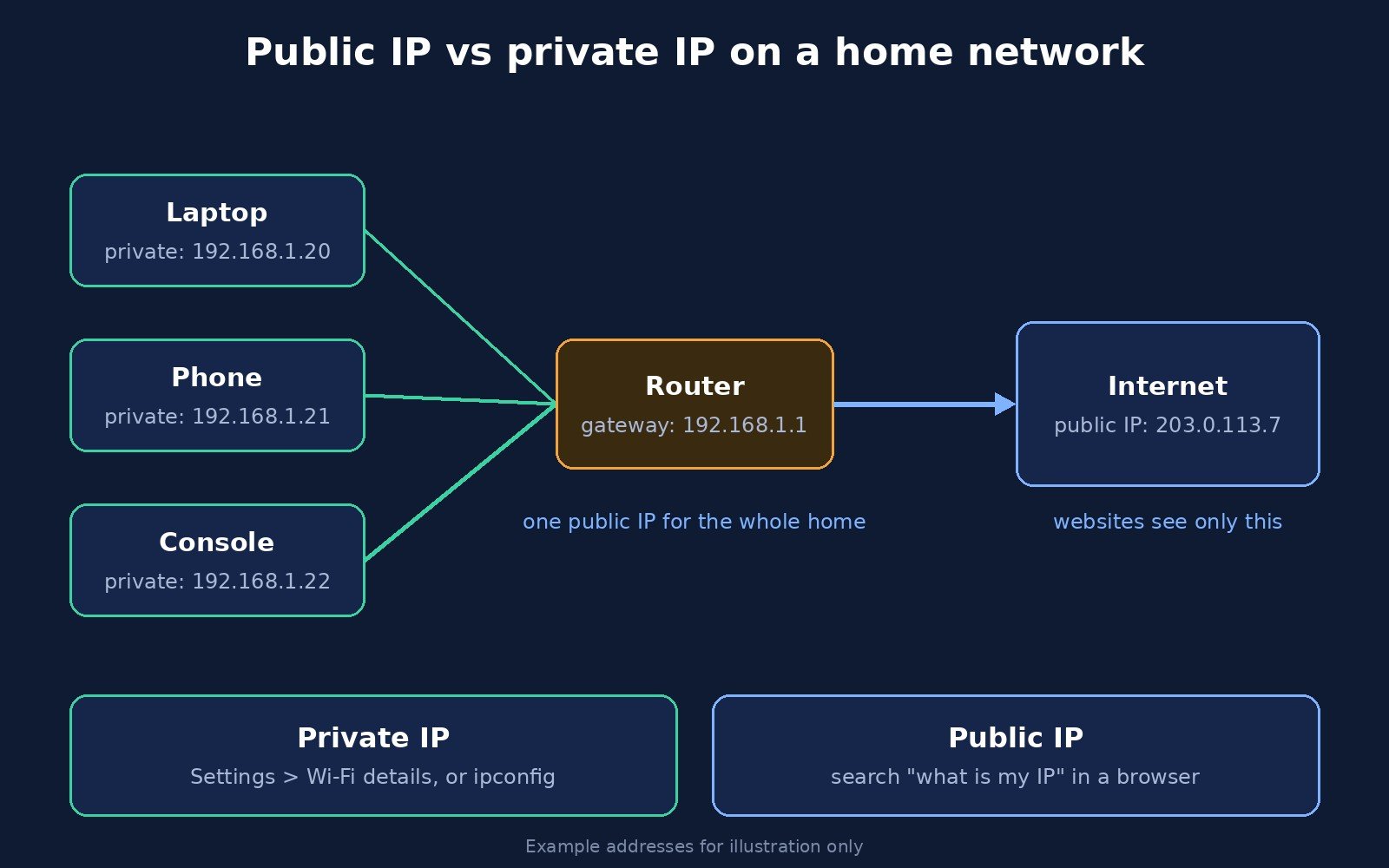
An IP address is a number that identifies a device on a network, a bit like a postal address for data. At home, your internet provider gives your router one public address. The router then hands out private addresses to every phone, laptop, TV and console behind it, and translates between the two as traffic goes in and out. That is why every device in your house shows the same public IP but a different private one.
| You want to… | Address you need | Where to find it |
|---|---|---|
| Know what websites and online services see | Public IP | Search “what is my IP” or use an IP-check site |
| Whitelist your home or office connection on a server or service | Public IP | IP-check site or your router’s status page |
| Set up port forwarding for a game or home server | Private IP of the device (plus your router’s address) | The device’s network settings |
| Connect to a printer, NAS or another PC at home | Private IP | The device’s network settings or the router’s device list |
| Log in to your router’s settings page | Router (default gateway) address | ipconfig on Windows, or Router in your Wi-Fi details |
| Troubleshoot “no internet” problems | Both | Start with the private IP; a missing or odd one points to a Wi-Fi or router problem |
How to find your public IP address
Your public IP is the same for every device on your Wi-Fi, so you can check it from whichever device is handy.
In a web browser
- Open any browser on a device connected to the network you want to check.
- Search for what is my IP. Google and Bing both show your public address at the top of the results.
- Alternatively, visit an IP-check website. These also show an estimated location and your internet provider’s name, which is a reminder of what sites can infer from your IP.
If the page shows an address with letters and colons (for example something starting with 2 and containing several : separators), that is your public IPv6 address. Many connections have both an IPv4 and an IPv6 public address, and some sites show both.
From the command line
On Windows PowerShell, macOS Terminal or Linux, you can ask a public IP service directly. For example:
curl https://api.ipify.orgIt prints just your public IPv4 address. Recent versions of Windows include curl, so the same command works in Command Prompt too.
On your router
Your router’s admin page usually lists the address your provider assigned under a heading such as WAN, Internet or Status. If that number is different from what IP-check sites show you, see the section on carrier-grade NAT below.
How to find your IP address on Windows 11 and Windows 10
Using Settings
This is the method Microsoft documents for Windows 11:
- Open Start and select Settings.
- Go to Network & internet.
- For Wi-Fi, select Wi-Fi and then the network you are connected to. For a cable, select Ethernet.
- Scroll down. Your private address is listed next to IPv4 address. An IPv6 address may appear as well.
On Windows 10 the layout is slightly different: go to Settings, Network & Internet, then select Properties under your current connection (or Hardware properties on the Wi-Fi page) and look for IPv4 address.
While you are in these settings, you may also want our guide on how to find a Wi-Fi password on Windows 11.
Using Command Prompt (ipconfig)
- Press the Windows key, type cmd and press Enter.
- Type
ipconfigand press Enter. - Find the adapter you are actually using, usually Wireless LAN adapter Wi-Fi or Ethernet adapter Ethernet.
- IPv4 Address is your private IP. Default Gateway is your router’s address, which you type into a browser to open its settings page.
For more detail, run ipconfig /all. It adds the physical (MAC) address, DNS servers and DHCP lease times. Ignore adapters marked “Media disconnected” and virtual adapters created by VPNs or virtual machines unless you are troubleshooting those.
How to find your IP address on a Mac
Using System Settings (macOS Ventura and later)
- Open the Apple menu and choose System Settings.
- Click Wi-Fi in the sidebar, then click Details next to the network you are connected to. Apple’s own support pages use this same Details button for Wi-Fi network settings.
- Open the TCP/IP tab. Your private address is next to IP address, and your router is listed next to Router.
For a wired connection, choose Network in the sidebar and then Ethernet. On macOS Monterey and older, the same information lives in System Preferences, Network.
Using Terminal
Open Terminal (press Command and Space, type Terminal) and run:
ipconfig getifaddr en0On most Macs en0 is the Wi-Fi connection. If nothing prints, try en1, or list every active address with ifconfig | grep "inet " and ignore 127.0.0.1, which is the Mac talking to itself.
How to find your IP address on iPhone and iPad
- Open Settings and tap Wi-Fi.
- Tap the blue info (i) button next to the network you are connected to.
- Scroll to IPv4 Address. IP Address is your private IP and Router is your gateway.
On mobile data, iOS does not show your cellular IP in Settings. Open Safari and search “what is my IP” instead. If you pay for iCloud+ and have iCloud Private Relay turned on, Safari will show a relay address rather than your real connection, because Private Relay is designed to hide your IP address from the sites you visit. Check in another browser, or turn Private Relay off for that network, if you need the true address.
How to find your IP address on Android
Menu names vary between phone makers, but the address is always in the details of your Wi-Fi network.
- Open Settings.
- On Pixel and most stock Android phones, go to Network & internet, then Internet. On Samsung Galaxy phones, go to Connections, then Wi-Fi.
- Tap the gear icon next to the network you are connected to.
- Look for IP address. On some phones you need to tap Advanced or View more first.
Many Android phones also show the IP address under Settings, About phone, Status (sometimes labelled Status information). As on iPhone, your mobile-data IP is easiest to check with a “what is my IP” search in the browser.
How to find your IP address on Linux and Chromebook
Linux: open a terminal and run ip addr (or the shorter hostname -I). Look for the inet line under your Wi-Fi or Ethernet interface. Most desktop environments also show it in the network settings panel under the connection’s details.
Chromebook: click the time in the bottom-right corner, open Settings, go to Network, select your Wi-Fi network, and open its details. The IP address is shown in the connection information.
How to see every device’s IP on your router
If you need the address of a device that has no screen, like a smart plug or printer, your router is the place to look.
- Find your router’s address. It is the Default Gateway in
ipconfigon Windows, or Router in your Wi-Fi details on Mac, iPhone and Android. - Type that address into a browser on a device connected to the network.
- Sign in with the router’s admin details. Many routers print the default login on a sticker, and some providers use a phone app instead of a web page.
- Look for a section such as Connected devices, Device list, DHCP clients or Attached devices.
Phones and laptops may appear with a randomised hardware address on each network, a privacy feature on recent iPhones, Macs and Android phones, so match devices by name rather than by MAC address. If you plan to port-forward to a device, set a DHCP reservation for it in the same menu so its private IP does not change after a restart.
Console players can follow our dedicated guide to finding your Xbox’s IP address safely.
What kind of IP address are you looking at?
Once you have a number, its first few digits tell you what it is. These ranges are set by internet standards, not by your provider.
| Address starts with | What it is | Source |
|---|---|---|
192.168. | Private address on your local network (the most common at home) | RFC 1918 |
10. | Private address, common in offices, schools and some home routers | RFC 1918 |
172.16. to 172.31. | Private address | RFC 1918 |
100.64. to 100.127. | Shared address used inside your provider’s network (carrier-grade NAT) | RFC 6598 |
127. | Loopback: the device talking to itself, not a real network address | RFC 5735 |
169.254. | Self-assigned address: the device could not get one from the router | RFC 3927 |
fe80: | IPv6 link-local address, only valid on your local link | RFC 4291 |
| Anything else | Usually a public address |
A 169.254. address is a useful clue when something is broken: it means your device is connected to Wi-Fi or a cable but never received an address from the router. Restarting the router usually fixes it. If your Wi-Fi keeps dropping on Windows, our guide to fixing Wi-Fi disconnects on Windows 11 walks through the next steps.
If you ever need an address in another format, such as hexadecimal for a configuration file, see our guide to converting an IP to hex.
Why your IP address might look wrong
You are on a VPN or relay
A VPN replaces your public IP with one belonging to the VPN server, so IP-check sites will show the VPN’s address and location. That is the point of a VPN. iCloud Private Relay does something similar for Safari. Disconnect the VPN, or check in a different browser, if you need your real public address.
Your router’s WAN address does not match IP-check sites
If your router reports a WAN address starting with 100.64. to 100.127., or a private range, while websites show something else, your provider is using carrier-grade NAT. RFC 6598 reserves the 100.64.0.0/10 block for exactly this kind of shared provider network. In practice it means several customers share one public address, and inbound connections such as port forwarding or hosting a game server will not work unless your provider gives you a dedicated public IP or you use a tunnelling service.
Your IP changed since yesterday
Most home connections use a dynamic public IP that can change when your router restarts or your provider reassigns addresses. Private IPs can change too when a device reconnects. If you need a fixed address, ask your provider about a static IP for the public side, and use a DHCP reservation on your router for the private side.
You see several addresses
That is normal. A computer can have an IPv4 and one or more IPv6 addresses at the same time, plus extra addresses for VPN and virtual machine adapters. For everyday tasks, the IPv4 address on your active Wi-Fi or Ethernet adapter is the one you want.
Is it safe to share your IP address?
Your private IP is harmless to share; it only works inside your own network, and thousands of homes use the exact same numbers. Your public IP is more sensitive. It does not reveal your name or street address, but it can point to your internet provider and a rough area, and it can be targeted with nuisance traffic. Avoid posting it publicly or clicking unknown “IP logger” links. Our explainer on how IP loggers work and how to protect your privacy covers this in more detail.
If you are trying to find someone else’s IP address rather than your own, that is a different question with legal limits. See what is actually legitimate when finding someone’s IP address.
Frequently asked questions
What is the fastest way to find my IP address?
For your public IP, search “what is my IP” in any browser. For your private IP on Windows, open Command Prompt and type ipconfig; on a phone, open your Wi-Fi network’s details in Settings. Each takes under a minute.
Is my IP address the same on all my devices?
Your public IP is the same for every device on the same home network, because they all share the router’s connection. Your private IP is different on each device. A phone on mobile data has a different public IP from your home Wi-Fi.
What is the difference between IPv4 and IPv6?
IPv4 addresses are four numbers separated by dots, such as 192.168.1.20. IPv6 addresses are longer, written in hexadecimal with colons. Most devices have both today. For local tasks like port forwarding or printer setup, you will usually use the IPv4 address.
How do I find my router’s IP address?
On Windows, run ipconfig and read the Default Gateway. On Mac, iPhone and Android, open your Wi-Fi network’s details and look for Router or Gateway. Typing that address into a browser opens the router’s settings page.
Why does my IP address start with 192.168?
Addresses starting with 192.168 are private addresses reserved for local networks by RFC 1918. Your router assigns them to devices at home. They are not visible on the internet, which sees your router’s public IP instead.
Can I change my IP address?
Yes. Restarting your router may give you a new public IP if your provider uses dynamic addresses, and a VPN shows websites a different one. To change a private IP, set a reservation in your router or a manual address in the device’s network settings.
Does incognito mode hide my IP address?
No. Incognito or private browsing stops your browser saving history and cookies on your device, but websites still see your public IP. A VPN or a relay service like iCloud Private Relay is needed to hide it.
The bottom line
To find your IP address, first decide which one you need. For the public address websites see, search “what is my IP”. For the private address of a device, check its Wi-Fi or Ethernet details: IPv4 address in Windows Settings or ipconfig, the TCP/IP tab on a Mac, or the info button next to your network on iPhone and Android. If the number looks odd, its first digits will tell you whether it is private, shared by your provider, or a sign your device never got an address from the router.

The Teck Hustlers Editorial Team covers technology, business, finance and gaming news for readers who want the story behind the headline. Every article is researched, written and edited by our in-house team, checked against company announcements, filings and reputable reporting, and updated when new facts emerge. We focus on what each development means for founders, professionals, investors and everyday users. Have a tip or a correction? Reach us through our contact page.