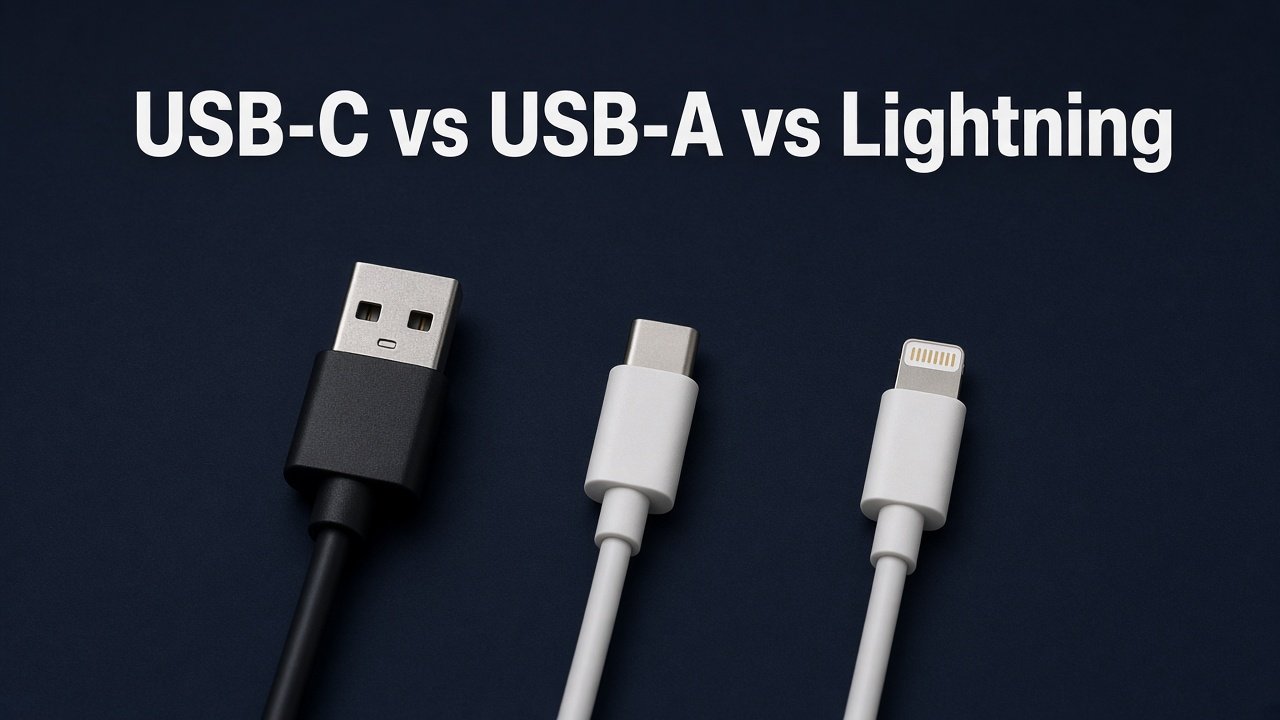
Most of us have a drawer full of cables with three kinds of plugs on the end: the wide, flat USB-A plug, the small oval USB-C plug, and Apple’s slim Lightning plug. They all charge things and move files, so it is easy to assume they are interchangeable. They are not, and the plug shape only tells you part of the story. This guide gives you the short answer first, then explains speeds, charging, iPhones, and which cable to buy for each setup.
USB-C vs USB-A: the short answer
USB-A and USB-C are connector shapes, not speeds. USB-A is the older rectangular plug that only fits one way. USB-C is the smaller, reversible oval plug that has replaced it on most new phones, tablets and laptops. USB-C can support much more than USB-A: faster data standards such as USB4, higher charging power through USB Power Delivery, and video output to a monitor. But a USB-C port or cable only does those things if the device and cable actually support them, so always check the spec, not just the plug.
Lightning is Apple’s own connector, used on iPhones from 2012 until the iPhone 15 line switched to USB-C in 2023 (Consumer Reports). If you are buying something new, USB-C is the one to standardize on.
What USB-A, USB-C and Lightning actually are
USB-A
USB-A (officially USB Type-A) is one of the original connectors from the first USB standard. It is a flat rectangle with its pins on one side, which is why it only goes in one way and why everyone has flipped a USB-A plug more than once (Engadget). You still find it on desktop PCs, older laptops, wall chargers, car ports, routers, flash drives, keyboards and mice.
USB-C
USB-C (officially USB Type-C) debuted in 2014 (Engadget). It is a small, reversible oval, so it works whichever way up you plug it in. It is now the standard port on most phones, tablets, laptops, headphones and game controllers, and one USB-C port can handle charging, data, video and accessories. In the EU it is also the law: the European Commission’s common charger rules have required a USB-C charging port on phones, tablets, cameras, headphones, earbuds, handheld consoles, e-readers, keyboards, mice and similar devices since 28 December 2024, and on laptops since 28 April 2026 (European Commission).
Lightning
Lightning is Apple’s proprietary connector. It is slim and reversible like USB-C, but it only works with Apple devices and accessories made for them. Apple used it on iPhones from 2012 until the iPhone 15 (Consumer Reports), and you will still find it on many older iPhones, iPads, AirPods cases and Apple accessories.
USB-C vs USB-A vs Lightning comparison table
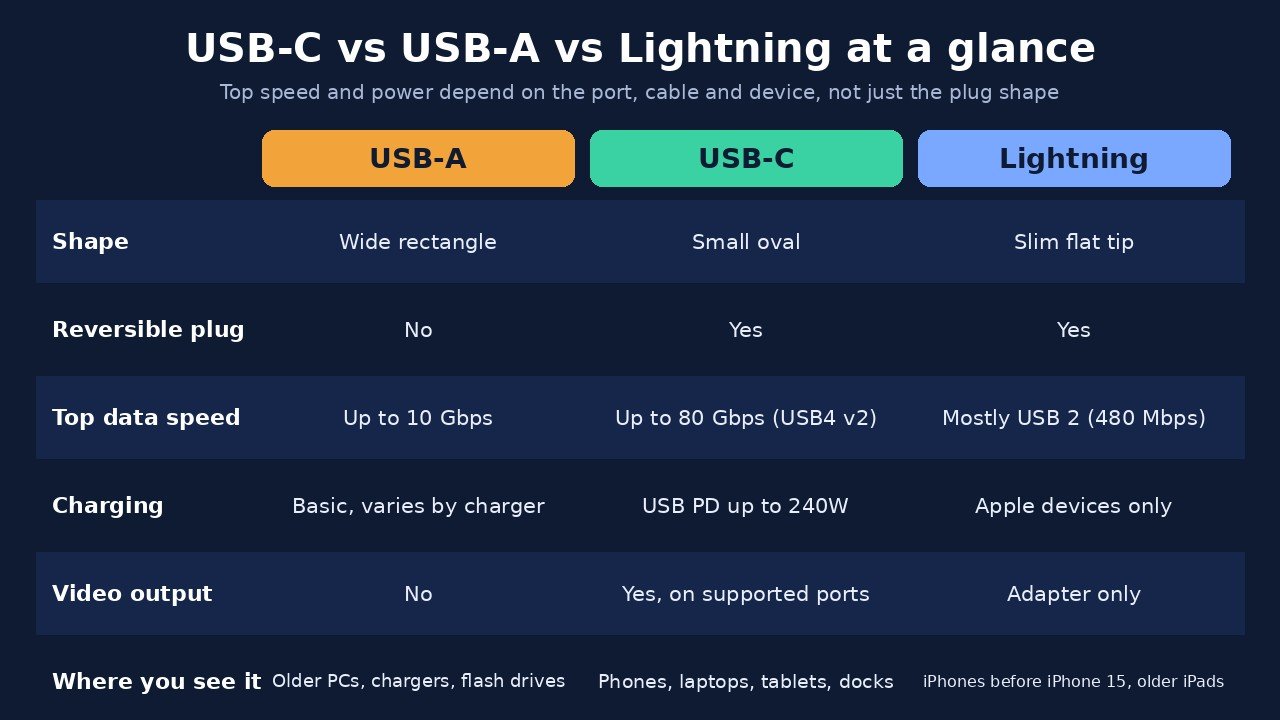
| Feature | USB-A | USB-C | Lightning |
|---|---|---|---|
| Shape | Wide, flat rectangle | Small oval | Slim, flat tip |
| Reversible | No | Yes | Yes |
| Top data speed | Up to USB 10 Gbps (Engadget) | Up to 80 Gbps with USB4 over certified cables (USB-IF) | 480 Mbps (USB 2) on iPhones (Consumer Reports) |
| Charging | Limited; USB-A uses a fixed 5-volt supply (WIRED) | USB Power Delivery up to 240W (USB-IF) | Apple devices only |
| Video output | Not normally | Yes, on ports that support DisplayPort Alt Mode, USB4 or Thunderbolt | Only through an adapter |
| Where you see it | Older PCs, chargers, flash drives, car ports | New phones, laptops, tablets, docks, monitors | iPhones before iPhone 15, older iPads and Apple accessories |
The numbers in that table are ceilings, not promises. Every connection runs at the speed of its slowest part: the port on one device, the cable, and the port on the other device.
Shape is not speed: USB speed names explained
The confusing part of USB is that the connector (A or C) and the speed standard (USB 2.0, USB 3.x, USB4) are separate things. A USB-C plug can be wired for slow USB 2.0, and a USB-A port can be wired for USB 10 Gbps. Here is how the common standards line up, using the figures reported by Engadget and the USB Implementers Forum (USB-IF):
- USB 2.0: up to 480 Mbps. Ports and plugs are often black or white. Still common on cheap cables, keyboards, mice and many charging cables.
- USB 5 Gbps (originally USB 3.0, often a blue USB-A port): up to 5 Gbps.
- USB 10 Gbps (also sold as USB 3.1 Gen 2 or USB 3.2 Gen 2): up to 10 Gbps. This is about as fast as USB-A gets.
- USB 20 Gbps (USB 3.2 Gen 2×2): up to 20 Gbps, USB-C only.
- USB4: 20 or 40 Gbps, and up to 80 Gbps with USB4 Version 2.0 over 80 Gbps certified cables. USB-C only.
The old names were renamed more than once, which is why the same port can be labelled “USB 3.1 Gen 2” on one box and “USB 3.2 Gen 2” on another. USB-IF now prefers the simple speed names, such as USB 10 Gbps, on retail packaging (Engadget).
A quick way to work out the real speed of any connection:
- Check the spec page of your computer or phone for the USB version of the exact port you are using. Laptops often mix fast and slow ports.
- Check the spec of the accessory, such as an external SSD or hub.
- Check the cable’s rating on its packaging or listing. Many cables that come in the box with phones are USB 2.0 only.
- Your real top speed is the lowest of the three.
Thunderbolt adds one more layer: it also uses the USB-C plug but is a separate Intel standard with its own rules. Our guide to USB-C vs Thunderbolt covers how Thunderbolt 4, Thunderbolt 5 and USB4 relate.
Charging: why USB-C wins
For charging, the gap between USB-A and USB-C is bigger than for data. WIRED notes that USB-A is limited to a fixed 5-volt supply, while USB-C can negotiate higher power. That negotiation is called USB Power Delivery (USB PD).
According to USB-IF, USB PD was limited to 100W (20 volts over a 5-amp USB-C cable) until the USB PD 3.1 update in 2021, which raised the ceiling to 240W over full-featured USB-C cables using new 28V, 36V and 48V levels. That is enough for many laptops, monitors and docks, not just phones. Some USB-A chargers do faster charging with brand-specific protocols, but that only works between matching chargers and phones.
Three practical points:
- The device decides how much power it takes. A 100W USB-C charger will not push 100W into a phone that only asks for less. It is safe to use a bigger certified charger.
- The cable has a power rating too. USB-IF’s certified USB-C cable logos show 60W or 240W (USB-IF). A laptop that wants more than 60W needs a cable rated for it.
- The EU standardised fast charging on USB PD. Under the common charger rules, covered devices that charge faster than 15W must support USB PD (European Commission guidance), which is why one good USB-C PD charger now works across so many brands.
USB-C vs Lightning: what iPhone owners should know
Apple moved the iPhone from Lightning to USB-C with the iPhone 15 line. For charging, that means one USB-C cable and charger can now cover your iPhone, iPad, Mac and most non-Apple gadgets. For data, the picture depends on the model.
The standard iPhone 15 and iPhone 15 Plus use USB 2 speeds of up to 480 Mbps over USB-C (Apple iPhone 15 tech specs), which Consumer Reports points out is exactly the same as Lightning iPhones (Consumer Reports). The iPhone 15 Pro and Pro Max support USB 3.2 Gen 2 at up to 10 Gbps, but only with a separate USB 3 cable, because the cable in the box supports charging and USB 2 speeds (Apple Support).
If you still have Lightning accessories, Apple says a USB-C to Lightning adapter supports power, data and audio, and an Apple USB-C to Lightning cable lets a newer iPhone charge an older Lightning device (Apple Support). There is no need to throw working gear away.
Moving lots of photos and videos off an iPhone? Our guide on how to transfer photos from iPhone to PC covers cable and wireless options.
Which should you use for your setup?
New phone, tablet or laptop
Use USB-C. It is what new devices ship with, and a single good USB-C PD charger plus one or two quality USB-C cables can cover most of your gadgets. Match the charger’s wattage to your most power-hungry device, usually the laptop.
External SSD or hard drive
Use the fastest port both the drive and computer support, and the cable that came with the drive. A fast SSD on a USB 2.0 cable will crawl at 480 Mbps. If you are choosing a drive in the first place, our SSD vs HDD guide explains the trade-offs.
External monitor
Only some USB-C ports output video. Look for a DisplayPort or Thunderbolt symbol next to the port, or check the laptop’s spec page for DisplayPort Alt Mode, USB4 or Thunderbolt. If your monitor has a USB-C input, one cable may handle video, data and charging. Otherwise, a USB-C to HDMI or DisplayPort cable works; our HDMI vs DisplayPort guide helps you pick the right end.
Older accessories with USB-A
Keep using them. Keyboards, mice, printers and flash drives rarely need more than USB-A offers. If your new laptop only has USB-C, a simple USB-C to USB-A adapter or a small hub solves it.
Side hustle or home office desk
If you film, podcast or edit from home, the cable that matters most is the one carrying big files: camera to computer, or computer to external SSD. Make sure that one is rated for 10 Gbps or faster. Microphones, webcams and lights work fine on ordinary USB connections. For gear advice, see our guides to starting a podcast and starting a YouTube channel.
Buying USB cables and adapters
Most “my phone charges slowly” or “my drive is slow” complaints come down to the cable. A few rules keep you out of trouble:
- Read the data rating. Look for the speed (USB 2.0, 5 Gbps, 10 Gbps, 20 Gbps, 40 Gbps or 80 Gbps) on the package. “Charging cable” with no speed listed usually means USB 2.0.
- Read the power rating. For laptops, buy a cable that states its wattage, such as 60W or 240W.
- Prefer certified cables. USB-IF certified cables carry logos that show speed and power (USB-IF), and Apple warns that cables not compliant with the USB-C standard might not work as expected (Apple Support).
- Keep fast cables short. Very fast data over long passive cables is where problems start. Use the shortest cable your desk allows for drives and docks.
- Adapters cap you at their own spec. A USB-C to USB-A adapter turns your connection into whatever the USB-A side supports, often USB 2.0 or 5 Gbps.
USB-C vs USB-A FAQ
What is the difference between USB-A and USB-C?
USB-A is the older, larger rectangular connector that only plugs in one way. USB-C is the smaller, reversible connector used on most new devices. USB-C can support faster data (up to 80 Gbps with USB4), higher charging power (up to 240W with USB Power Delivery) and video output, while USB-A tops out around 10 Gbps and offers limited charging.
Is USB-C faster than USB-A?
It can be, but not automatically. USB-C supports the fastest USB standards, including USB 20 Gbps and USB4, which USB-A cannot. But many USB-C ports and cables are only USB 2.0 at 480 Mbps. The real speed is set by the slowest of the two ports and the cable.
Does USB-C charge faster than USB-A?
Usually, yes. USB-C supports USB Power Delivery, which can negotiate higher voltages and up to 240W. USB-A uses a fixed 5-volt supply, so its charging is limited unless the charger and phone share a brand-specific fast-charging protocol.
Is Lightning the same as USB-C?
No. Lightning is Apple’s own connector, used on iPhones from 2012 until the iPhone 15 moved to USB-C. Both plugs are reversible, but Lightning only works with Apple devices and runs at USB 2 speeds on iPhones, while USB-C is an industry standard used by almost every brand.
Can I plug a USB-A device into a USB-C port?
Yes, with a USB-C to USB-A adapter, cable or hub. USB is backward compatible, so the device will work, but the connection runs at the speed of the slower side and the adapter’s own rating.
Is USB-A being phased out?
For new portable devices, largely yes. In the EU, USB-C charging has been required on phones, tablets and many other gadgets since 28 December 2024 and on laptops since 28 April 2026. USB-A ports are still common on desktops, chargers and peripherals, so adapters will be useful for years.
The bottom line
Standardise on USB-C for anything new, keep your working USB-A and Lightning gear with a couple of adapters, and judge every port and cable by its speed and wattage rating, not its shape. If you want to go deeper into the fastest USB-C connections, read our USB-C vs Thunderbolt explainer next.

The Teck Hustlers Editorial Team covers technology, business, finance and gaming news for readers who want the story behind the headline. Every article is researched, written and edited by our in-house team, checked against company announcements, filings and reputable reporting, and updated when new facts emerge. We focus on what each development means for founders, professionals, investors and everyday users. Have a tip or a correction? Reach us through our contact page.