TL;DR: To start a Jam on Spotify, open the devices menu on mobile (or right-click a song or playlist on desktop), tap Start a Jam, then tap Invite and share the QR code or link. You need Spotify Premium to start and host a Jam. Free users can join and add songs in person, but joining remotely needs Premium. Jam also works on TVs, Android Auto (version 14.5+) and CarPlay, and if the host leaves, the Jam ends for everyone.
If you want to know how to start a Jam on Spotify, the short version is that it takes three taps. Jam is Spotify’s real-time group listening feature: everyone in the session shares one queue, can add songs from their own phone, and can see who added what. Spotify introduced Jam in September 2023, brought it to desktop in March 2024 and added Android Auto in August 2025. Below are the exact steps for each device, based on Spotify’s own support page, plus the fixes to try when it doesn’t work.
What you need before you start a Jam
| Action | Spotify Free | Spotify Premium |
|---|---|---|
| Start and host a Jam | No | Yes |
| Join a Jam in person and add songs | Yes | Yes |
| Join a Jam remotely (different location) | No | Yes |
| Start or join a Jam through Spotify Messages | No | Yes |
Spotify says Jam also works with smart speakers and most Bluetooth speakers. Make sure your app is up to date, because the feature has changed several times since launch.
How to start a Jam on Spotify on mobile
- Start playing something, then tap the devices icon (the speaker icon at the bottom of the Now Playing screen) for the device you’re playing on. You can also open the three-dot menu on a playlist.
- Tap Start a Jam.
- Tap Invite. Share the QR code, or tap Share link and send it by text or social apps.
There’s a faster option for people in the same room. If you’re both logged in to Spotify with Bluetooth on, bring your phones close together (within about 1 meter, per Spotify) and the other person gets an invite. People on the same Wi-Fi network also get a prompt to join when they open Spotify.
Automatic Jams on speakers
Spotify will automatically start a Jam when you connect to a smart speaker or most Bluetooth speakers. If you don’t want guests getting invites, open the Connect picker and adjust the Let others Jam on this speaker setting.
How to start a Jam on Spotify desktop
- Right-click a track or playlist (or use its three-dot menu).
- Click Start a Jam.
- Click Invite, then share the QR code or copy the share link.
Desktop is handy for parties where a laptop is hooked up to speakers. If you also want to watch something together with friends online, our guide to screen sharing Netflix on Discord covers that side of a group hangout.
How to start a Jam on a TV
Spotify on TV supports in-person Jams, so playback happens through the TV speakers.
- Open Queue & Jam.
- Share the QR code, or have friends scan the QR code shown in the queue or in the notification at the end of a track.
You don’t need to be on the same Wi-Fi for a TV Jam to work, but if you are, people on that network get a prompt in their app to join. As host, open Settings in the queue section to control whether others can change what’s playing, change volume on supported devices, or get invited automatically.
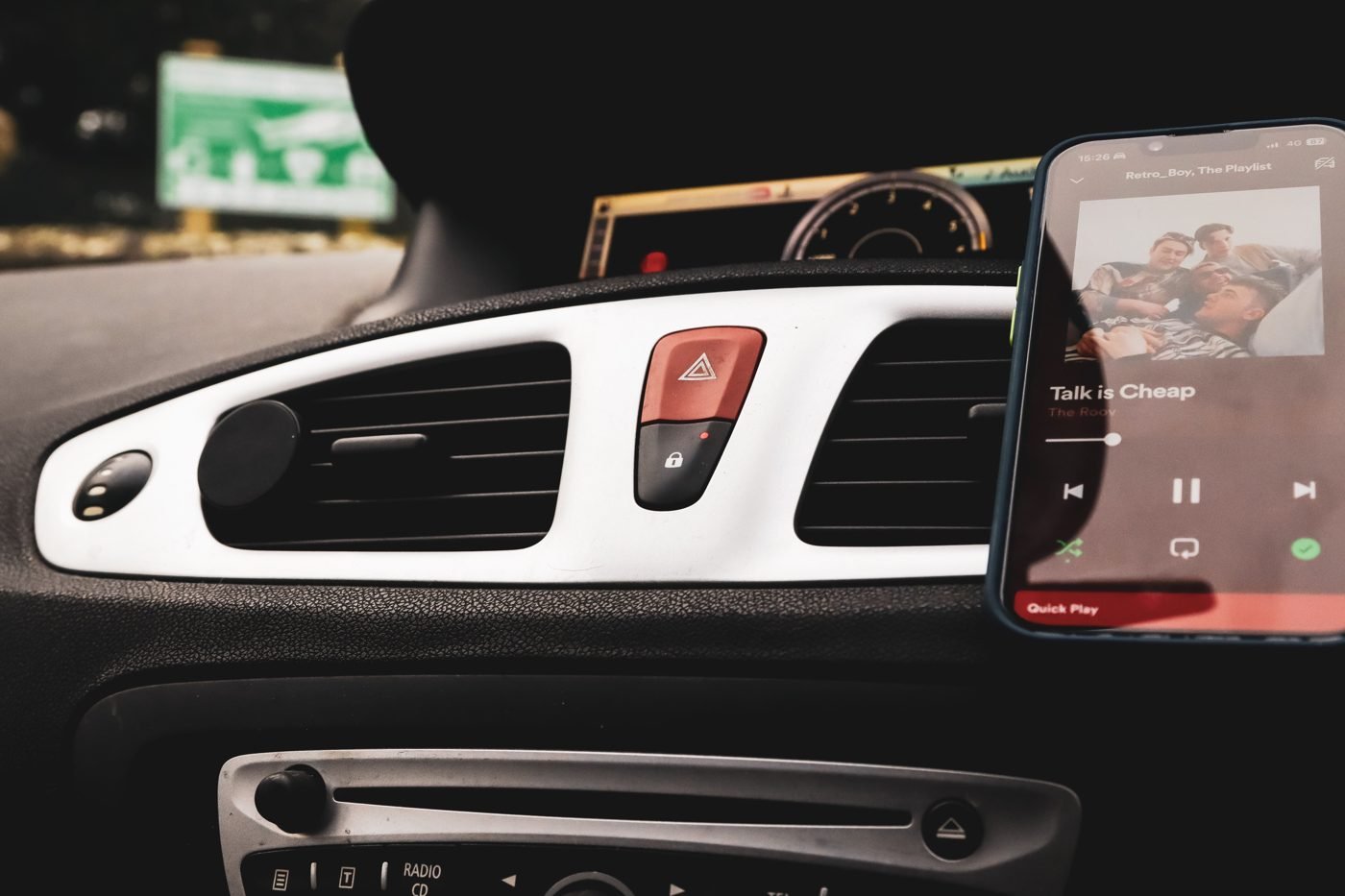
How to start a Jam in the car (Android Auto and CarPlay)
Android Auto
You need Android Auto version 14.5 or above and Spotify app version 9.0.50 or above. Then:
- From your car’s Now Playing view, tap Jam.
- Ask passengers to scan the QR code or enable Bluetooth for Spotify to join.
As host, you can view and remove guests, see the queue, and control playback and volume. Spotify notes that only the host can change volume through the app, though anyone can use the car’s volume dial.
CarPlay
- From the Now Playing view, tap Queue & Jam.
- Friends join by scanning the QR code or enabling Bluetooth for Spotify.
In both car versions, passengers can play, pause and skip, rearrange the queue, and add songs through search or the group recommendations, all from their own phones.
How to join, manage and leave a Jam
- Join: tap the invite link, scan the QR code, or bring phones close together with Bluetooth on. Choose to listen in person or remotely (remote needs Premium), then tap Join.
- Remove someone: on desktop, open the Jam and click Remove next to the person. On mobile, tap the current device, then remove a single participant or all of them.
- Limit guests to adding songs: turn off Let others change what’s playing.
- Share volume control: turn on Let guests change volume. This works on Chromecast and Amazon Cast, but not on Bluetooth devices or Apple AirPlay.
- Leave: tap the current device and pick another device, or tap Leave. If the host leaves, the Jam ends for everyone.
Spotify Jam not working? Quick fixes
| Problem | What to check (per Spotify) |
|---|---|
| Can’t host a Jam | You have an active Premium subscription, and you’ve picked the right speaker in the device list |
| Can’t join a Jam | You’ve accepted the host’s invitation, and you’re connected to the right speaker |
| Can’t control volume | Your speaker supports shared volume control, and the host has turned it on |
| Can’t join from far away | Remote joining needs Premium; Free users can only join in person |
| Jam suddenly stopped | The host may have left, which ends the session for everyone |
For the Bluetooth “tap to join” trick, both phones need Bluetooth on and Spotify needs Bluetooth permission. If your phone’s sharing features are acting up in general, the same permission checks apply as in our guide on how to receive AirDrops.
Tips for a better Jam
- Use the group recommendations. Spotify says Jam looks for overlaps in everyone’s listening to suggest songs the whole group might like, and shows who added which track.
- Host from the device with the speaker. Starting the Jam on the phone, TV or laptop that’s actually playing avoids confusion over who controls playback.
- Lock things down at bigger parties. Turn off “Let others change what’s playing” so guests can add songs but not skip yours.
- Pick a host who’s staying. Because the Jam ends when the host leaves, the person who started it should stick around (and stay connected) for the whole session.
That’s everything you need to start a Jam on Spotify on any device. Start one on your next road trip or house party, and let everyone add their own songs.

The Teck Hustlers Editorial Team covers technology, business, finance and gaming news for readers who want the story behind the headline. Every article is researched, written and edited by our in-house team, checked against company announcements, filings and reputable reporting, and updated when new facts emerge. We focus on what each development means for founders, professionals, investors and everyday users. Have a tip or a correction? Reach us through our contact page.