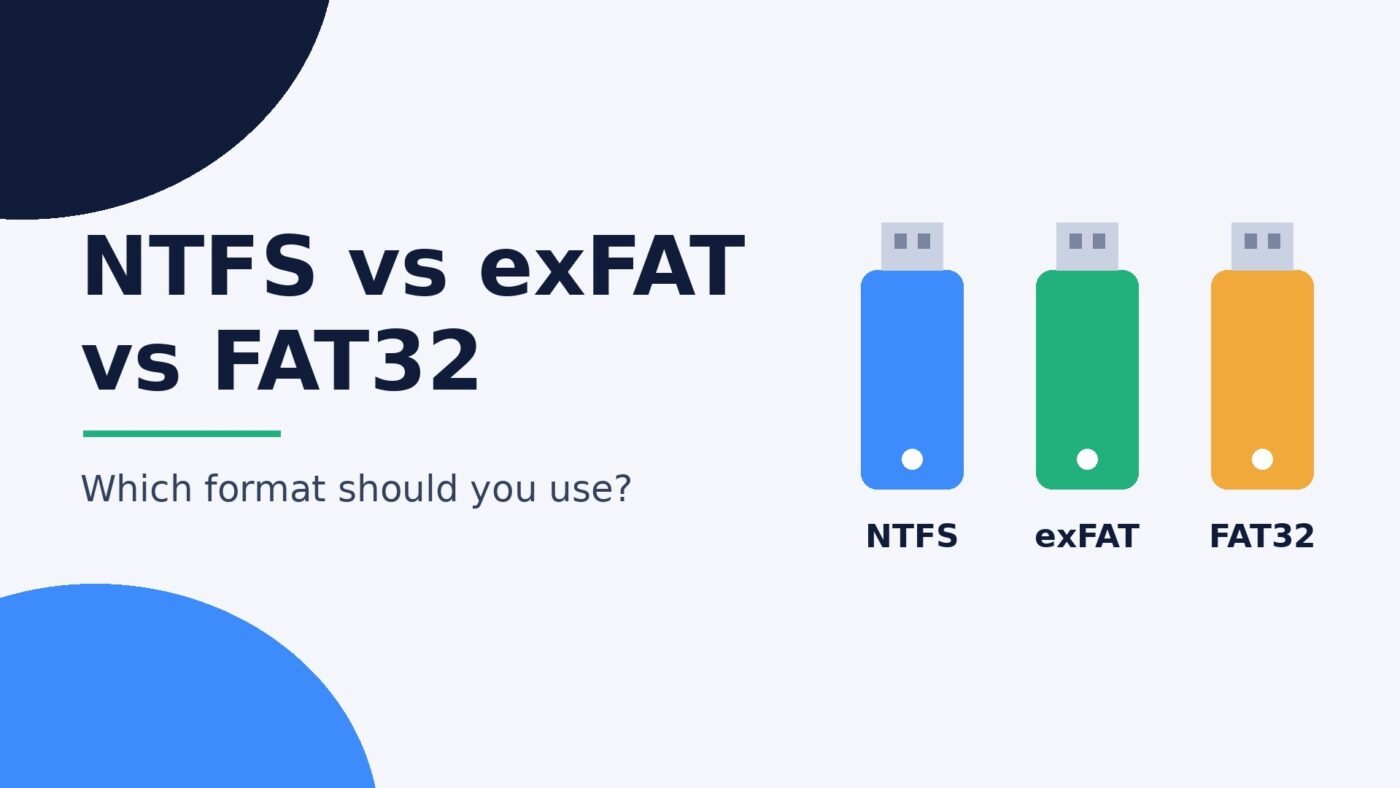
Use NTFS for any drive that only ever connects to Windows PCs, including internal drives and Windows backup disks: it is journaled, supports permissions and encryption, and has no practical file size limit. Use exFAT for USB sticks, SD cards and external drives you share between Windows, Mac, cameras and consoles: it also handles huge files and every modern system can read and write it. Use FAT32 only when an older device, a car stereo or a UEFI boot drive demands it, because no single file on FAT32 can be larger than 4 GiB (roughly 4 GB).
That’s the short version. Formatting a drive asks you to pick a file system, and Windows usually offers three of them. The right choice depends less on which format is “best” and more on where the drive will be plugged in. This guide compares NTFS, exFAT and FAT32 on the things that actually trip people up: file size limits, Mac and console compatibility, reliability and how to switch formats. Every specific limit below links to the official source, mostly Microsoft’s own documentation.
NTFS vs exFAT vs FAT32 at a glance
The limits and features come from Microsoft’s file system functionality comparison. Compatibility notes are covered, with sources, further down.
| Feature | NTFS | exFAT | FAT32 |
|---|---|---|---|
| Maximum single file size | 264–1 bytes (no practical limit) | 264–1 bytes (no practical limit) | 4 GiB |
| Journaling (crash recovery) | Yes (metadata) | No | No |
| Permissions, encryption, compression | Yes | No | No |
| Windows read/write | Yes | Yes | Yes |
| Mac read/write (built in) | Read only | Yes | Yes |
| Cameras, consoles, TVs | Patchy | Wide (standard for SDXC cards) | Widest, including old devices |
| Best for | Windows system and Windows-only drives | Shared USB drives, SD cards, external SSDs | Old gadgets and UEFI boot sticks |
What NTFS, exFAT and FAT32 actually are
A file system is the bookkeeping layer on a drive. It decides how files are named, where their pieces live and what extra information (dates, owners, permissions) gets stored with them. The drive hardware doesn’t change when you reformat; only this bookkeeping does, which is why formatting wipes what you can see.
NTFS
NTFS (New Technology File System) is the file system Windows uses for its own system drive. Microsoft describes it as a recoverable file system that keeps track of transactions, so after a crash or power cut it can roll the volume back to a consistent state instead of leaving it half-written. It also tracks file owners, supports access control lists, built-in compression and file-level encryption, according to Microsoft’s comparison table.
exFAT
exFAT (Extended File Allocation Table) is Microsoft’s lighter file system for flash storage. It keeps the simple design of FAT but drops FAT32’s small file size limit. In 2019 Microsoft published the exFAT specification and backed adding it to the Linux kernel, noting that it is used on “SD Cards and USB flash drives” across laptops, cameras and cars. The SD Association’s standard makes it the required file system for SDXC cards (over 32 GB up to 2 TB) and SDUC cards (over 2 TB).
FAT32
FAT32 is the oldest of the three and the most widely understood by devices. Its big weakness is the per-file cap: 4 GiB maximum file size. A single long 4K video, a Windows installation image or a large game archive can easily go past that, and the copy simply fails with a “file is too large” style error even when the drive has plenty of free space.
NTFS vs exFAT: the key differences
For most people the real decision is between these two, because both handle large files. Here is what separates them.
Compatibility with Mac and other devices
This is the deciding factor most of the time. macOS can open files on an NTFS drive, but it can’t write to it without extra software. Western Digital’s support guide puts it plainly: NTFS drives are read/write on Windows and read only on macOS. exFAT, on the other hand, is one of the Windows-compatible formats Apple lists in Disk Utility, so a Mac can both read and write it with no add-ons.
Consoles and media devices lean the same way. PlayStation’s support pages say a USB drive used to play video and music on PS5 or PS4 must be exFAT or FAT32, and the same goes for PS5 backups to a USB drive. NTFS isn’t on that list.
Reliability if a drive is unplugged
NTFS has metadata journaling and a file change log; exFAT and FAT32 have neither, per Microsoft’s table. In practice that means an NTFS drive is better at surviving a sudden power cut or a yanked cable without file system damage. With exFAT, get into the habit of using “Safely Remove Hardware” on Windows or Eject on a Mac before you pull the drive, especially in the middle of a big copy.
Security features
Only NTFS tracks file owners and supports access control lists, file system level encryption and user disk quotas. If a drive will hold files that different Windows users shouldn’t see, or you rely on Windows permissions on a shared PC, NTFS is the only one of the three that can enforce that. exFAT and FAT32 treat every file as open to whoever plugs the drive in. (For whole-drive encryption options by Windows edition, see our Windows 11 Home vs Pro guide.)
File size and drive size
Both NTFS and exFAT allow single files up to 264–1 bytes, which is far beyond any drive you can buy. Microsoft lists the NTFS maximum volume size as 16 TB with 4 KB clusters or 256 TB with 64 KB clusters, so neither is a limit for normal external drives.
Linux support
Linux handles both these days. Kernel 5.7 added a new and better exFAT implementation, and kernel 5.15 added a new NTFS read-write implementation. Older Linux systems and some NAS boxes may still be pickier, so exFAT remains the safer choice for a drive that moves between operating systems.
exFAT vs FAT32: why exFAT usually wins
exFAT and FAT32 come from the same family and are both supported by Windows, macOS and most gadgets. The big difference is the 4 GiB per-file ceiling on FAT32. If you ever copy video, disk images, virtual machines or game files, FAT32 will eventually refuse a file. exFAT doesn’t have that problem.
There is also a drive-size quirk that confuses people. For years Windows wouldn’t create a FAT32 volume larger than 32 GB, even though it could read larger ones. That changed in 2026: Microsoft’s April 30, 2026 update for Windows 11 versions 24H2 and 25H2 (KB5083631) raised “the size limit for formatting FAT32 volumes from the command line from 32GB to 2TB.” The key words are “from the command line”: as BleepingComputer noted when the change first appeared, the graphical format tool keeps the old 32 GB limit. And the 4 GiB file cap doesn’t change at all.
Apple follows the same split in Disk Utility, recommending MS-DOS (FAT) for volumes of 32 GB or less and exFAT for volumes over 32 GB. SD cards follow it too: SDHC cards (over 2 GB up to 32 GB) use FAT32, while SDXC cards use exFAT. That’s why a camera usually formats a 64 GB or larger card as exFAT on its own.
When FAT32 still makes sense: an old camera, car stereo, printer or TV that doesn’t list exFAT in its manual, and bootable USB sticks. Microsoft’s deployment docs note that FAT32 is required to boot many modern UEFI-based PCs but has a maximum file size of 4GB, which is why Windows install media sometimes splits its large image file into smaller pieces or uses a second partition.
FAT32 vs NTFS
This comparison is lopsided. NTFS beats FAT32 on file size, reliability, security and features. FAT32 wins only on compatibility with older or simpler devices and on UEFI boot drives. If a drive lives inside or permanently next to a Windows PC, there’s no reason to pick FAT32. If you’re formatting for a device that only understands FAT32, NTFS won’t work there anyway, so the device makes the choice for you.
Which format should you use? Pick by device
| Where the drive will be used | Best format | Why |
|---|---|---|
| Windows PC only (internal drive, second SSD, backup disk) | NTFS | Journaling, permissions, encryption, no file size limit |
| Both Windows and Mac | exFAT | Read and write on both without extra software |
| USB flash drive for moving files around | exFAT | Large files plus wide compatibility |
| SD card over 32 GB (camera, drone, phone) | exFAT | Required by the SDXC standard; format it in the device |
| PS5 or PS4 media and backup drive | exFAT | Supported by PlayStation, and avoids FAT32’s 4 GiB cap |
| Old camera, car stereo, printer or TV | FAT32 | Some older devices only read FAT32; check the manual |
| Bootable UEFI USB installer | FAT32 (or FAT32 + NTFS/exFAT partitions) | Many UEFI PCs need FAT32 to boot |
| Mac only | APFS | Apple’s default format (not covered by this comparison) |
One exception to the “format it yourself” approach: game consoles that use an external drive for installed games (such as PS5 USB extended storage) format the drive themselves in their own format. Follow the console’s prompts for that use rather than picking NTFS or exFAT on a PC.
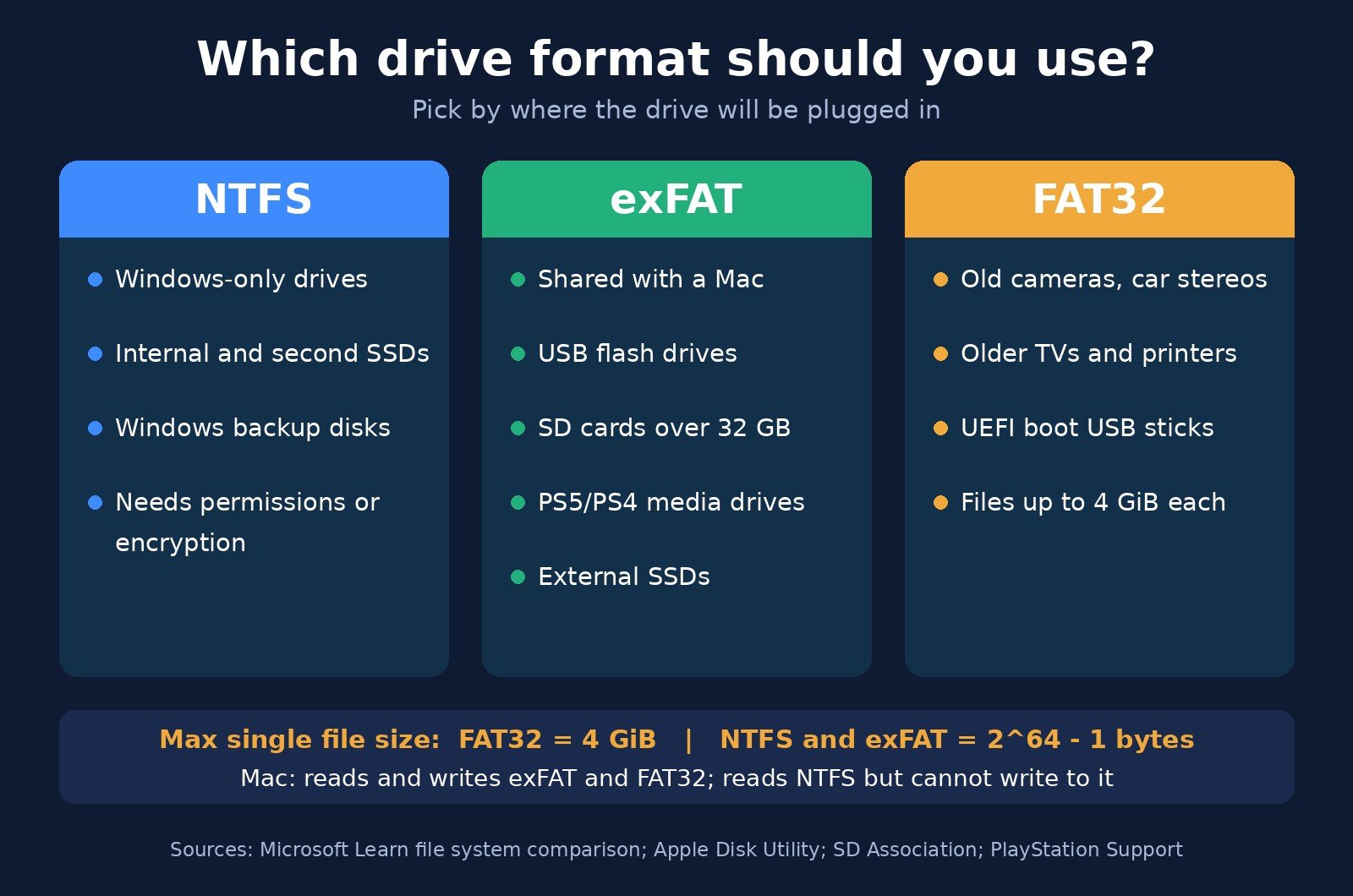
How to format a drive as NTFS, exFAT or FAT32
Formatting erases everything you can see on the drive. Copy anything you need somewhere else first, and double-check the drive letter or name before you confirm.
On Windows 11 (File Explorer)
- Plug in the drive and open File Explorer.
- Right-click the drive under This PC and choose Format.
- Pick NTFS, exFAT or FAT32 in the File system box. FAT32 may not appear for drives bigger than 32 GB.
- Leave allocation unit size on Default, type a volume label, tick Quick Format and click Start.
On Windows (command line)
Open Terminal or Command Prompt as administrator and run format E: /FS:exFAT /Q, replacing E: with your drive letter and exFAT with NTFS or FAT32 as needed. Microsoft’s format command reference lists the supported /FS values (FAT, FAT32, NTFS, exFAT, ReFS and UDF) and the /Q quick-format switch. On updated Windows 11 24H2 and 25H2 PCs this is also how you create a FAT32 volume larger than 32 GB, up to the new 2 TB limit.
On a Mac (Disk Utility)
- Open Disk Utility (Applications > Utilities).
- Choose View > Show All Devices, then select the external drive.
- Click Erase, choose ExFAT (or MS-DOS (FAT) for FAT32), pick a name and click Erase.
NTFS isn’t among the formats in Apple’s Disk Utility list (APFS variants plus MS-DOS (FAT) and ExFAT for Windows compatibility), so if you need NTFS, format the drive on a Windows PC.
If your PC is running low on internal space and you’re adding an external drive to fix it, our guide to freeing up space on Windows 11 covers what to clear first.
Can you switch formats without losing data?
Usually not. Reformatting erases the drive, so the normal route is: copy the files off, format, copy them back.
There is one built-in exception. Windows’ convert command converts FAT and FAT32 volumes to NTFS, leaving existing files and directories intact. Run convert E: /fs:ntfs from an administrator prompt. Two cautions: Microsoft says volumes converted to NTFS can’t be converted back to FAT or FAT32, and the command is documented for FAT and FAT32 volumes only, not exFAT. Back up first anyway, because any interruption during a file system change can corrupt data.
Common problems and quick fixes
- “The file is too large for the destination file system.” The drive is FAT32 and the file is larger than its 4 GiB per-file limit. Reformat as exFAT (or convert to NTFS if the drive is Windows-only).
- Mac shows the drive but you can’t copy files to it. It’s NTFS, which macOS mounts read-only. Move the files off on a Windows PC and reformat as exFAT.
- Camera or console won’t recognize the drive. Check its manual for supported formats; older devices may need FAT32, and SD cards are best formatted in the camera itself.
- exFAT drive asks to be scanned and repaired. It was probably unplugged mid-write. Let Windows scan it, then eject properly in future. See our guide on inserting and removing an SD card safely.
Choosing the drive itself matters as much as the format. For speed and durability trade-offs, see SSD vs HDD, and for cables and ports, USB-C vs USB-A.
NTFS vs exFAT vs FAT32: frequently asked questions
Is exFAT or NTFS better for an external hard drive?
exFAT is better if the external drive will ever be used with a Mac, TV, console or camera, because all of them can read and write it. NTFS is better if the drive only connects to Windows PCs, because it is journaled, recovers better from sudden unplugging and supports Windows permissions and encryption.
What is the best format for a USB flash drive?
exFAT is the best default for a USB flash drive. It works on Windows, macOS and most modern devices and has no practical file size limit. Choose FAT32 only if an older device needs it or you are making a UEFI boot drive.
What is the FAT32 file size limit?
FAT32 can’t store any single file larger than 4 GiB (roughly 4 GB), according to Microsoft’s file system limits. The size of the drive doesn’t change this: even a 2 TB FAT32 drive rejects a 5 GB file. NTFS and exFAT allow files up to 264–1 bytes.
Can a Mac write to NTFS?
Not by default. macOS mounts NTFS drives as read-only, so you can open and copy files from them but not save, rename or delete files on them. Use exFAT for drives shared between Mac and Windows, or install a third-party NTFS driver on the Mac.
Is exFAT slower than NTFS?
For everyday copying to USB drives and SD cards, the drive’s own hardware and its USB connection usually matter more than the file system. The bigger differences are reliability and features: NTFS journals changes and supports permissions, while exFAT is simpler and more portable.
Can Windows 11 format a large drive as FAT32?
Yes, on updated Windows 11 24H2 and 25H2 PCs, but only from the command line. Microsoft’s KB5083631 update raised the command-line FAT32 format limit from 32 GB to 2 TB. File Explorer’s Format window still limits FAT32 to 32 GB, and the 4 GiB per-file limit still applies.
The bottom line
Think about where the drive is going, not which format sounds most advanced. NTFS is the right home for anything that stays with Windows. exFAT is the right default for anything that travels: USB sticks, SD cards, external SSDs and drives shared with a Mac or console. FAT32 is now a niche tool for old devices and boot drives, and its 4 GiB file limit is the reason to avoid it everywhere else. If you pick wrong, the fix is simple: copy the files off, reformat, and copy them back.

The Teck Hustlers Editorial Team covers technology, business, finance and gaming news for readers who want the story behind the headline. Every article is researched, written and edited by our in-house team, checked against company announcements, filings and reputable reporting, and updated when new facts emerge. We focus on what each development means for founders, professionals, investors and everyday users. Have a tip or a correction? Reach us through our contact page.