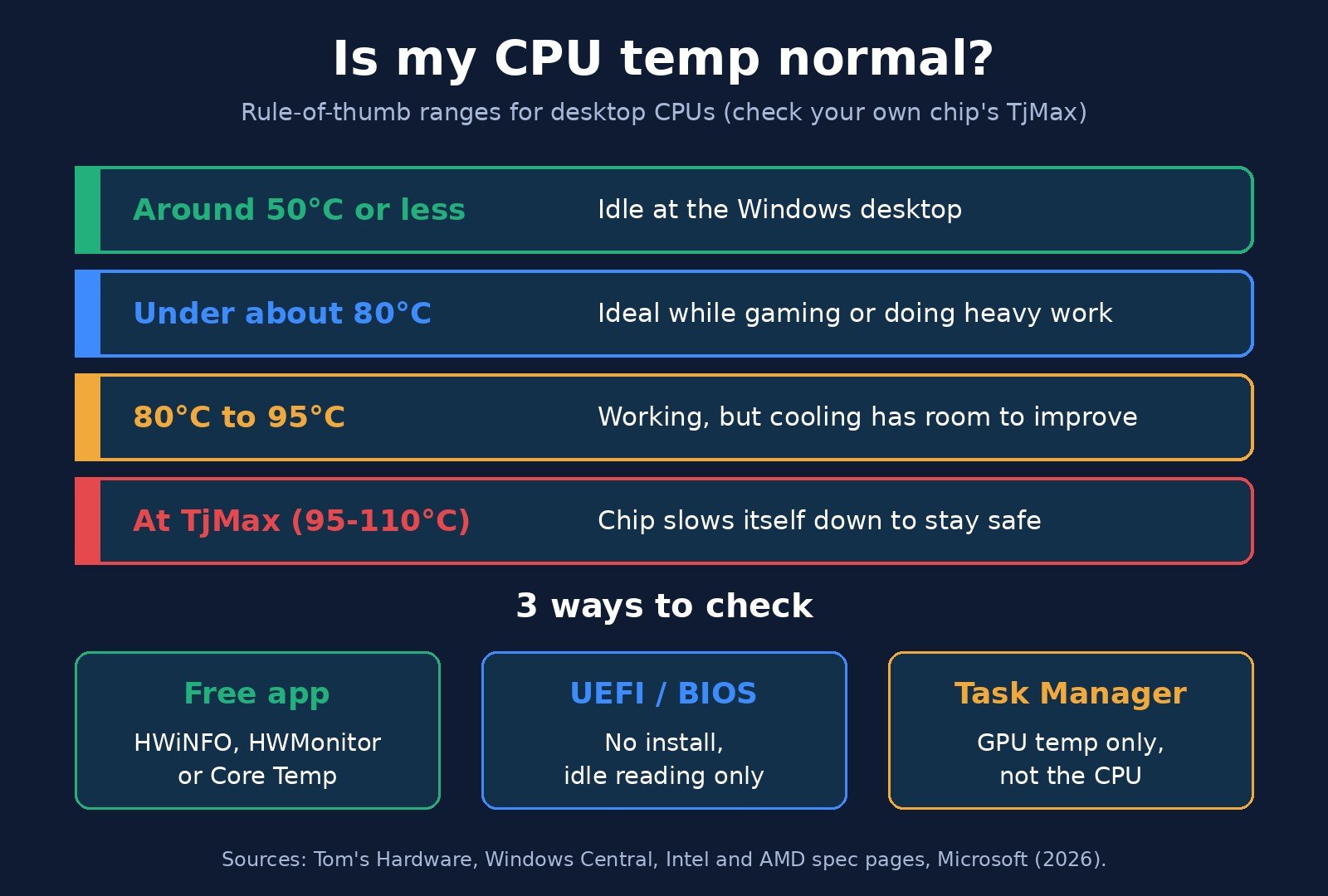
Windows 11 has no built-in CPU temperature readout, so the quickest way to check your CPU temp is a free monitoring app such as HWiNFO, HWMonitor or Core Temp, or your PC’s UEFI/BIOS screen if you’d rather not install anything. As a rough guide, a desktop CPU idling at the Windows desktop is fine at around 50°C or less, and under a gaming load you’d like it to stay under about 80°C. The real limit is your chip’s own maximum operating temperature (TjMax), which is 95°C on current AMD Ryzen desktop chips and usually 100°C to 110°C on Intel chips.
This guide walks through each way to check, explains which of the many numbers on screen actually matters, and shows how to tell whether your temperatures are normal or a sign your cooling needs attention. It’s written for Windows 11 desktops and laptops with Intel or AMD processors. If your PC has been slowing down, freezing or shutting off without warning, heat is one of the first things worth ruling out, alongside the other causes in our guide to fixing Windows 11 freezing randomly.
Can you check CPU temperature in Task Manager?
No. Task Manager’s Performance tab shows CPU usage, clock speed and core counts, but it has no CPU temperature field in Windows 10 or Windows 11, and there’s no setting that adds one.
Task Manager can show your graphics card’s temperature, though. Microsoft added GPU temperature to the Performance tab in 2019, and according to its announcement it only works with a dedicated graphics card, needs a graphics driver that supports WDDM 2.4 or newer, and shows the reading in Celsius only. So for the CPU, you’ll need one of the methods below.
Ways to check CPU temp at a glance
| Method | Install needed? | Shows temp under load? | Best for |
|---|---|---|---|
| Free monitoring app (HWiNFO, HWMonitor, Core Temp) | Yes (small, free download) | Yes, with min/max history | Almost everyone; desktops and laptops |
| Chipmaker tool (AMD Ryzen Master) or PC/cooler companion app | Yes | Yes | AMD Ryzen owners, gaming PCs with branded software already installed |
| UEFI/BIOS screen | No | No, idle only | Quick sanity check on desktops, or when Windows won’t stay running |
| Task Manager | No | GPU only | Checking a dedicated graphics card’s temperature |
Method 1: Use a free monitoring app (fastest)
Every modern processor has built-in digital temperature sensors. Windows just doesn’t display them, so a small app has to read them for you. Three long-running free options are:
- HWiNFO: the most detailed. It lists every sensor in your PC, including CPU, GPU, drives and motherboard, with current, minimum, maximum and average columns.
- HWMonitor from CPUID: a simpler single window showing current, min and max temperatures for each component.
- Core Temp: the lightest of the three, focused on the CPU, and it can show temperatures in your taskbar’s notification area. Tom’s Hardware advises unticking the bundled optional offer during installation.
Download only from each tool’s official site. Here’s how to check your CPU temp with HWiNFO, and the steps are similar for the others:
- Go to the HWiNFO download page and grab the installer or the portable version (the portable version runs without installing).
- Open HWiNFO64. On the start window, tick Sensors-only and click Start.
- Scroll to the section named after your processor (for example, “CPU [#0]: Intel Core…” or “CPU [#0]: AMD Ryzen…”).
- Find the main CPU reading. On Intel chips it’s usually CPU Package; on AMD Ryzen it’s usually CPU (Tctl/Tdie). The section explaining readings below covers what these mean.
- Leave the window open while you use the PC normally or play a game, then look at the Maximum column to see the hottest it got.
If a tool shows no CPU temperature at all, the sensor may not be exposed on that machine. This happens on some laptops and office PCs. Try a second app or the chipmaker’s tool before assuming something is wrong.
Method 2: Use your chipmaker’s or PC maker’s software
If you have an AMD Ryzen processor, AMD’s free Ryzen Master utility shows real-time per-core clock speeds, temperature and voltages, including average and peak readings. It’s also a tuning tool, so stick to the monitoring view unless you know what you’re changing.
Gaming PCs and laptops often come with a companion app that already shows CPU temperature. Windows Central lists examples such as ASUS Armoury Crate, Corsair iCUE, MSI Afterburner and NZXT CAM, and notes that CAM works as a monitor even without NZXT hardware. If one of these is already on your PC, open its monitoring or dashboard page before installing anything new.
Method 3: Check CPU temp in the UEFI/BIOS (no install)
Most desktop motherboards show the CPU temperature in their firmware settings screen. You can get there from inside Windows 11 using Microsoft’s Advanced startup option:
- Save your work, then open Settings > System > Recovery.
- Next to Advanced startup, click Restart now.
- On the blue menu, choose Troubleshoot > Advanced options > UEFI Firmware Settings, then click Restart.
- When the firmware screen loads, look for the CPU temperature on the main page, or in a section called something like Hardware Monitor, PC Health Status or Status.
- Exit without saving changes to go back to Windows.
You can also press the firmware key (commonly Delete, F2, F10 or Esc, depending on the maker) right as the PC powers on. If you use the same menu often, our guide to booting into Safe Mode on Windows 11 uses the same Advanced startup screen.
The catch: the firmware screen only shows your temperature while the PC is sitting idle. As Tom’s Hardware points out, temperatures will be much higher once Windows is running and the chip is under load, so use this for a quick health check, not to judge gaming temperatures. Many laptops and office desktops also don’t show temperatures in their firmware at all.
Which CPU temperature reading should you look at?
Monitoring apps can show a dozen CPU-related temperatures, which is where most people get confused. Here’s what the common labels mean:
- CPU Package (Intel): one overall reading for the processor. This is the best single number to watch on Intel chips.
- Core #0, Core #1 and so on: individual core temperatures. They jump around quickly and the hottest core is usually close to the package reading.
- CPU (Tctl/Tdie) (AMD): the main reading on Ryzen chips, and the one to compare against your chip’s maximum temperature.
- Motherboard, system or “CPU socket” temperature: a sensor on the board, not inside the CPU. Useful for spotting a hot case, but it isn’t your CPU temperature.
- Distance to TjMax: how many degrees the CPU is below its maximum. Bigger is better.
Always look at the maximum reached during real use, not a single snapshot. Intel notes that temperatures can climb very quickly when a chip boosts to its top speed, so a brief spike isn’t a problem on its own.
What is a normal CPU temperature?
There isn’t one number that’s right for every chip. Intel says it doesn’t publish typical temperature ranges because they depend so much on the system design and the workload. Still, the guidance from hardware testers is consistent enough to work with:
| Situation | Healthy range (rule of thumb) | Source |
|---|---|---|
| Idle at the Windows desktop | Around 50°C or less | Tom’s Hardware |
| Gaming or heavy work | Under about 80°C ideally; under 85°C is generally acceptable under stress | Tom’s Hardware, Windows Central |
| 80°C to 95°C during gaming | Working, but there’s room to improve cooling | Tom’s Hardware |
| At or near TjMax under an all-core load | Expected on some modern chips; the CPU slows itself to stay safe | Intel, AMD via PCGamesN |
Laptops and small-form-factor PCs usually run hotter than full-size desktops because they have much less room for cooling. Tom’s Hardware notes that most laptop coolers are built for short bursts and will slow the chip down during long gaming sessions to stay under the shut-off point.
Find your CPU’s maximum temperature (TjMax)
The number that actually matters is your processor’s maximum operating temperature, often called TjMax or Tjunction. It’s listed on the manufacturer’s spec page:
- Intel: search your model on Intel’s product specification site and open Package Specifications. Intel says the limit usually falls between 100°C and 110°C. For example, the Core Ultra 9 285K lists a max operating temperature of 105°C.
- AMD: open your Ryzen model’s page on AMD’s site and find Max. Operating Temperature (Tjmax). Both the Ryzen 7 7700 and Ryzen 7 9700X list 95°C.
Not sure which processor you have? Open Settings > System > About and look next to “Processor.” If you’re weighing an upgrade, our Intel vs AMD guide compares the current chips.
Why some CPUs sit at 95°C or 100°C on purpose
Modern processors boost their speed until they hit either a power limit or a temperature limit. On some chips, heat comes first. AMD has said its Ryzen 7000 desktop chips were engineered to run at 95°C with no harm to longevity or reliability, and that even the top Ryzen 9 7950X should run at around 70°C in games with a good liquid cooler. Tom’s Hardware notes that Intel’s top 12th to 14th Gen Core i9 chips can likewise reach 100°C during normal operation.
And if a chip does get too hot, it protects itself. Intel explains that its processors first throttle, cutting speed and power to cool down, and shut down automatically if that isn’t enough, so damage from overheating alone is unlikely. The real cost of running hot is lost performance, plus fan noise and, on laptops, an uncomfortably warm chassis.
How to check CPU temp under load
An idle reading tells you little, so check while the PC is doing real work:
- Open your monitoring app and reset the min/max values if it has that option (HWiNFO has a clock-shaped reset button).
- Play your usual game or run your usual heavy task (a video export, for example) for an hour or so.
- Check the Maximum column for your main CPU reading.
Tom’s Hardware’s guideline is to be concerned if that maximum is at or beyond 95°C after an hour of gaming, unless your chip is one of the models designed to run at that limit. Stress-test apps like Prime95 push the CPU much harder than games do. They’re useful for enthusiasts checking a new cooler, but they can crash an unstable system, so they aren’t necessary for a routine check.
How to check GPU temperature
For a dedicated graphics card, press Ctrl + Shift + Esc to open Task Manager, select Performance, then click your GPU in the left column. The temperature appears under the graphs. If it’s missing, update your graphics driver (the feature needs WDDM 2.4 or newer); our guide on how to update graphics drivers covers that. Integrated graphics are built into the processor, so check the CPU reading instead. HWiNFO and HWMonitor also list GPU temperatures alongside the CPU. Not sure which graphics card you have? See how to check what GPU you have.
How to lower high CPU temperatures
If your CPU runs hotter than it should, work through these fixes in order, cheapest first:
- Check what’s using the CPU. A runaway background process can keep a chip hot even at the desktop. Sort Task Manager’s Processes tab by CPU and close or uninstall anything you don’t need.
- Clean out the dust. Dust-clogged filters, fans and heatsinks are the most common cause. Shut down, unplug, and use compressed air on the intakes, fans and cooler fins.
- Give it room to breathe. Keep desktop vents clear of walls and keep laptops on a hard, flat surface instead of a bed or sofa.
- Check that every fan spins. Your monitoring app shows fan speeds; a fan reading 0 RPM under load has probably failed or come unplugged.
- Replace the thermal paste. Tom’s Hardware says most thermal paste degrades seriously after about three years, so fresh paste can make a real difference on an older desktop.
- Update the BIOS and drivers. Firmware updates sometimes change fan curves and power behavior.
- Upgrade the cooler. Stock coolers can struggle with higher-end chips, and a better air cooler or liquid cooler is the biggest fix for a desktop that genuinely runs hot.
If a pre-built PC or laptop overheats while it’s still under warranty, Intel’s advice is to contact the system manufacturer. Don’t open a sealed laptop yourself if that could void the warranty.
How to check CPU temp: frequently asked questions
How do I check my CPU temperature on Windows 11?
Windows 11 doesn’t show CPU temperature in Task Manager or Settings. Install a free monitoring app such as HWiNFO, HWMonitor or Core Temp and look at the CPU Package (Intel) or CPU Tctl/Tdie (AMD) reading, or restart into your UEFI/BIOS screen to see the idle temperature without installing anything.
What is a good CPU temp?
A good CPU temperature is around 50°C or less at idle and under about 80°C while gaming or doing heavy work, according to Tom’s Hardware. Some modern chips are designed to run up to their maximum, 95°C on current Ryzen desktop CPUs and usually 100°C to 110°C on Intel CPUs, so check your model’s TjMax.
Is 90°C too hot for a CPU?
Not necessarily. 90°C is below the 95°C limit of current AMD Ryzen desktop chips and the 100°C to 110°C limit Intel says is typical for its chips, so the processor is still working safely. But if you see 90°C regularly during gaming, your cooling has room to improve, and lower temperatures usually mean higher sustained speeds.
What happens if a CPU gets too hot?
The CPU protects itself. When it reaches its maximum temperature, it lowers its speed and power to cool down, which you’ll notice as lag or lower frame rates. If that isn’t enough, Intel says the processor shuts down automatically to prevent damage, which can look like a sudden restart.
Can I check CPU temp without downloading anything?
Yes, on many PCs. Go to Settings > System > Recovery, click Restart now next to Advanced startup, then choose Troubleshoot > Advanced options > UEFI Firmware Settings. Most desktop motherboards show the CPU temperature there, though only at idle, and many laptops don’t show it at all.
How often should I check my CPU temperature?
Tom’s Hardware suggests checking every few months, and any time you notice slowdowns, loud fans, freezes or unexpected shutdowns. It’s also worth checking after building a PC, changing a cooler, or reapplying thermal paste.
The bottom line
To check your CPU temp on Windows 11, install a free tool like HWiNFO, HWMonitor or Core Temp and watch the CPU Package or Tctl/Tdie reading, especially its maximum after an hour of real use. Around 50°C at idle and under about 80°C under load is healthy for most desktops. Higher readings aren’t automatically dangerous, because your chip slows itself down well before damage, but if you’re regularly in the 80s and 90s, clean the dust out, check the fans and consider fresh thermal paste or a better cooler. For more ways to keep a Windows PC running smoothly, see our guide to freeing up space on Windows 11.

The Teck Hustlers Editorial Team covers technology, business, finance and gaming news for readers who want the story behind the headline. Every article is researched, written and edited by our in-house team, checked against company announcements, filings and reputable reporting, and updated when new facts emerge. We focus on what each development means for founders, professionals, investors and everyday users. Have a tip or a correction? Reach us through our contact page.