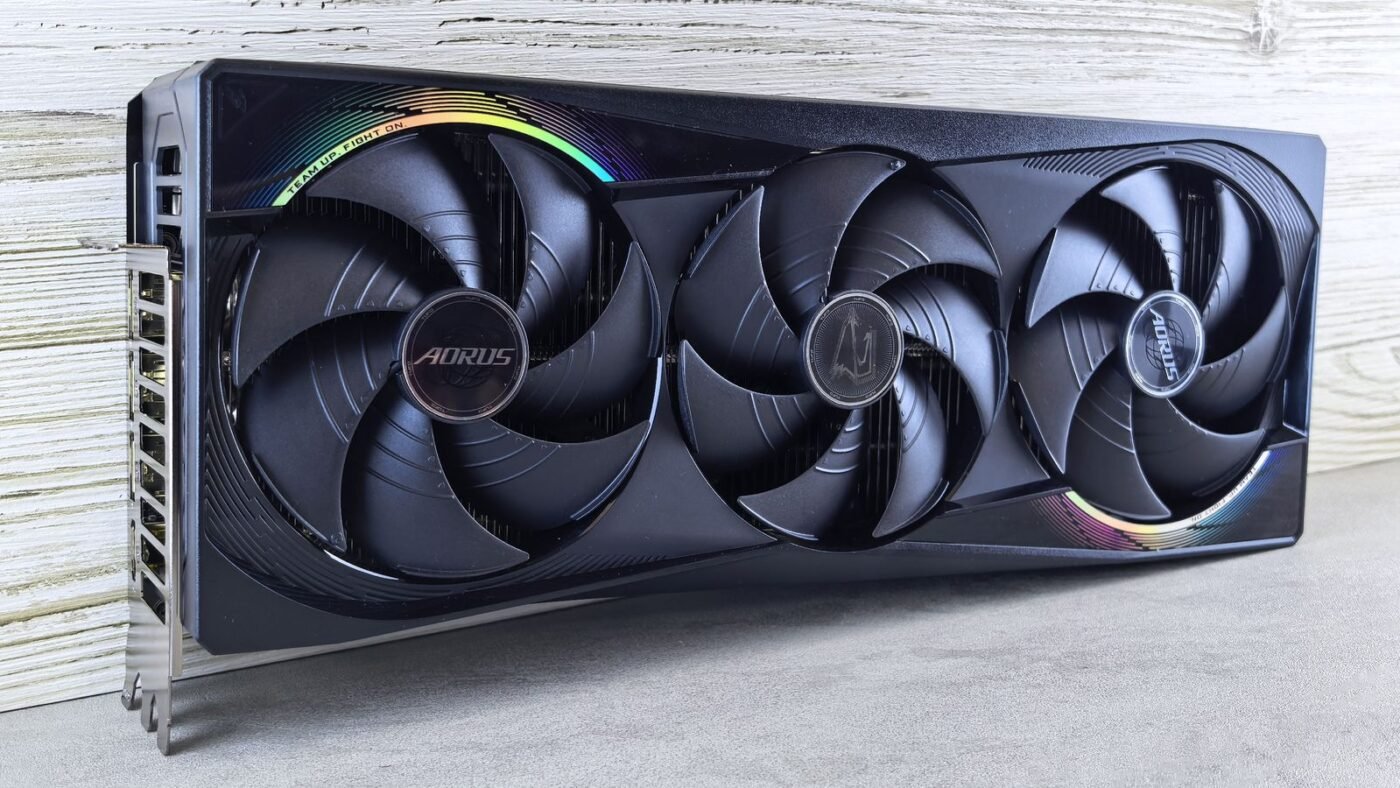
TL;DR: To check what GPU you have on Windows 11, press Ctrl + Shift + Esc to open Task Manager, click Performance, then select GPU; the model name appears in the top-right corner. You can also use Device Manager (Display adapters), the DirectX Diagnostic Tool (dxdiag) or Settings. On a Mac, open the Apple menu, choose About This Mac and look at the chip or graphics line. On Linux, run lspci | grep -i vga in a terminal. Most PCs show two GPUs, an integrated one and a dedicated one, and both matter.
Wondering how to check what GPU you have before installing a game, updating drivers or selling your PC? You don’t need to open the case. Every major operating system can tell you the exact graphics card model in under a minute. This guide covers five methods on Windows, plus Mac and Linux, and explains how to read the results.
Quick comparison: ways to check your GPU
| Method | Platform | Shows VRAM? | Best for |
|---|---|---|---|
| Task Manager | Windows 10/11 | Yes | Fastest check, live usage |
| Device Manager | Windows | No | Seeing every display adapter |
| dxdiag | Windows | Yes | Driver version and DirectX details |
| Settings > Display | Windows 11 | Partly | Which GPU drives each monitor |
| About This Mac / System Information | macOS | On Intel Macs | Mac users |
| lspci / nvidia-smi | Linux | With nvidia-smi | Linux users and servers |
Method 1: Task Manager (fastest on Windows)
- Press Ctrl + Shift + Esc, or right-click the Start button and choose Task Manager.
- Click the Performance tab (the graph icon on the left in Windows 11).
- Select GPU 0, and GPU 1 if it’s listed.
- Read the model name in the top-right corner, for example an NVIDIA GeForce, AMD Radeon or Intel Arc model.
Below the graphs you’ll see Dedicated GPU memory (your VRAM), shared memory and the driver version. The live graphs also show how hard the GPU is working, which helps when a game stutters.
Method 2: Device Manager
- Right-click the Start button and choose Device Manager.
- Expand Display adapters.
- Every GPU in your system is listed. Right-click one and choose Properties to see the driver tab.
If you see “Microsoft Basic Display Adapter,” Windows hasn’t installed a proper driver yet. Download the right one from your GPU maker or PC maker.
Method 3: DirectX Diagnostic Tool (dxdiag)
- Press Windows + R, type dxdiag and press Enter.
- Click the Display tab (there may be a Display 2 or Render tab for a second GPU).
- Note the Name, Display Memory (VRAM) and Driver version.
Click Save All Information to export a text file, which is handy when a support agent or a game forum asks for your specs. Microsoft documents the tool on its dxdiag support page.

Method 4: Windows 11 Settings
- Open Settings > System > Display.
- Scroll down and select Advanced display.
- Look at Display information, which shows which GPU is connected to each monitor.
Under Settings > System > Display > Graphics, you can also choose which GPU an individual app uses, which is useful on laptops with two graphics chips.
Method 5: Your GPU maker’s app
If you have NVIDIA, AMD or Intel software installed (such as the NVIDIA App, AMD Software: Adrenalin Edition or Intel Graphics Software), its system or info page lists the exact model and driver. These apps are also the easiest way to update drivers.
How to check your GPU on a Mac
- Click the Apple menu and choose About This Mac.
- On Apple silicon Macs, the Chip line (for example M4 or M5 Pro) tells you the GPU, because graphics are built into the chip.
- On Intel Macs, look for the Graphics line.
- For more detail, click More Info > System Report and select Graphics/Displays, which shows the GPU core count on Apple silicon.
Apple silicon Macs share memory between CPU and GPU, so there is no separate VRAM figure. Our guide to Apple unified memory explains why.
How to check your GPU on Linux
- Run lspci | grep -i -E “vga|3d” to list graphics devices.
- On NVIDIA systems with the proprietary driver, run nvidia-smi to see the model, VRAM, temperature and driver version.
- Desktop environments such as GNOME also show the graphics model under Settings > System > About (the exact location varies by version).
Integrated vs dedicated GPU: reading the results
Seeing two GPUs is normal, especially on laptops:
- Integrated GPU: built into the processor (for example Intel UHD, Intel Arc integrated or AMD Radeon graphics in a Ryzen chip). It saves power for everyday tasks.
- Dedicated (discrete) GPU: a separate chip with its own VRAM, such as an NVIDIA GeForce RTX or AMD Radeon RX card. Games and creative apps should use this one.
When comparing your PC with a game’s system requirements, check the dedicated GPU and its VRAM. Requirements are a common question ahead of big releases, like whether GTA 6 will ever reach PC.
What if your GPU doesn’t show up?
- Restart the PC and check again, since a driver may have crashed.
- In Device Manager, click Action > Scan for hardware changes.
- Install the latest driver from NVIDIA, AMD, Intel or your laptop maker.
- On desktops, make sure your monitor cable is plugged into the graphics card, not the motherboard.
- Run Windows Update, which often delivers missing drivers.
Driver problems often show up alongside other glitches; our fixes for Bluetooth not working on Windows 11 and Wi-Fi that keeps disconnecting use the same Device Manager steps.
The bottom line
The quickest way to check what GPU you have on Windows is Task Manager > Performance > GPU. Use dxdiag when you need driver and VRAM details to share, About This Mac on macOS and lspci or nvidia-smi on Linux. Once you know your exact model, updating drivers and checking game requirements becomes much easier.

The Teck Hustlers Editorial Team covers technology, business, finance and gaming news for readers who want the story behind the headline. Every article is researched, written and edited by our in-house team, checked against company announcements, filings and reputable reporting, and updated when new facts emerge. We focus on what each development means for founders, professionals, investors and everyday users. Have a tip or a correction? Reach us through our contact page.