TL;DR: If you’re asking “why is my phone not charging,” the cause is usually simple: a damaged cable or adapter, lint packed into the charging port, a dead outlet, a phone that’s too warm, or a software hiccup that a restart fixes. Work through the fixes below in order. Try a different cable, adapter and wall outlet, clean the port gently, restart (or force restart), remove the case, and leave the phone on a known-good charger for 30 minutes. If it stops at 80%, that’s often a battery-protection feature, not a fault. If nothing works, or the battery is swollen, get it serviced.
Plugging in and seeing nothing happen is frustrating, but most charging failures come down to a handful of fixable causes. This guide explains why your phone is not charging and walks through nine fixes for iPhone and Android, based on Apple’s and Google’s own troubleshooting advice. It also covers when the problem is the battery or the port and needs a repair.
Quick diagnosis: match the symptom to the likely cause
| What you see | Most likely cause | Try first |
|---|---|---|
| No charging icon at all | Bad cable/adapter, dead outlet, blocked port | Fixes 1–3 |
| Charges only at a certain angle | Worn cable or lint in the port | Fixes 1 and 3 |
| Charging very slowly | Low-power adapter, heat, heavy use while charging | Fixes 2, 6 and 7 |
| Stops at 80% | Optimized/Adaptive charging or a charge limit | Fix 8 |
| “Accessory not supported” or “Check charging accessory” | Damaged or incompatible accessory, dirty port | Fixes 1, 3 and 4 |
| Water drop or “moisture detected” warning | Liquid in the USB-C port | Fix 5 |
| Phone is completely dead and black | Deeply drained battery | Fix 9 |
9 fixes when your phone is not charging
1. Swap the cable first
Cables fail more than anything else in the charging chain. Look for fraying near the connector, kinks or bent pins. Apple’s support guide says to check your cable and adapter “for signs of damage, like breakage or bent prongs” and adds simply: “Don’t use damaged accessories.” Then try a different cable you know works.
2. Try a different adapter and a wall outlet
Plug straight into a wall outlet rather than a laptop USB port, power strip or car socket, and try a different outlet as well. Test your adapter by charging another device with it. Google’s Pixel help page suggests exactly that, and it recommends a USB Power Delivery (PD) adapter rated for at least 15 W, or a 30 W PPS adapter for the fastest Pixel charging. A tiny old 5 W cube may technically charge a modern phone, but painfully slowly.
3. Clean the charging port, gently
Pocket lint gets compressed into the port every time you plug in. Eventually the cable can’t seat fully. Shine a torch inside. If you see fluff, power the phone off and carefully lift it out with a wooden toothpick or a soft brush. Don’t use metal pins or liquids, which can damage the contacts. Apple and Google both list removing debris from the port as a core step.
4. Restart, or force restart
Sometimes charging stalls because of a software glitch. Restart the phone and plug it in again. On a recent iPhone (iPhone 8 or later), Apple’s force-restart method is: press and quickly release volume up, press and quickly release volume down, then press and hold the side button until the Apple logo appears. On a Pixel, Google says holding the power button for about 35 seconds reboots the phone. Also install any pending software update, since Apple lists updating iOS as a fix for accessory alerts.
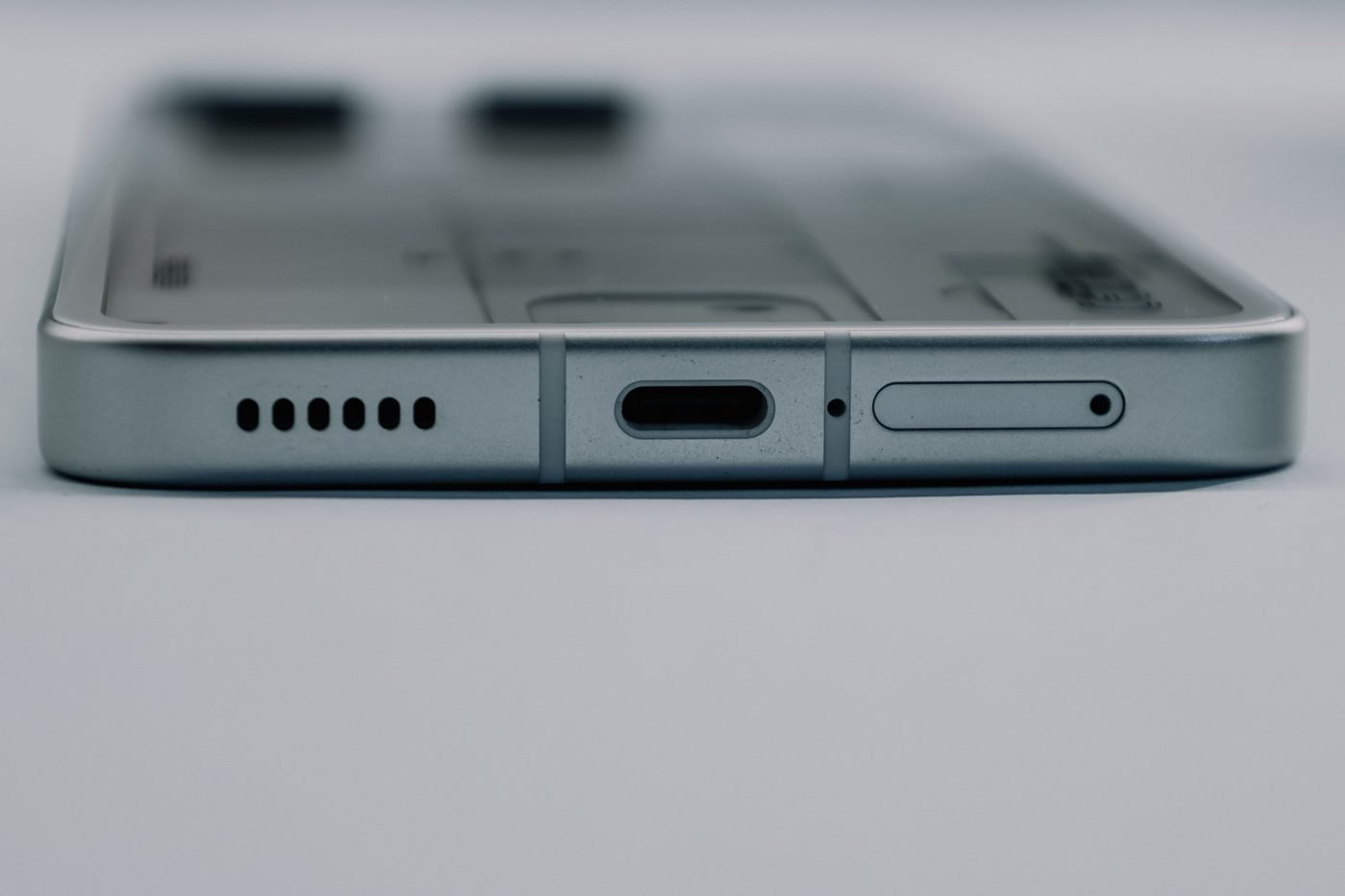
5. Dry out a “moisture detected” warning (Android)
Water-resistant Samsung Galaxy phones (and some other Android models) stop wired charging when they detect moisture in the USB-C port, showing a water-drop icon. Samsung’s support page says to unplug, wipe the phone with a dry cloth or gently shake it five to ten times with the port facing down, then leave it on a cloth in a well-ventilated area or dry it with a fan. High humidity, such as charging in a steamy bathroom, can trigger the warning too. If the icon stays after the phone is completely dry, Samsung suggests clearing the USB cache: Settings > Apps > Filter and sort > Show system apps > USB Settings > Storage > Clear cache. Wireless charging works as a stopgap.
6. Remove the case and check wireless charger alignment
Thick or rugged cases can stop a cable seating fully, and they get in the way of wireless pads. Google tells Pixel owners to remove the case first and notes that, for best performance, a wired charger beats wireless. If you use a pad or car mount, center the phone on it. Google says some older Qi1 car chargers can cause intermittent charging on its Qi2-certified Pixel 10 models, and recommends a wired connection or a Qi2-certified charger.
7. Let it cool down and stop using it while charging
Heat is the enemy of lithium-ion batteries, so phones throttle or pause charging when they get warm. Apple says that if the battery gets too warm, software “might limit charging above 80 percent,” and that charging resumes when the temperature drops. Take the phone out of direct sun, remove the case, and close games or navigation apps while it charges. If heat is a regular problem, our guide to why your phone gets so hot covers the common causes.
8. Check whether “stuck at 80%” is a feature
Modern phones deliberately hold back the last 20% to slow battery ageing:
- iPhone: Optimized Battery Charging learns your routine and waits to finish past 80% until you need the phone. iPhone 15 models and later can also have a charge limit set. You can change both in the Battery section of Settings.
- Pixel: Adaptive Charging can slow charging above 80% before your alarm time. You can turn it off temporarily in battery settings.
- Samsung and others: look for a “Protect battery” or similar charging-limit option in battery settings.
9. Give a fully drained phone time
A phone whose battery is completely empty may look dead even when it’s charging. Apple suggests charging for half an hour, force restarting, then charging for another half hour. Google says a fully drained Pixel that hasn’t been used in a long time may show no charging icon, no vibration and no screen response for up to 25 minutes after being plugged in. Use a known-good cable, adapter and outlet, and be patient before deciding it’s broken.
When it’s time for a repair
If you’ve tried every fix above with accessories you know are good, the problem is probably hardware: a worn charging port, a failing battery or a board-level fault. Signs you need service include:
- The phone charges only with the cable held at an angle, even after cleaning the port.
- Battery health in settings is very low, or the phone shuts down at 20–30%.
- The back or screen is bulging. A swollen battery is a safety risk, so stop charging and using the phone and get it to a repair shop.
- Your phone has had water exposure and the moisture warning won’t go away after it has dried.
Apple and Google both offer official repair options, and a port or battery replacement usually costs far less than a new phone. Check your warranty first. If your phone also has signal trouble, see our explainer on why your phone shows SOS.
How to keep your phone charging reliably
- Use certified cables and a reputable PD charger rather than bargain-bin accessories.
- Check the port for lint every few months, especially if you keep your phone in a pocket.
- Leave battery-protection features on. They exist to make your battery last longer.

The Teck Hustlers Editorial Team covers technology, business, finance and gaming news for readers who want the story behind the headline. Every article is researched, written and edited by our in-house team, checked against company announcements, filings and reputable reporting, and updated when new facts emerge. We focus on what each development means for founders, professionals, investors and everyday users. Have a tip or a correction? Reach us through our contact page.