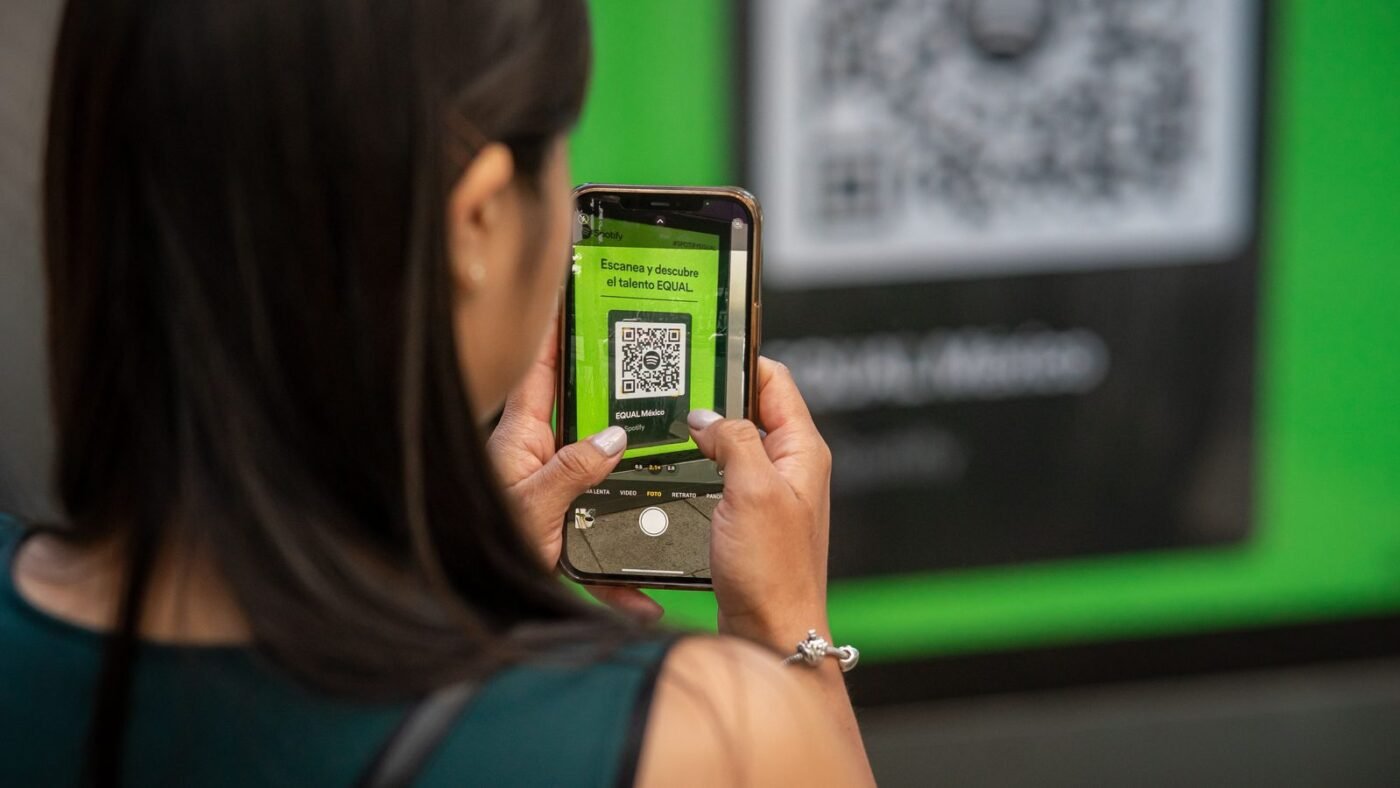
To make a QR code for a link, open the destination page in Chrome, choose its sharing controls and select Create QR code. Download the image, scan it with another device and confirm that it opens the intended page.
The image is easy to create. The more important work is choosing a link that will remain useful, testing how it behaves for someone else and making sure the code still scans after you place it on a card, sign or document.
Start With the Destination
Open the exact page you want people to visit. A homepage, booking form, product page and contact page may serve different purposes. Choose the one that matches the action you want a reader to take.
Check the address for unnecessary private information. A link copied from your own signed-in session may contain a temporary token or lead to a page that another person cannot access. Test the finished design on a real device, including scanning the QR code on an iPhone if that is how your intended readers will open it.
Test the destination while signed out or on a separate device before creating the code. If the page requires a login, make that expectation clear beside the printed code rather than surprising people after they scan it.
Create a Code With Chrome
- Open Chrome on a computer.
- Visit the page you want to share.
- Open the More menu.
- Choose Cast, save, and share.
- Select Create QR code.
- Download the image and keep a record of the destination URL.
Google’s Chrome sharing instructions document the QR-code option. Menu wording and placement can change. Use the sharing controls shown by your installed version rather than downloading an unfamiliar extension to reproduce an old screenshot.
Watch a QR-Code Introduction
Kevin Stratvert’s tutorial introduces creating QR codes. Some tools and interfaces shown in an older walkthrough may differ from current versions; the destination and testing principles still matter.
Understand What the Code Does
A code that contains a website address gives a scanning device a way to open that address. It does not guarantee that the page will stay online, that the person has internet access or that they have permission to view the content.
Think of the code as a printed route to the destination. If you remove the page or change its access rules, the printed image does not repair that change for you.
This is why a stable page on a domain you control can be useful for long-lived material. A sign that points to a temporary campaign preview may become useless sooner than one that points to a maintained public information page.
Static Codes and Redirect Services
Some tools encode the destination directly. Others place a service-controlled link in the code and redirect visitors onward. That second approach can support changing the destination without replacing the printed image, but it adds another dependency.
Before choosing a service, check what happens when a trial ends or a subscription stops. Read the actual terms for editing, scan limits, tracking and continued operation. “Free to create” does not always answer the question of long-term use.
You do not need a changing destination for every project. For a simple, stable page, extra management features may add cost and complexity without solving a real need.
Keep the Design Easy to Scan
Place the code where a person can hold a phone steadily and see it clearly. Avoid bending it around a narrow object, placing it over a busy photograph or reducing it until the printed details are difficult to distinguish.
Leave space around the image. Keep strong contrast between the code and its background, and do not stretch it into a different shape to fit a layout.
If you add decorative elements, test the final design rather than assuming a code that scanned before editing will still work. A logo or unusual color choice can change how easily different cameras recognize it.
Test the Actual Output
Scan the downloaded image with a second device. Confirm the visible destination before opening it, then verify that the correct page loads.
Next, test the actual format you intend to distribute. A code on a large monitor can scan well while a small printed version fails. Print a sample card, view the real PDF or inspect the finished sign at a normal reading distance.
Ask someone who did not create the code to try it. They may notice an unclear instruction, an unexpected login page or a destination that only works because you are already signed in.
Add a Plain-Language Instruction
Tell people what they will find. “Scan to view the menu” is more useful than placing a bare square on a poster. For a booking form, mention that it opens a booking page rather than implying the scan itself makes a reservation.
Include an alternative route when practical, such as a short readable website address. Someone may have a damaged camera, limited connectivity or a preference for typing the link.
Make sure the wording fits the landing page. If the sign promises pricing, the visitor should not have to search through several unrelated pages to find it.
Record and Maintain the Link
Keep a simple record of where the code is used and who maintains its destination. A business may place the same code on packaging, invoices and a shop window, so a later change can affect more material than expected.
Check the destination before reprinting. If you replace a form or move a page, test the existing code instead of assuming it follows the new location.
For an event, set a reminder in your normal planning system to review the page afterward. You may want to replace an expired registration form with useful follow-up information rather than leave visitors at a closed form.
Frequently Asked Questions
Do I need to pay to create a basic link code?
Chrome includes a QR-sharing option. Paid tools may add management features, but those are separate from the basic task.
Will a printed code work forever?
The image may remain readable, but its usefulness depends on the destination and any service used to redirect it.
Can I change the destination after printing?
That depends on how the code was created. A service-controlled redirect can offer that feature; a direct encoded URL cannot simply be edited inside the printed image.
What is the most important test?
Scan the final printed or exported design on another device and confirm the page works for someone who is not signed in as you.
Featured photo: Image: Teck Hustlers image library.

The Teck Hustlers Editorial Team covers technology, business, finance and gaming news for readers who want the story behind the headline. Every article is researched, written and edited by our in-house team, checked against company announcements, filings and reputable reporting, and updated when new facts emerge. We focus on what each development means for founders, professionals, investors and everyday users. Have a tip or a correction? Reach us through our contact page.


