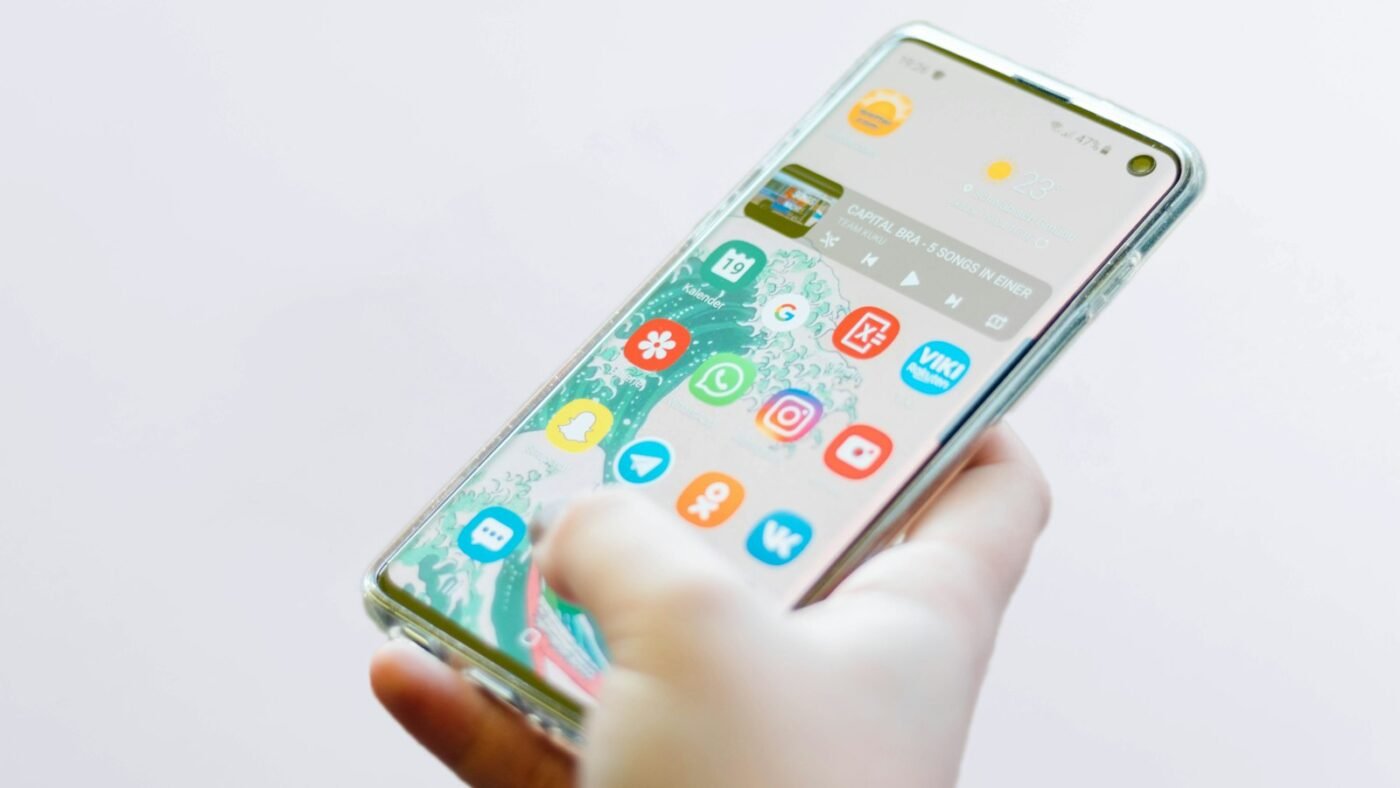
To delete an app you installed on Android, open Google Play, tap your profile picture, choose Manage apps & device, select the app and tap Uninstall. You can also look for Uninstall in the app’s information screen or its long-press menu.
If the option is missing, the app may be preinstalled, required by the system or controlled by an organization. That does not automatically mean something is wrong. Start by identifying which kind of app you are dealing with instead of trying increasingly disruptive removal tools.
Check What You Want to Remove
Find the app’s full name and developer before uninstalling it. Similar icons can make it easy to remove the wrong item, especially when several apps perform the same task.
Next, consider anything stored only inside the app. A draft recording, an unsynced note or a downloaded document may need to be exported first. Sign in and check the app’s own backup or export options while you still have access. If your goal is to recover a conversation rather than remove an app, first review where deleted Android text messages may be stored so you can choose the appropriate recovery path.
If you use the app to approve sign-ins or recover another account, arrange an alternative method before deleting it. Removing an app should not leave you unable to reach the information or accounts you still need.
Uninstall Through Google Play
- Open the Google Play Store.
- Tap your profile picture in the upper corner.
- Choose Manage apps & device, then open the management list.
- Select the app you no longer want.
- Tap Uninstall and review the confirmation.
Google documents this route in its Android app-removal instructions. Wording can vary with your Play Store version. If your phone uses a different app store, follow that store’s approved management controls.
Watch the App-Removal Walkthrough
This Tech Life Unity video demonstrates uninstalling Android apps. The screens may look different on your phone, but the distinction between removing a shortcut and uninstalling the app remains important.
Use the App Icon or Settings
Many Android phones offer an Uninstall option when you touch and hold an app icon. If a menu appears, read it carefully. Remove can mean removing a shortcut from the Home screen, while Uninstall removes the application.
Another common route is Settings, then Apps. Open the app’s information page and look for the available removal controls. Use your phone’s settings search if its menus are arranged differently.
Samsung’s Galaxy app-management guide shows the long-press approach on supported Galaxy devices. Samsung also notes that the screens and available options can vary with the model, software and provider.
Understand Uninstall, Disable and Remove
| Option | What it generally means |
|---|---|
| Uninstall | Remove an installed application from the device |
| Disable | Stop an eligible preinstalled app from normal use without fully removing its system package |
| Remove from Home | Remove a shortcut while leaving the application installed |
These options are not interchangeable. If your goal is to recover storage, removing an icon will not do the same job as uninstalling the app. If you only want a tidier Home screen, deleting the shortcut may be enough.
Android’s app-management overview discusses disabling apps where that option is supported. Not every preinstalled app can be disabled, and not every disabled app frees the same amount of space.
When an App Will Not Uninstall
First check whether the app came with the phone. A system component may not offer the same options as an app you downloaded. For an unfamiliar preinstalled item, read the phone manufacturer’s explanation before changing it.
If this is a work or school phone, app management may be controlled by an administrator. Contact the organization that manages the device instead of trying to bypass its restrictions. Removing a management component can interfere with access to business services.
For a personal phone, restart the device and try its normal app-management screen again if the interface appears stuck. Record any error message. That gives official support something specific to investigate if the problem continues.
Avoid rooting the phone or running a bulk “debloat” command just to remove one unwanted app. A command that names the wrong package can affect functions you did not intend to change.
Check Paid Subscriptions Separately
Deleting an app is not the same action as canceling a recurring subscription. Before removing a service you pay for, check how its billing is managed and use the appropriate cancellation process.
Google provides separate subscription management instructions. A service billed directly by its developer may have different controls. Look at your receipt or account settings to identify the actual billing provider.
Keep the cancellation confirmation if you decide to stop paying. Then uninstall the app once you have exported any information you want to keep. Treat the billing and device-cleanup tasks as two separate checks.
Verify the App Is Gone
After uninstalling, search the app list or open its information page again. Check the result rather than relying only on an icon disappearing from one screen.
If you were clearing storage, return to the storage view and allow it to update. A small app may not make a noticeable difference if large videos or other downloads occupy most of the space. Review the actual storage breakdown before deleting more apps at random.
Keep a short list of services you removed if you are cleaning a family member’s device with permission. That makes it easier to explain what changed or restore an app they later discover they still need.
If several people share the phone, agree on the cleanup first. An app you never open may still be important to someone else. Check what each person needs before removing shared tools or games.
Frequently Asked Questions
Why did the icon disappear but the app remain installed?
You may have removed only a Home screen shortcut. Check the full app list and use Uninstall if you want the application removed.
Can every preinstalled app be deleted?
No. Available controls depend on the phone and application. Some can be disabled; others are required or managed components.
Can I reinstall an app later?
Often, yes, if it remains available and compatible. Recovering its personal data is a separate question, so check backups before uninstalling.
Will uninstalling cancel a subscription?
Do not assume so. Check the billing provider’s subscription controls separately and keep any cancellation confirmation.
Featured photo: Photo by Christian Wiediger on Unsplash.

The Teck Hustlers Editorial Team covers technology, business, finance and gaming news for readers who want the story behind the headline. Every article is researched, written and edited by our in-house team, checked against company announcements, filings and reputable reporting, and updated when new facts emerge. We focus on what each development means for founders, professionals, investors and everyday users. Have a tip or a correction? Reach us through our contact page.


