TL;DR: DPI vs PPI comes down to screen versus paper. PPI (pixels per inch) describes the density of pixels in a digital image or on a display. DPI (dots per inch) describes how many dots of ink or toner a printer lays down. For sharp prints, aim for about 300 PPI at the final print size. The PPI number stored in a file doesn’t change how an image looks on screen, only its pixel dimensions do, and the old “72 DPI for web” rule is a myth you can ignore.
Few terms get mixed up as often in design as DPI and PPI. Clients ask for “a 300 DPI logo,” printers ask for “high-res files,” and phone makers advertise “460 PPI displays.” This guide clears up DPI vs PPI once and for all: what each one measures, when it matters, and how to prepare images for screens and print.
DPI vs PPI: the quick comparison
| PPI (pixels per inch) | DPI (dots per inch) | |
|---|---|---|
| What it measures | Pixel density of a digital image or screen | Ink or toner dots a printer places per inch |
| Where it applies | Image files, monitors, phones, cameras | Printers and printing presses |
| Who controls it | You, in your design or photo editing software | The printer hardware and its settings |
| Typical values | About 300 PPI for print-ready images | Often 1,200 to 4,800 DPI on photo printers |
| Affects on-screen look? | No, only pixel dimensions do | No, it only applies to printing |
What is PPI?
Pixel density, measured in PPI, describes how many pixels fit into one inch. It shows up in two places.
PPI in image files
A digital image is just a grid of pixels, say 3,000 by 2,000. The PPI value saved in the file is an instruction for how big to print that grid. At 300 PPI, those 3,000 pixels print 10 inches wide. At 150 PPI, the same pixels stretch to 20 inches, and each pixel is bigger, so the print looks softer.
PPI on screens
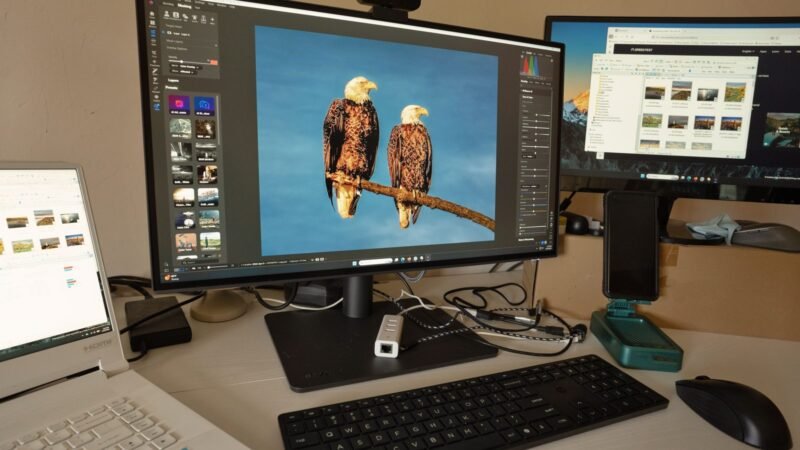
For displays, PPI describes how tightly the physical pixels are packed. A phone screen packs far more pixels per inch than a large desktop monitor, which is why text looks crisper on a phone held close to your face. Apple, for example, lists the iPhone 15’s display at 460 PPI.
What is DPI?
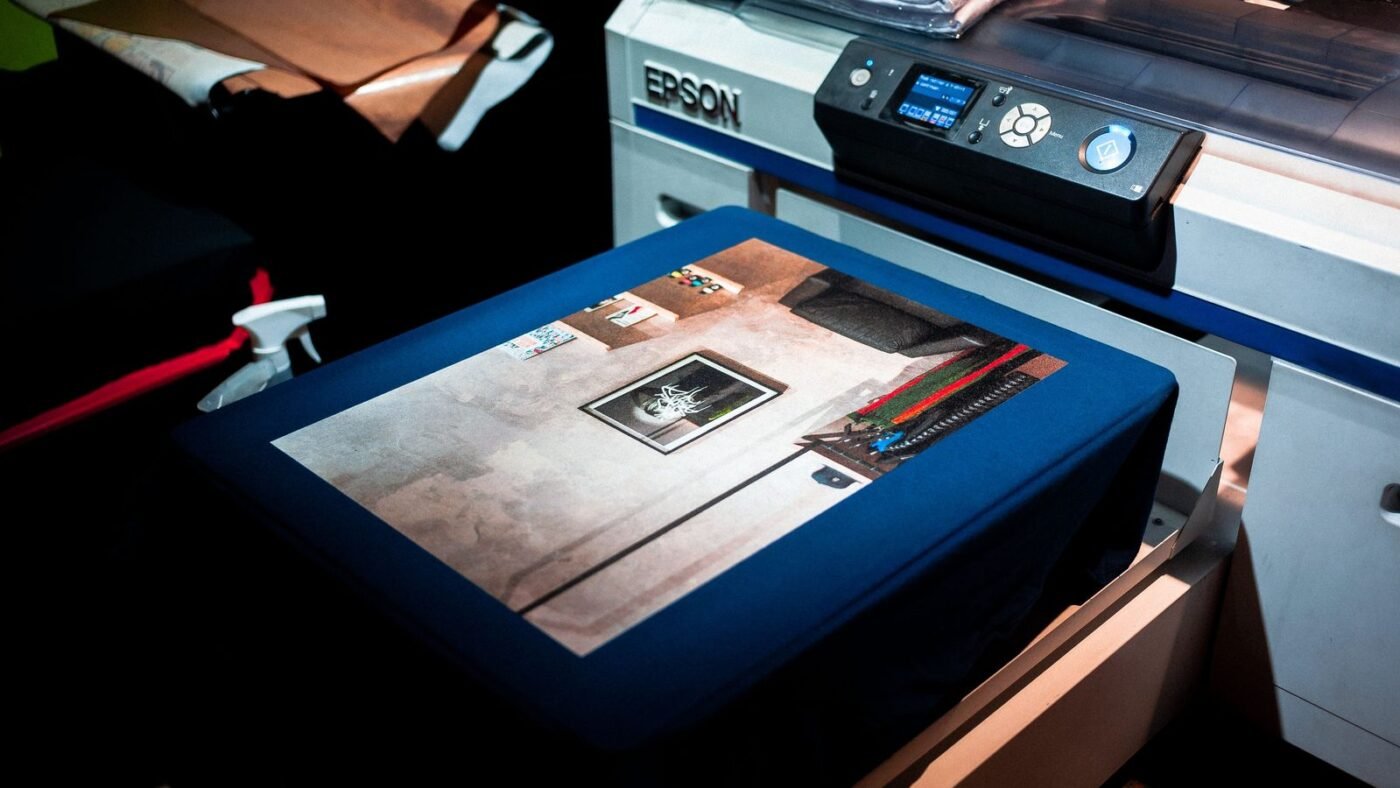
DPI is a printer measurement. Printers can’t reproduce a pixel’s color directly; they build each color from many tiny dots of cyan, magenta, yellow and black ink, the same CMYK model we covered in RGB vs CMYK. A higher DPI means finer dots and smoother gradients. That’s why a printer might be rated at thousands of DPI while your image only needs about 300 PPI: several printer dots are used to render each image pixel.
Why people confuse DPI and PPI
Many apps and print shops use “DPI” when they really mean PPI. When someone asks for a “300 DPI image,” they almost always mean an image with enough pixels to print at 300 PPI at the intended size. If you understand that translation, most of the confusion disappears.
The 72 DPI myth
You may have heard that web images must be saved at 72 DPI. That number dates back to early Apple Macintosh displays, which were designed around 72 pixels per inch. Today screens vary hugely in density, and browsers ignore the PPI value in a file. A 1,600 by 900 pixel image displays exactly the same whether its metadata says 72 or 300. For the web, what matters is pixel dimensions and file size, not the PPI tag.
How to calculate print size
The formula is simple: pixels ÷ PPI = inches. Here’s how many pixels you need for common sizes at 300 PPI.
| Print size | Pixels needed at 300 PPI |
|---|---|
| 4 × 6 in photo | 1,200 × 1,800 |
| 5 × 7 in photo | 1,500 × 2,100 |
| 8 × 10 in print | 2,400 × 3,000 |
| 8.5 × 11 in (US Letter) | 2,550 × 3,300 |
| 3.5 × 2 in business card | 1,050 × 600 (plus bleed) |
Large posters and banners viewed from a distance can often be printed at lower PPI, such as 150, without looking blurry, because viewers stand farther away. Always check your print shop’s specifications.
How to change PPI without losing quality
- Open the image in an editor such as Photoshop and go to the Image Size dialog. Adobe’s help page explains each setting.
- Turn off Resample if you only want to change the print size. This changes the PPI value without adding or removing pixels.
- Type 300 into the resolution field and note the new print dimensions.
- If the resulting size is too small, you need a larger original. Upscaling invents pixels and can look soft.
- Export in a suitable format. Our guide to PNG vs JPG helps you choose.
Tips for designers
- Use vector files for logos. Vectors scale to any size without pixels at all. See vector vs raster.
- Design at the final size. Set up print documents at real dimensions with 300 PPI from the start.
- Don’t trust the PPI tag alone. Check the pixel dimensions to know whether an image is big enough.
- Ask the printer. Some presses want specific resolutions, color profiles and bleed.
Bottom line
PPI is about pixels in your file or on your screen, and DPI is about ink dots on paper. For print, make sure your image has enough pixels to reach about 300 PPI at the final size. For the web, ignore the DPI or PPI setting and focus on pixel dimensions and file size.

The Teck Hustlers Editorial Team covers technology, business, finance and gaming news for readers who want the story behind the headline. Every article is researched, written and edited by our in-house team, checked against company announcements, filings and reputable reporting, and updated when new facts emerge. We focus on what each development means for founders, professionals, investors and everyday users. Have a tip or a correction? Reach us through our contact page.