To allow pop-ups in Safari on a recent iPhone, open Settings, choose Apps, open Safari and turn Block Pop-ups off. On older iOS versions, Safari may appear directly in Settings. Return to the website and retry the action that was blocked.
A pop-up can be a useful part of a legitimate website, such as a document preview or a requested sign-in window. It can also be an unwanted advertisement. The aim is to complete a task on a trusted site while keeping control of what the browser opens.
Confirm Which Browser You Are Using
A link opened from email or a messaging app may appear inside that app’s own browser. Changing Safari’s settings may not affect the view you are actually using.
Look for the browser name and the page address. If a trusted service recommends using Safari or Chrome, open its official website directly in that browser rather than following an unfamiliar redirect. If a trusted site still behaves unexpectedly, clearing Safari or Chrome's cache on iPhone is a separate troubleshooting step from changing pop-up permissions.
Before adjusting anything, note the action you expected to happen. Did you tap a preview button, open a statement or begin a sign-in? A clear starting point makes it easier to check whether the setting solved the actual problem.
Allow Pop-Ups in Safari
- Open the iPhone’s Settings app.
- On recent iOS versions, tap Apps, then Safari.
- Find Block Pop-ups.
- Turn that switch off.
- Return to Safari and reload the trusted page if needed.
- Try the specific button or link again.
Apple documents the control in its Safari pop-up guidance. If your settings layout is different, use Settings search to find Safari. Do not change unrelated privacy or security settings merely because the website still behaves unexpectedly.
Watch the iPhone Walkthrough
This Foxtecc tutorial demonstrates allowing browser pop-ups on iPhone. The current location of Safari settings may differ from the recording, so use the labels shown on your device.
Chrome Uses Its Own Controls
If you browse with Chrome, use Chrome’s pop-up settings rather than assuming Safari’s switch controls every browser on the phone. Google provides separate iPhone and iPad instructions.
Open Chrome’s settings and look for Content Settings and the pop-up control. Follow the options available in your version. When Chrome identifies a blocked pop-up on a page, it may also display a related notice that lets you review the action.
Do not keep toggling settings in multiple browsers at once. Change the browser you are using, test the page and record the result. That makes it much easier to return to your original setup afterward.
Retry the Page Deliberately
After changing the setting, the already-open page may need a reload. Save any unfinished form before refreshing, because reloading can discard information you have not submitted.
Then repeat the one action that should open the window. Avoid tapping the same button several times quickly. If the website responds slowly, repeated taps can create duplicate windows or requests.
Check any new tab’s address and content before entering information. A legitimate document preview should be related to the task you started. An unrelated prize, software download or urgent warning is a reason to stop and inspect what happened.
Pop-Ups and Downloads Are Different
A page may save a file instead of opening a new window. If you expected a PDF, check whether the browser downloaded it. Repeatedly enabling pop-ups will not help you find a document that is already saved.
Our guide to finding downloads on iPhone explains the usual places to look. Search for the document name and check the browser’s download area before requesting another copy.
A website may also show a message inside the existing page. That is not necessarily a separate pop-up window, so the browser’s pop-up switch may have no effect on it.
If the Site Still Does Not Work
First confirm that the problem is actually a blocked window. A broken button, expired sign-in session or server error can look similar from the user’s point of view.
- Check the service’s official help instructions for the feature.
- Confirm that you are using a supported browser.
- Open the official site directly and sign in normally.
- Read any visible error message rather than changing settings at random.
- Contact the service if the requested window still does not appear.
If you ask support for help, provide the browser, iOS version and the exact step that fails. Avoid including account passwords, full payment details or private documents in a public support post.
Restore Your Preferred Blocking Setting
After completing the task, return to the browser’s pop-up controls and restore your usual preference. A temporary change for one trusted task does not have to become a permanent browsing habit.
Apple warns that some pop-ups imitate trusted companies or use deceptive close buttons. If a page appears to take over the screen, avoid interacting with unexpected prompts. Close the tab and reach the service through its official address instead.
Keep the distinction between the necessary feature and unrelated protections clear. Allowing a requested window does not require installing a configuration profile, accepting a download or sharing a password with a third-party page.
A Useful Before-and-After Check
Write down which setting you changed and whether the task succeeded. This is especially useful when helping someone else, because it lets you explain the result and restore their original preference.
If the feature works only after a change, save the service’s official instructions for next time. If it never works, stop broadening browser permissions and investigate the specific site problem instead.
Frequently Asked Questions
Does Safari’s pop-up setting affect Chrome?
Use the controls documented for the browser you are using. Chrome has its own iPhone pop-up settings.
Why can I not find Safari directly in Settings?
Recent iOS versions place app settings under Apps. Settings search can also help you locate Safari.
Should I leave pop-ups allowed all the time?
Choose the setting that fits your browsing needs. For a temporary task, restore your preferred blocking setting afterward.
Why did nothing open after I allowed pop-ups?
The issue may be a download, an in-page message or a site error rather than a blocked window. Check the actual behavior.
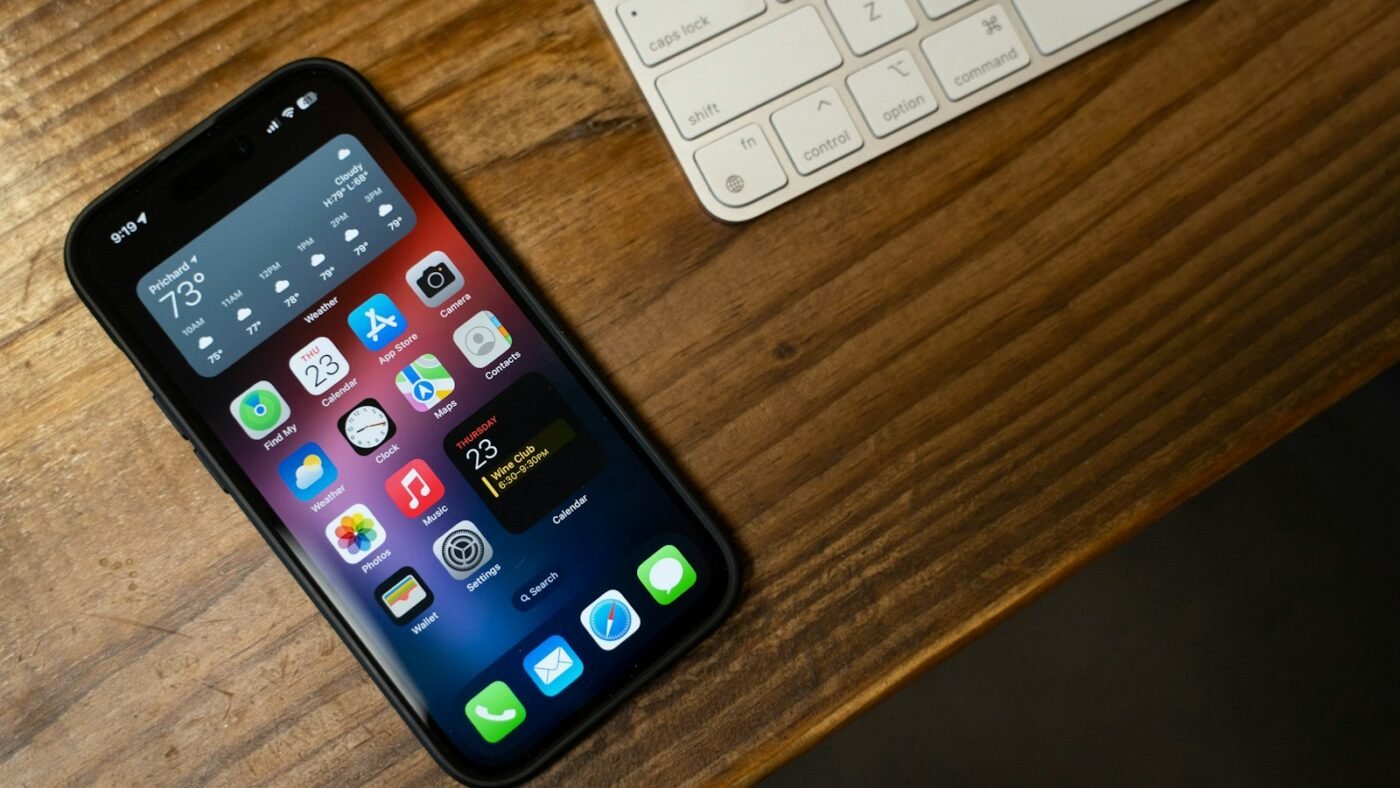
Featured photo: Photo by Heath Vester on Unsplash.

The Teck Hustlers Editorial Team covers technology, business, finance and gaming news for readers who want the story behind the headline. Every article is researched, written and edited by our in-house team, checked against company announcements, filings and reputable reporting, and updated when new facts emerge. We focus on what each development means for founders, professionals, investors and everyday users. Have a tip or a correction? Reach us through our contact page.