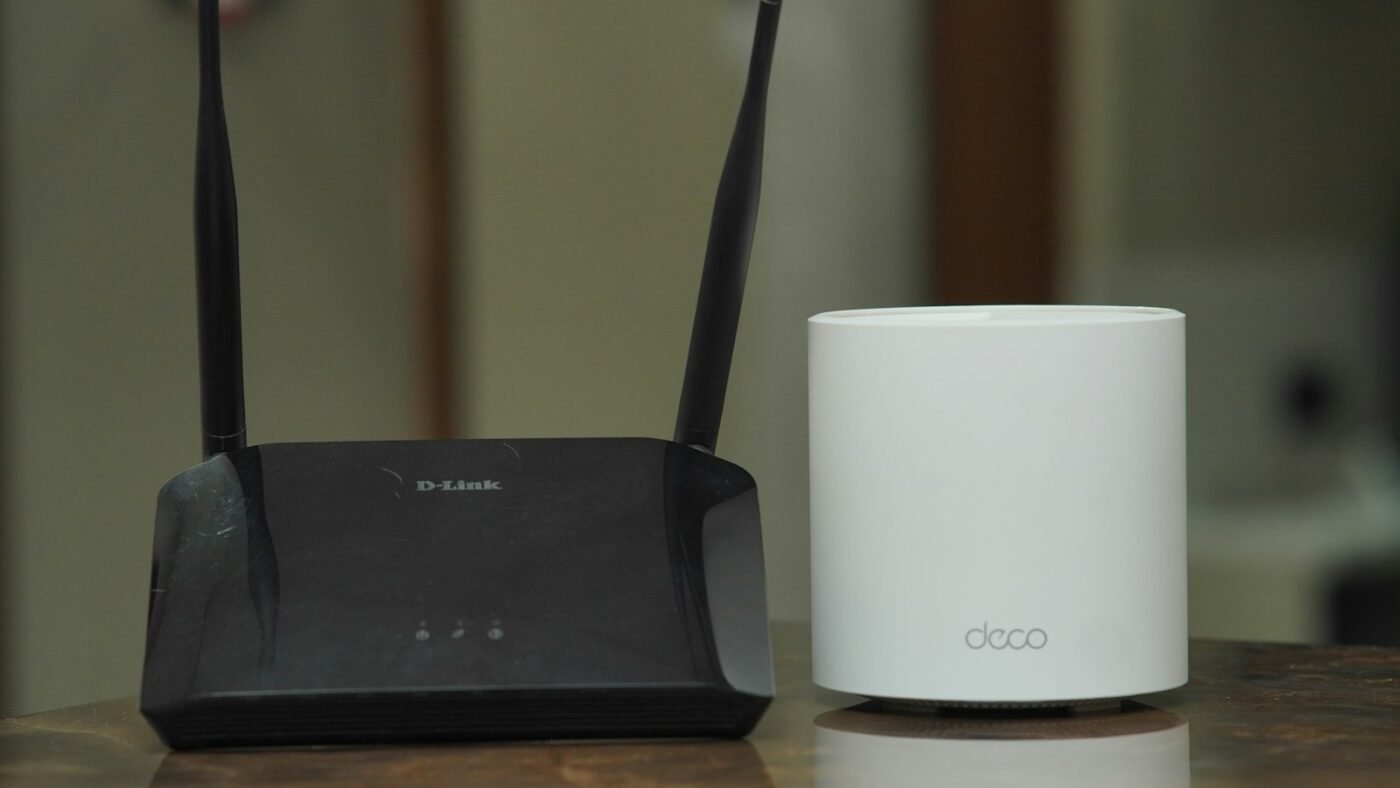
A network security key usually means the password used to join a protected Wi-Fi network. If a laptop asks for it while connecting to your home router, enter the Wi-Fi password for that network.
The formal name can make a simple request sound like something you need to buy or generate. In most home setups, you already have the required credential. The important part is finding the correct password and matching it to the network you actually want to join.
Once you have the correct Wi-Fi password, a weak signal is a separate issue. Our guide explains how a Wi-Fi extender works. If a connected Windows computer repeatedly drops offline, see our Windows 11 Wi-Fi disconnection fixes.
Network Name, Wi-Fi Password and Router Login Are Different
The network name, sometimes called the SSID, identifies the Wi-Fi network in your device’s list. The network security key is the credential that lets you connect. A router administrator password controls access to the router’s settings. On an iPhone that has the relevant network saved, viewing the Wi-Fi password is one device-specific route to check for the credential you need.
Those passwords may be printed near each other on a label, but they do different jobs. Entering the administrator password into a Wi-Fi connection box will not help if the wireless password is different.
Spectrum’s network-name and password guidance notes that Wi-Fi passwords can also be called a network security key or WPA passphrase. Match the label to the task instead of assuming every code printed on a router is interchangeable.
Start With the Router or Provider’s App
For a home network, check the router’s label or the paperwork supplied with your internet service. Look for wording such as Wi-Fi password, wireless key or network key.
A printed password may stop being useful if someone changed the network settings. If your household uses a provider’s management app, check the current Wi-Fi details there. Ask the person who manages the router before changing anything.
Take care around similar network names. A router may offer more than one band or a separate guest network. Your neighbor may also have a similar provider-generated name. Confirm the full network name before trying a password repeatedly.
Watch the Windows Password Walkthrough
This ASUS Support video demonstrates checking a saved Wi-Fi password on a Windows laptop. The appearance of the settings may differ between Windows versions and updates.
Find a Saved Password on an Authorized Windows PC
If your own Windows computer is already connected, it may display the saved password. Microsoft’s Wi-Fi connection guide includes password-retrieval instructions.
One documented route uses the connected Wi-Fi network’s status window. Open its Wireless Properties, choose the Security tab and use Show characters to reveal the Network security key field. Windows may require an appropriate permission check.
ASUS provides illustrated instructions for Windows 10 and Windows 11. Follow the route that matches your installed version. If a menu has moved, use the official instructions rather than downloading a password-finder app.
Only do this on a device and network you are authorized to manage. A saved work-network credential should not be copied into a personal note or shared with someone outside the organization.
What If the Key Is Rejected?
Begin with the small details. Wi-Fi passwords are case-sensitive, and a copied space can be enough to make an otherwise correct password fail. Check characters that look alike, such as a capital O and the number zero.
- Confirm that you selected the intended network.
- Check whether the password was changed recently.
- Use the current credential rather than an old photo of the router label.
- If you pasted the key, look for extra spaces at the beginning or end.
- Ask the network owner whether the device is allowed to connect.
If the password is correct but the connection still fails, the problem may be elsewhere. A device can reject a connection because of settings, compatibility or another network fault. Repeating the same password without checking the wider situation may not solve it.
Forget and Reconnect Carefully
For a network you own or are permitted to use, forgetting its saved connection can help when an old password is stored. Make sure you have the current key before removing the saved profile.
Microsoft’s Wi-Fi troubleshooting instructions describe reconnecting and other checks. Follow the least disruptive steps first. Avoid resetting all network settings before understanding what else the device depends on.
For example, a work laptop may have organization-managed access or a printer connection that you do not want to disturb. If it is managed by an employer, ask the support team before making broad changes.
Public and Workplace Networks May Work Differently
A café may display a shared guest password. A hotel may ask you to complete a sign-in page after joining Wi-Fi. A workplace can use individual accounts, certificates or another managed authentication method.
If the screen asks for an identity, username or certificate, a shared home-style key may not be the right answer. Ask the network operator for the approved instructions. Do not experiment with credentials belonging to another person.
Likewise, a hardware security key used to sign in to an account is a different product. The phrase “network security key” in a Wi-Fi prompt does not usually mean that you need to insert a physical USB security device.
Keep the Password Useful and Private
A home Wi-Fi password should be something you can store securely and provide to approved users when needed. A guest network can make it easier to offer access without distributing the main network credential.
If you change a password, expect connected devices to need attention. TVs, speakers, printers and other household devices may continue trying the old credential. Plan the change for a time when you can reconnect them.
Use the router manufacturer’s guidance for security settings. Microsoft recommends WPA3 where the router and computer support it in its wireless-network setup guidance. Choose supported protection rather than disabling security to bypass a connection problem.
Frequently Asked Questions
Is the network security key my Wi-Fi password?
Usually, yes, for a home or guest Wi-Fi network. Managed workplace networks may use a different authentication method.
Can I use the router administrator password instead?
Only if the credentials happen to be the same. They serve different purposes, so check the label or current settings.
Do I need to reset the router if I forget the key?
Not necessarily. Check the label, provider app or an authorized connected device first. A reset can erase configuration and disrupt other devices.
Should I send a screenshot of the key to support?
Avoid exposing the password unless the trusted support process specifically requires it. Describe the error and device first.
Featured photo: Photo by TechieTech Tech on Unsplash.

The Teck Hustlers Editorial Team covers technology, business, finance and gaming news for readers who want the story behind the headline. Every article is researched, written and edited by our in-house team, checked against company announcements, filings and reputable reporting, and updated when new facts emerge. We focus on what each development means for founders, professionals, investors and everyday users. Have a tip or a correction? Reach us through our contact page.


