TL;DR: How to scan a QR code on iPhone: open the Camera app, point it at the code in Photo mode, and tap the link that appears at the bottom of the screen. No extra app is needed. You can also add the Scan Code control to Control Center, scan codes saved in screenshots or photos by touching and holding them, and turn scanning back on in Settings > Camera if nothing happens. Always check the link preview before you tap, because scammers use fake QR codes too.
QR codes are everywhere now: restaurant menus, parking meters, event tickets, Wi-Fi sign-ins and product packaging. The good news is that learning how to scan a QR code on iPhone takes about ten seconds, and the tools are already built into iOS. Below are the four ways to do it, step by step, plus fixes for when the camera refuses to read a code and a few safety habits worth building.
How to scan a QR code on iPhone with the Camera app
This is the fastest method and works on any iPhone running iOS 11 or later. According to Apple Support, here is how it works:
- Open the Camera app. You can launch it from the Home Screen, the Lock Screen, Control Center or, on supported models, the Camera Control button.
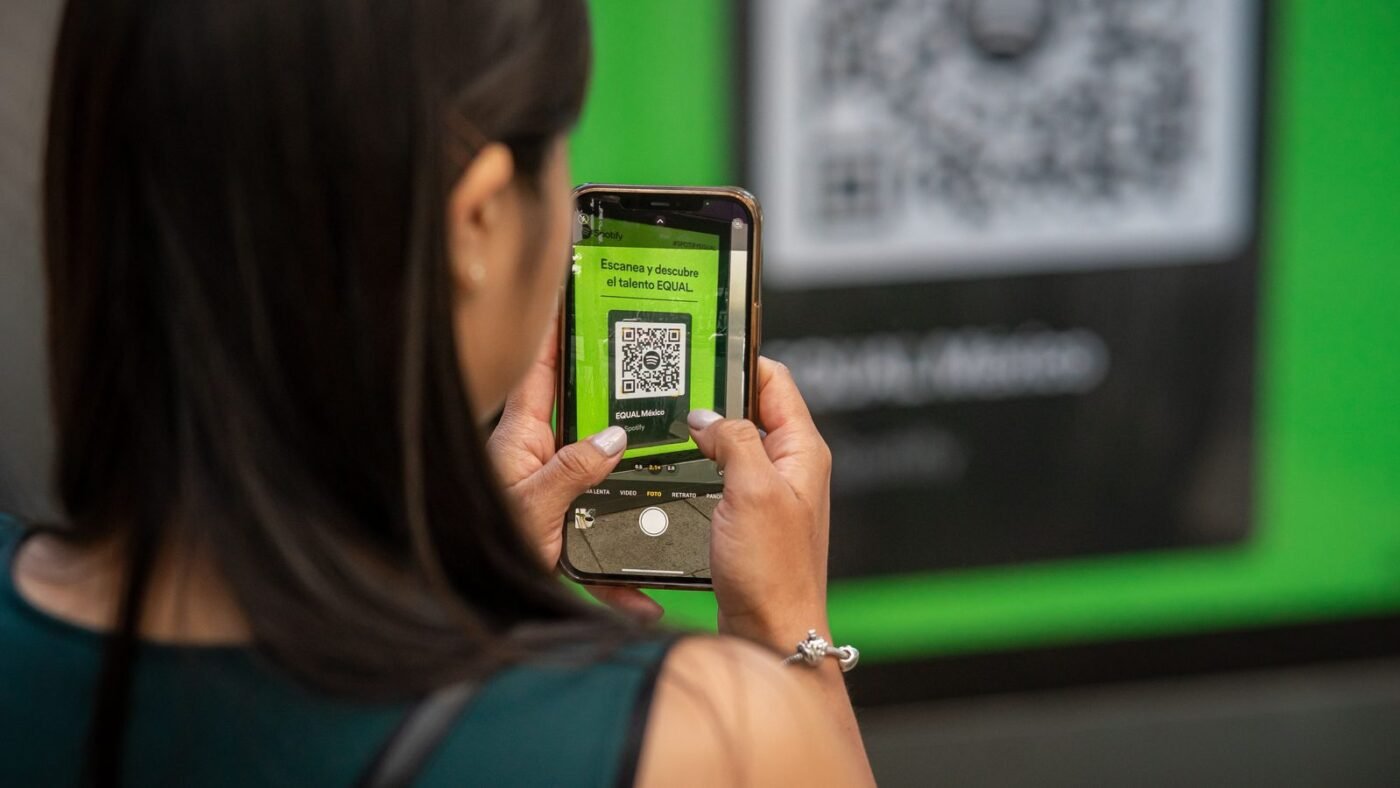
- Stay in Photo mode and hold your iPhone so the QR code sits inside the frame. You do not need to press the shutter.
- Wait a moment for a yellow link or notification to appear at the bottom of the viewfinder. Since iOS 17, this button stays in a fixed spot above the shutter, MacRumors notes, instead of floating around the code.
- Tap the link to open the website, app, Wi-Fi network or other content.
Tip: if the code is small or far away, move closer rather than zooming in heavily. A sharper image reads faster.
Method 2: Use the Code Scanner in Control Center
The Code Scanner is a dedicated tool that only reads codes, which makes it handy in dim restaurants or when the regular camera keeps focusing on the wrong thing. It also has a built-in flashlight button.
Add Scan Code to Control Center
- Swipe down from the top-right corner of the screen to open Control Center.
- Touch and hold an empty part of the background, then tap Add a Control.
- Find and tap Scan Code, then tap anywhere to return.
Scan with it
- Open Control Center and tap the Scan Code button.
- Point your iPhone at the QR code. The scanner detects it automatically.
- Tap the flashlight icon if you need more light.
These steps follow Apple’s own iPhone User Guide.
Method 3: Scan a QR code from a photo or screenshot
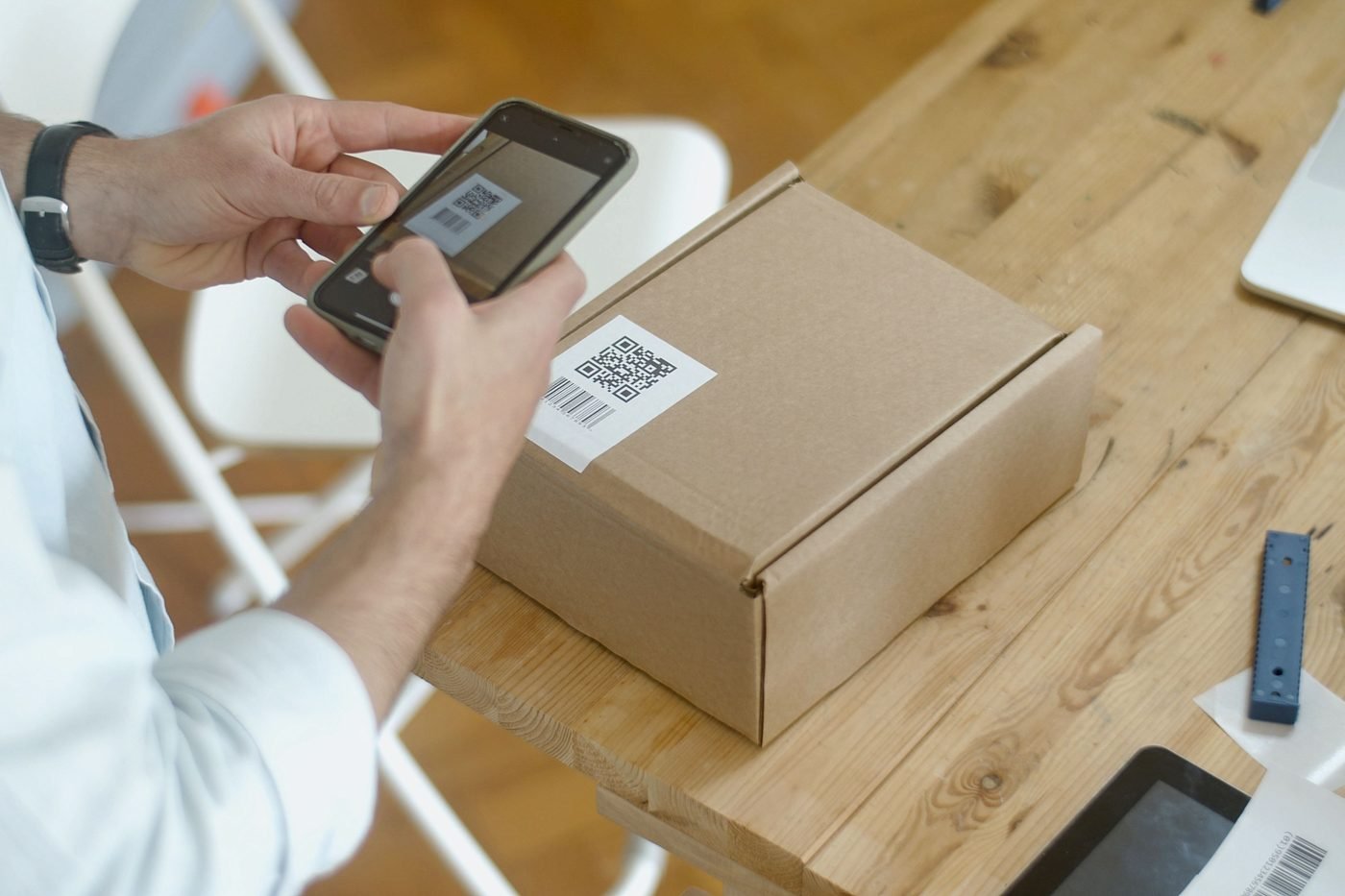
What if the QR code is already on your iPhone, say in a screenshot, an email or a saved image? You cannot point your camera at your own screen, but you can still read it:
- Open the image in the Photos app.
- Touch and hold the QR code itself. If iOS recognizes it, a link or action appears; tap it.
- If nothing appears, tap the Live Text icon in the lower-right corner, then tap the highlighted code.
This relies on Live Text, which Apple describes in its guide to interacting with content in photos. It needs iOS 15 or later on a supported model. The same touch-and-hold trick often works on QR codes inside Safari web pages.
Method 4: Use the camera from the Lock Screen
When you are in a hurry, you do not even need to unlock first. Swipe left on the Lock Screen (or press the Camera Control on supported models) to open the camera, point it at the code and tap the link. You will be asked to unlock with Face ID or your passcode before the page opens.
QR code not scanning on iPhone? Try these fixes
| Problem | Fix |
|---|---|
| No link appears at all | Go to Settings > Camera and make sure Scan QR Codes is switched on. |
| Camera will not focus | Clean the lens, move a little farther back and hold steady for two seconds. |
| Too dark | Use the Code Scanner and tap its flashlight button. |
| Glare on a screen or glossy card | Tilt the phone slightly to remove reflections. |
| Wrong camera mode | Switch back to Photo mode; Portrait, Video and other modes may not pick up codes. |
| Code is damaged or very small | Ask for a printed link instead, or type the web address manually. |
| Still not working | Restart your iPhone and install the latest iOS update in Settings > General > Software Update. |
Stay safe when scanning QR codes
A QR code is just a link you cannot read with your eyes, and criminals know it. The US Federal Trade Commission has warned that scammers hide harmful links in QR codes to steal personal information, including by sticking fake codes over real ones on parking meters. Follow these habits:
- Read the preview first. Your iPhone shows the web address before you tap. If it is misspelled or unrelated to the business, do not open it.
- Check for stickers. On parking meters and posters, look for a code that has been pasted over the original.
- Be wary of codes in unexpected texts or emails, especially ones claiming a delivery problem or account issue.
- Never enter passwords or payment details on a page you reached through a random code. Go to the official app or website instead.
- Protect your accounts with passkeys and a good password manager, so a single phishing page cannot do much damage.
What else can an iPhone QR code do?
Beyond websites, a QR code can join a Wi-Fi network, add a contact, create a calendar event, open an App Store page, start a payment or even help you link a Spotify Jam with friends. iOS opens the matching app automatically when you tap the link.
The bottom line
Now you know how to scan a QR code on iPhone four different ways: the Camera app for everyday use, the Code Scanner for dark rooms, Photos for codes saved on your phone and the Lock Screen camera for speed. If a code will not scan, check the Camera setting first. And always glance at the link before you tap. Having other phone trouble? See our guides on why your phone shows SOS and why your phone is not charging.

The Teck Hustlers Editorial Team covers technology, business, finance and gaming news for readers who want the story behind the headline. Every article is researched, written and edited by our in-house team, checked against company announcements, filings and reputable reporting, and updated when new facts emerge. We focus on what each development means for founders, professionals, investors and everyday users. Have a tip or a correction? Reach us through our contact page.