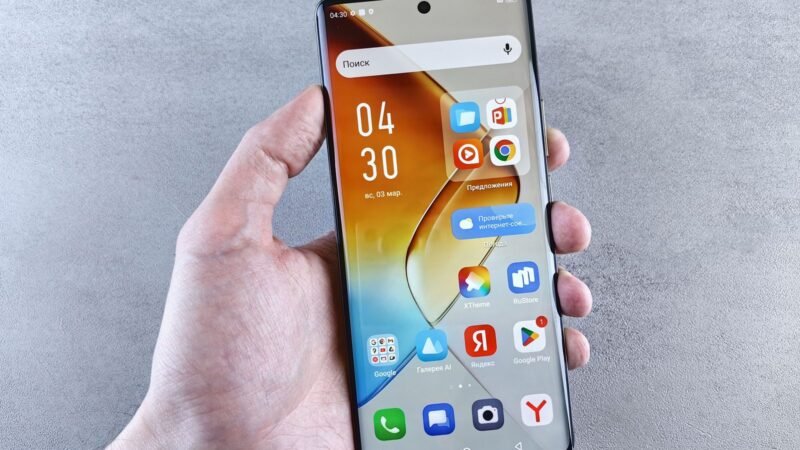
TL;DR: A passkey is a password replacement. Instead of a secret you type, your phone, computer or security key stores a cryptographic key and you approve sign-ins the same way you unlock the device: a fingerprint, face scan, PIN or pattern. Passkeys are built on the FIDO2 standards (WebAuthn and CTAP), can’t be reused across sites, and are designed to resist phishing because there’s no shared secret for a fake site to steal. Most major platforms, browsers and password managers support them today.
What is a passkey, and why are Google, Apple and so many apps nudging you to create one? In short, it’s a way to sign in without a password at all. This guide explains how passkeys work in plain English, how they compare with passwords and two-factor codes, and how to start using them.
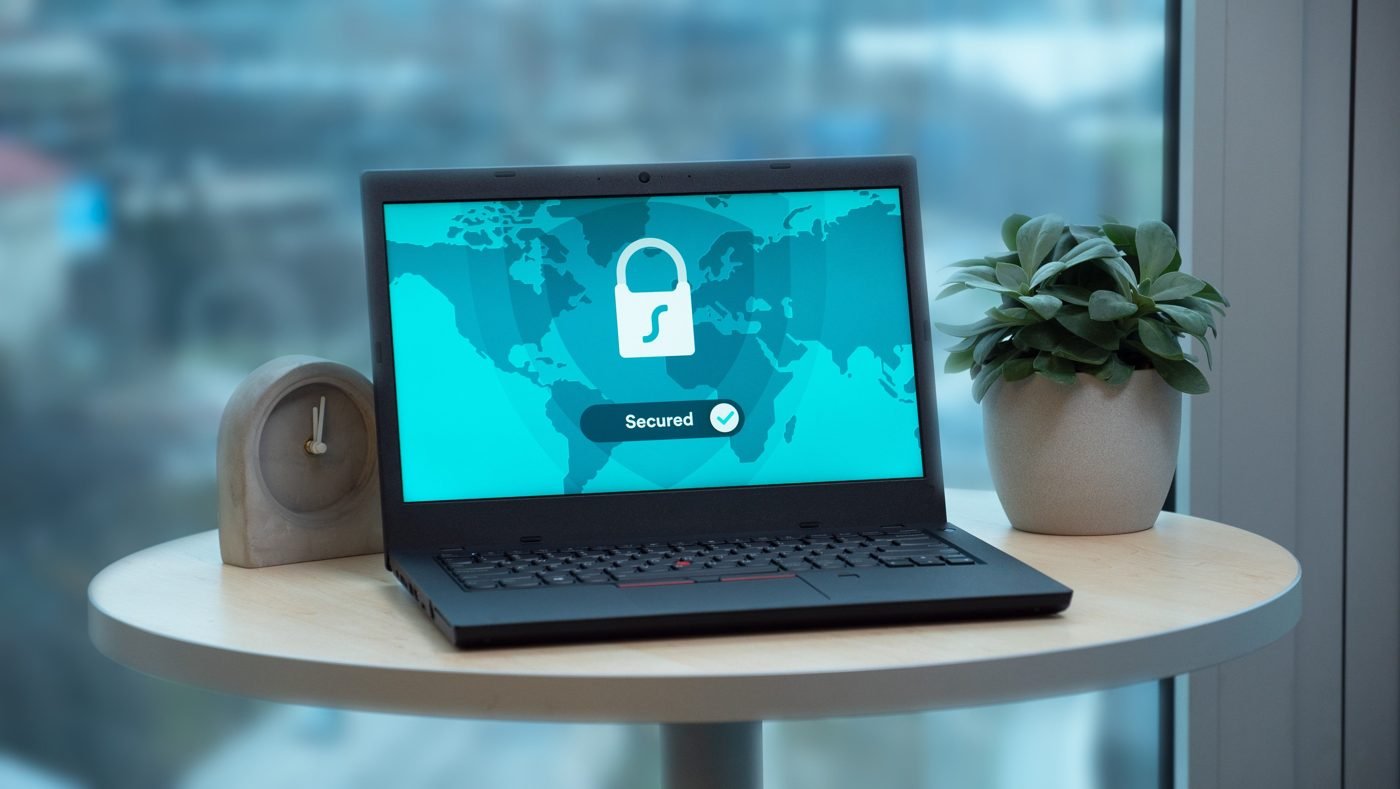
What is a passkey? The simple definition
The FIDO Alliance, the industry group behind the standard, defines a passkey as “an authentication credential based on FIDO standards” that can be stored on your phone, your computer or a hardware security key, letting you sign in to apps and websites “with the same process that they use to unlock their device.”
Think of it this way: a password is something you know and type. A passkey is something your device holds and only releases after you prove you’re you. You never see it, type it or have to remember it.
How passkeys work (without the math)
Passkeys use public-key cryptography. When you create one for a website, your device makes a matched pair of keys:
- A public key that the website stores. It’s safe for the site to keep because it can’t be used to sign in on its own.
- A private key that stays on your device or in your passkey provider’s encrypted storage. The website never receives it.
When you sign in, the site sends a challenge. Your device asks you to unlock it with your fingerprint, face or PIN, then uses the private key to sign the challenge. The site checks the signature against the public key and lets you in. According to the FIDO Alliance, your biometric data never leaves the device; the server only gets confirmation that the check succeeded.
The browser side of this is handled by WebAuthn, a W3C web standard, while CTAP lets phones and security keys talk to computers.
Why passkeys resist phishing
A passkey is tied to the specific website or app it was created for. If a scam page at a look-alike address asks you to sign in, your device simply won’t offer that site’s passkey, because the domain doesn’t match. And since the server only stores public keys, a database breach doesn’t leak anything an attacker can log in with. That’s a big contrast with the password leaks we often cover, like the Wyndham hardcoded-password exposure.
Passkey vs password vs two-factor codes
| Feature | Password | Password + SMS/app code | Passkey |
|---|---|---|---|
| Something to remember | Yes | Yes | No |
| Can be phished | Yes | Yes, codes can be relayed | Designed to resist it |
| Reused across sites | Often | Often (the password part) | Never, unique per site |
| Leaks in a server breach | Yes (hashed) | Yes (password part) | Only a public key |
| Sign-in steps | Type it | Type it, then enter a code | Fingerprint, face or PIN |
The FIDO Alliance argues that a passkey on its own is more secure than “password + OTP” or “password + phone approval,” because those second factors can still be phished.
Synced vs device-bound passkeys
There are two kinds:
- Synced passkeys are backed up and synced, end-to-end encrypted, through a passkey provider such as iCloud Keychain, Google Password Manager, or a third-party manager like 1Password or Dashlane. Create one on your phone and it shows up on your other devices signed in to the same provider.
- Device-bound passkeys never leave one device, usually a hardware security key. FIDO says these offer the highest security assurance and suit high-risk accounts or strict compliance needs.
You can also use a passkey from your phone to sign in on a nearby computer by scanning a QR code. That cross-device flow uses Bluetooth to confirm the phone is physically close, with its own encryption layered on top.
How to start using passkeys
- Check your device is up to date. Passkeys work on current versions of iOS, Android, macOS, Windows and major browsers.
- Turn on your provider. On iPhone, passkeys sync through iCloud Keychain (see Apple’s passkey guide). On Android and Chrome, they live in Google Password Manager.
- Start with your most important account. Google lets you add one to your account; see Google’s passkey help page.
- Look for “Create a passkey” prompts in an account’s security settings or right after you sign in.
- Keep a recovery option. Keep at least two devices or a security key, and keep the account’s recovery email or phone current.
Common questions about passkeys
What happens if I lose my phone?
With synced passkeys, signing in to your passkey provider on a new device brings your passkeys back. With only device-bound passkeys, you’d use a backup key or the site’s normal account recovery.
Can I switch from iPhone to Android?
Yes. Use a cross-platform password manager, or use the passkey on your old phone to sign in on the new one and create a fresh passkey there, as the FIDO Alliance suggests.
Are passkeys the same as Face ID or a fingerprint?
No. The fingerprint or face scan only unlocks the passkey on your device. The passkey itself is the cryptographic key doing the work.
Do I still need my password?
Many sites keep your password as a fallback for now. Once a passkey is set up and working, a strong unique password stored in a password manager is still a good backup.
The bottom line
If you’ve been wondering what a passkey is, the short answer is that it’s a faster, phishing-resistant replacement for your password that you unlock with your face, fingerprint or PIN. Set one up on your email account first, since that’s the key to resetting everything else. For more plain-English tech explainers, see what NFC is and how an eSIM works.

The Teck Hustlers Editorial Team covers technology, business, finance and gaming news for readers who want the story behind the headline. Every article is researched, written and edited by our in-house team, checked against company announcements, filings and reputable reporting, and updated when new facts emerge. We focus on what each development means for founders, professionals, investors and everyday users. Have a tip or a correction? Reach us through our contact page.