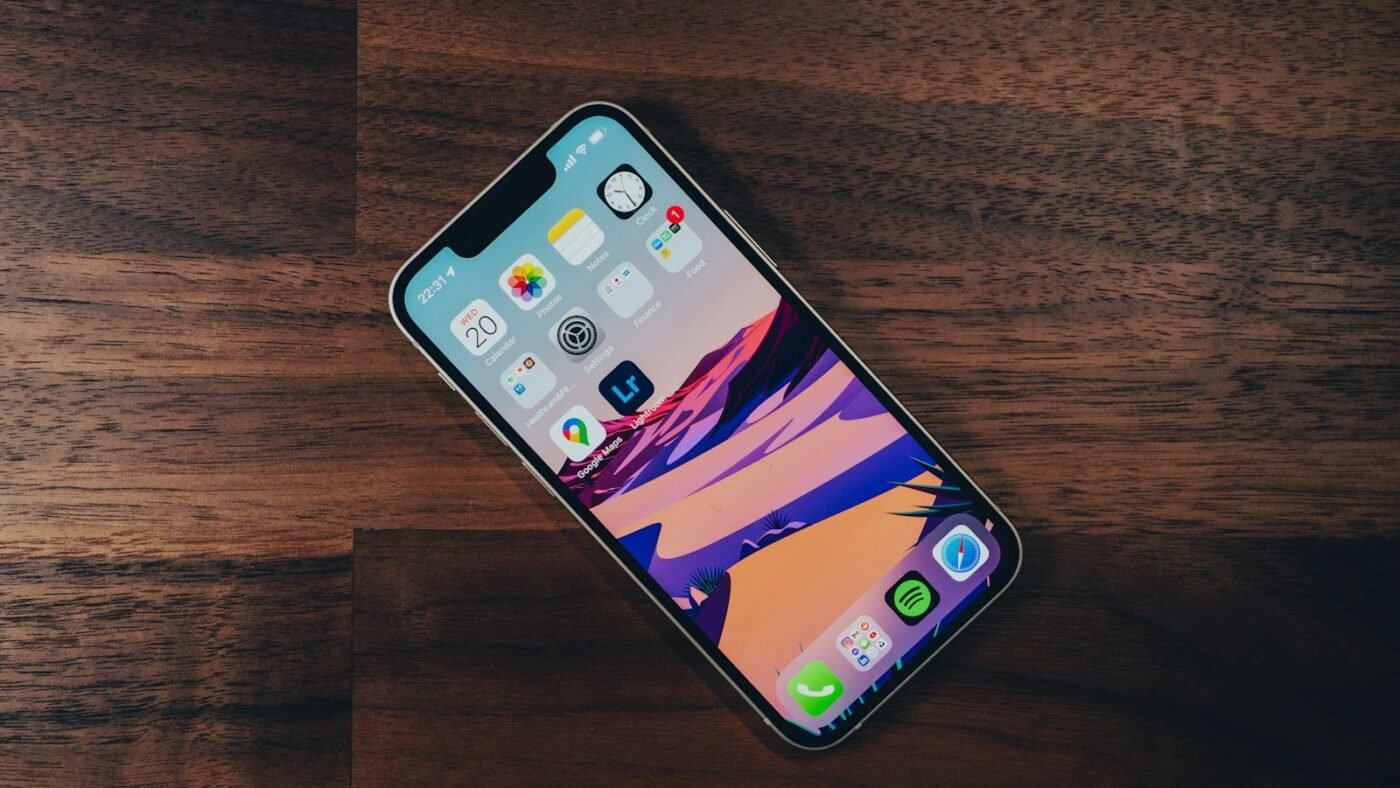
If an iPhone app is missing from the Home Screen, check App Library or Settings, General and iPhone Storage. An app can remain installed after its Home Screen shortcut is removed. Locate the actual app before choosing Delete App.
“Hidden” can describe several different situations. An app may be on another Home Screen page, kept only in App Library or placed behind a supported privacy feature. The right removal process depends on which situation applies, so start by identifying what is missing rather than deleting unrelated settings.
Know the Difference Between Hidden and Deleted
Removing an icon from the Home Screen does not necessarily uninstall the app. Apple’s app-removal guide distinguishes Remove from Home Screen from Delete App.
That difference explains why a service can still send notifications even when you cannot find its icon. The application may still be installed and available elsewhere on the phone. If removing apps is part of a larger cleanup, start with a review of your iPhone's storage usage so you can prioritise the items taking up the most space.
Deleting an app is a separate choice. Before making it, consider whether it stores anything you need or provides access to an account you still use. Tidying an icon and removing an application solve different problems.
Look in App Library
Open App Library from the Home Screen and look for the application. Search for its actual name rather than relying only on the icon you remember.
If you find the app, touch and hold it and review the available options. Choose Delete App when you intend to remove the application, rather than an option that only changes where its icon appears.
On versions that support a protected Hidden area, authentication may be required to access hidden apps. Use your own device’s normal authentication and Apple’s instructions for that feature. A privacy-protected app should not be treated as an ordinary missing shortcut.
Watch a Hidden-App Removal Walkthrough
This 4kEasyGuide video demonstrates finding and deleting hidden iPhone apps. Compare the feature shown with your iOS version, because older phones and software may offer different controls.
Check iPhone Storage
Settings provides another way to inspect installed applications. Open General, then iPhone Storage, and wait for the list to load. Look for the app by name.
This view is useful when an icon is difficult to locate or when you want to understand how much space an application uses. Read the available controls carefully before acting.
Do not confuse offloading with deletion. Where supported, offloading is intended to remove the app while keeping associated documents and data for later use. Deleting is a different action. Choose based on whether you want a temporary storage measure or actual removal.
Save Important Information First
Before deleting, open the app if you can and check for unsynced information. Examples include draft videos, recordings, notes, saved projects and downloaded documents.
Export anything you need to keep to a location you can verify. Open the exported copy once so that you know it is usable. A file that appears to have been saved is less reassuring than one you have actually opened.
For help locating exported documents, see our guide to finding saved files on iPhone. Choose a recognizable folder rather than relying on memory later.
Review Account Access and Subscriptions
An app may be part of your sign-in or recovery process for another service. If it approves authentication requests or holds information you need to access an account, arrange a working alternative before removing it.
Also review recurring payments separately. Deleting the app is not a reliable way to cancel a subscription. Apple provides subscription cancellation instructions for subscriptions billed through Apple.
Some services bill customers directly through their own websites. Check the receipt or account settings to find the actual billing provider. Keep a cancellation confirmation if you decide to stop the service.
If Delete App Is Not Available
Available controls depend on the application and the device. Some built-in functions cannot be removed in the same way as a downloaded app. A managed work or school device may also have restrictions.
If the phone belongs to an organization, contact its support team rather than trying to bypass management. If you manage a child’s device, review the intended parental-control setup before changing restrictions.
For your own device, compare the current screen with Apple’s app-removal guidance. Record the app name and the missing control so that support can answer the specific question. Avoid installing a third-party “hidden app remover” as the first response.
Verify What Changed
After deletion, check App Library and the storage list again. Confirm that the intended application was removed. If you deleted only a shortcut, it may still appear in one of these places.
If your goal was storage cleanup, allow the device’s figures to update. Removing a small app may make little difference if videos or other media use most of the space.
If your goal was privacy, remember that deleting the app does not automatically remove an online account or information already stored by its provider. Account deletion is a separate process with its own consequences.
Keep the Home Screen Easier to Navigate
Once the immediate problem is solved, consider a simple organization pattern. Keep frequently used apps visible and use clear folders for the rest. Avoid moving applications repeatedly without telling other people who legitimately use the device.
When helping a family member, explain whether you removed an icon, offloaded an app or deleted it. Those actions can look similar from the Home Screen but have different results.
A short list of removed apps can be useful after a larger cleanup. It lets the device owner identify something they miss without guessing what changed.
Frequently Asked Questions
Why can an app still open after I remove its icon?
The icon may have been removed only from the Home Screen. The app can remain installed in App Library.
Will deleting an app delete its online account?
Not necessarily. The provider’s account-deletion process is separate from removing software from the phone.
Is offloading the same as deleting?
No. Read the controls carefully. Offloading and deletion handle the app and its associated data differently.
Should I cancel a subscription before deleting the app?
Check billing separately. If you no longer want the subscription, cancel through the provider that actually bills you and keep the confirmation.
Featured photo: Photo by Karol on Unsplash.

The Teck Hustlers Editorial Team covers technology, business, finance and gaming news for readers who want the story behind the headline. Every article is researched, written and edited by our in-house team, checked against company announcements, filings and reputable reporting, and updated when new facts emerge. We focus on what each development means for founders, professionals, investors and everyday users. Have a tip or a correction? Reach us through our contact page.


