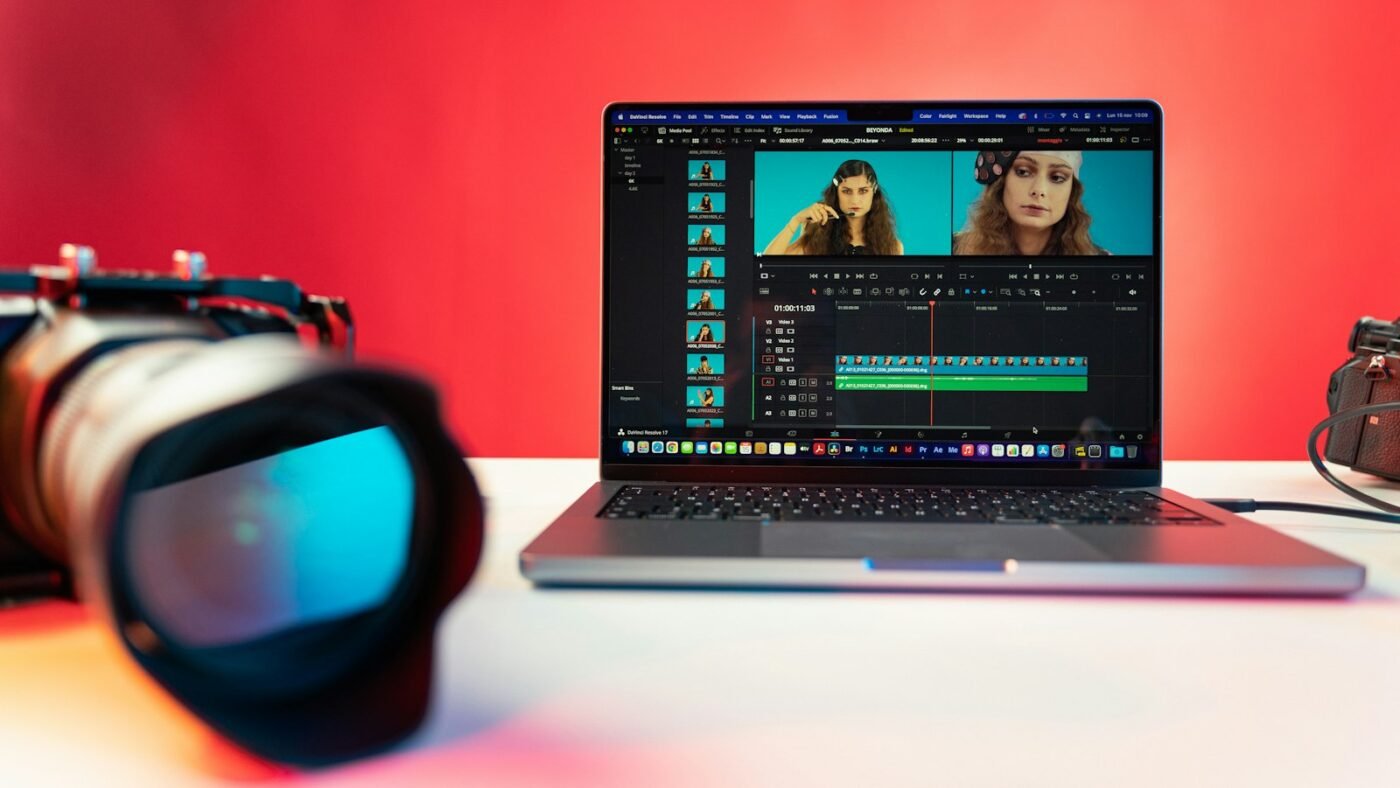
To merge videos on an iPhone, open iMovie, start a Movie project, select the clips and tap Create Movie. Put them in the right order, preview the result and use the sharing controls to save the finished video.
This works well when several short recordings belong together: a product demonstration, a family event or a simple social video. Combining the files is only the first step. A quick review of the order, picture shape and sound will make the final video much easier to watch.
Before combining clips, you may want to remove sound from an iPhone video. If your source footage is a demonstration, our guide to screen recording on iPhone explains how to capture it first.
Prepare Your Clips Before Starting
Open the videos in Photos and check that you have the right versions. If several recordings look similar, note which take you want to use. It is easier to make that decision before several near-identical clips appear in a timeline.
Think about the intended viewer and destination. A video for a phone screen may need a different shape from one intended for a presentation. Mixing portrait and landscape recordings can produce empty space or require framing decisions.
Keep the originals until you have checked the final export. An unfinished editing project is not a substitute for a verified finished file, especially when you are preparing something for a client or an event.
Create a Movie Project in iMovie
- Open iMovie. If needed, get Apple’s app from the App Store.
- Choose Start New Project and then Movie.
- Browse your video library and select the clips you want to combine.
- Tap Create Movie.
- Review the timeline and adjust the clip order.
- Preview the sequence before exporting.
Apple’s video-combining instructions explain the project setup and saving route. If you are already inside another project, return to the project browser before starting the new one.
Watch the Merging Walkthrough
This WebPro Education video demonstrates combining iPhone videos with iMovie. Follow the controls available in your installed version, which may look different from the recording.
Choose an Order That Makes Sense
Recordings are not always easiest to understand in the order they were captured. A useful demonstration might begin with the finished result, then show the preparation, the process and a close-up of the outcome.
For an event, a chronological order may work better. Start with a short establishing shot, move through the main moments and finish with a clear ending. You do not need a complicated story structure, but the viewer should know why one clip follows another.
Remove accidental starts, long pauses and repeated takes. Keep enough context to make each action clear. A video that moves directly between useful moments is often easier to follow than one that keeps every second of the original recordings.
Review the Join Between Each Clip
Play across each join rather than checking clips only in isolation. A sudden change in camera angle or volume can become more noticeable when the recordings sit next to each other.
Choose transitions to suit the purpose. A simple cut can be appropriate for a practical tutorial. A more visible transition may help show that time has passed, but repeated decorative effects can distract from the subject.
Apple’s iMovie media guide explains adding clips to a project. As you add material, check where it landed in the timeline. Selecting the right file is not enough if it appears in the wrong place.
Check Portrait and Landscape Framing
A portrait recording and a landscape recording do not naturally fill the same frame in the same way. Decide what needs to remain visible before cropping or enlarging a shot.
For example, a close-up of a phone screen might tolerate a tighter crop, while a group shot may not. Check faces, labels and the edges of any object you are demonstrating. Do not sacrifice the information a viewer needs just to make every frame look identical.
Preview the result on the kind of screen where people will watch it. Text that looks readable while editing can become small in a message preview or on a presentation screen. Keep titles short and leave enough time to read them.
Listen to the Whole Video
Several clips can each sound acceptable on their own but create an uneven sequence. One may contain loud wind, another quiet speech and another background music. Listen across the joins and adjust the project where needed.
If the original audio is not useful, you can remove sound from an iPhone video or use your editor’s audio controls. If you add narration, make sure it remains understandable over any music.
Only use music you have permission to include in the intended publication. A track available for personal listening is not automatically cleared for a business video or public social post.
Export and Verify the Finished File
When you are satisfied, leave the timeline using the project controls, open the sharing options and save the video. Choose export settings appropriate for the destination and the source footage.
Then open the exported copy outside the editor. Watch the beginning, each join and the ending. Confirm that the picture and audio match what you expected and that no unwanted title or blank section remains.
If the file will be sent through a messaging app, test that route too. The file you export and the version a recipient receives may be handled differently. Keep a good-quality original export for future use.
If the Export Does Not Look Right
- Wrong clip order: return to the timeline and inspect the sequence.
- Missing material: check that every intended clip was actually added.
- Awkward framing: review the project shape and the crop on each shot.
- Unexpected sound: inspect original clip audio and added tracks.
- No finished file: confirm that you completed the export, rather than only saving the project.
Make one change at a time and export a short test if needed. That makes the cause easier to identify than changing several settings together.
Frequently Asked Questions
Do I need a paid app to combine videos?
No. Apple’s iMovie provides a free starting point for basic combining and editing on compatible devices.
Can I add more clips after creating the project?
Yes. Use the project’s media controls, then check the location and order of the new material.
Will combining clips remove the originals?
Keep your original recordings until you have checked the export. Do not delete source footage merely because the project appears complete.
Why is part of a clip cropped?
The source recording and project may use different shapes. Review framing so that the important content remains visible.
Featured photo: Photo by TheRegisti on Unsplash.

The Teck Hustlers Editorial Team covers technology, business, finance and gaming news for readers who want the story behind the headline. Every article is researched, written and edited by our in-house team, checked against company announcements, filings and reputable reporting, and updated when new facts emerge. We focus on what each development means for founders, professionals, investors and everyday users. Have a tip or a correction? Reach us through our contact page.


