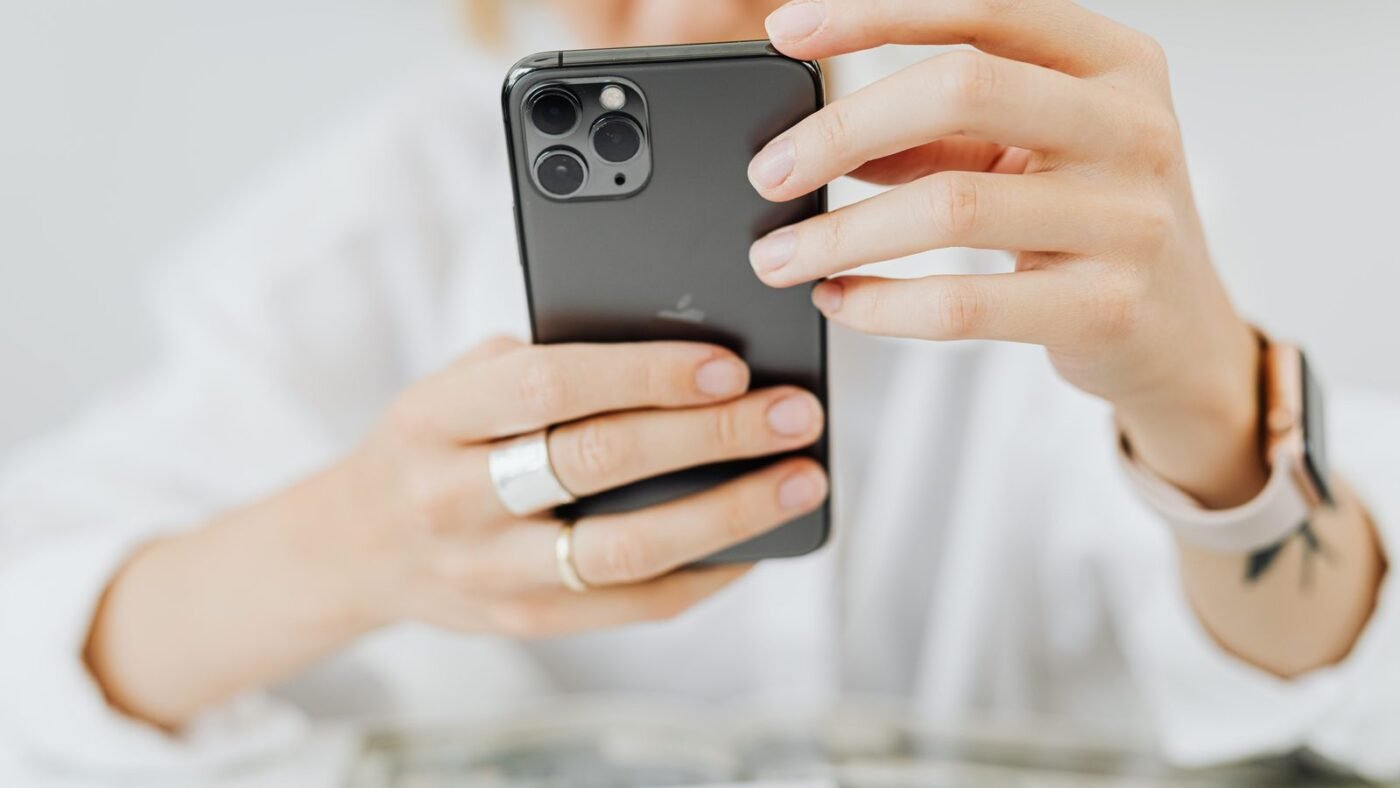
TL;DR: To screen record on iPhone, swipe down from the top-right corner to open Control Center, tap the gray Record button, wait for the three-second countdown, then use your phone as normal. To stop, tap the red recording indicator at the top of the screen and tap Stop. Your video saves to the Photos app. Want your voice in the recording? Touch and hold the Record button first and turn on the Microphone. If you can’t see the Record button, you need to add it to Control Center (steps below).
Knowing how to screen record on iPhone is handy for all sorts of things: showing a family member where a setting lives, saving a clip of a game, recording a bug to send to support, or making a quick tutorial. The feature is built into iOS, so you don’t need an app. This guide covers the basic steps, recording with audio, adding the button if it’s missing, and fixes when recording won’t start or saves without sound.
How to screen record on iPhone (step by step)
These steps follow Apple’s official screen recording guide and work on current iPhones running recent versions of iOS.
- Open Control Center. Swipe down from the top-right corner of the screen. (On an iPhone with a Home button, such as iPhone SE, swipe up from the bottom edge instead.)
- Tap the gray Record button. It looks like a solid circle inside a ring.
- Wait for the countdown. iOS counts down from three before recording starts.
- Exit Control Center. Swipe up or tap an empty area, then do whatever you want to capture.
- Stop recording. Tap the red recording indicator at the top of the screen, then tap Stop. Or open Control Center again and tap the red Record button.
To find your video, open the Photos app and look in your Library. It appears alongside your other videos with the most recent at the bottom.
How to screen record on iPhone with sound (microphone)
By default, the microphone is off. To narrate your recording, for example when making a how-to video, turn the mic on before you start:
- Swipe down from the top-right corner to open Control Center.
- Touch and hold the gray Record button. A larger menu appears.
- Tap Microphone so it turns on (red).
- Tap the Record button (labelled Start Recording in the expanded menu) and wait for the three-second countdown.
- Exit Control Center and record. Stop it the same way as above.
Before your next recording, check whether the Microphone is still on, so you don’t capture background noise by accident.
Can’t find the Record button? Add it to Control Center
If there’s no Record button when you open Control Center, it just hasn’t been added yet. How you add it depends on your iOS version.
iOS 18 and later
- Open Control Center.
- Tap the + button in the top-left corner (or touch and hold an empty space).
- Tap Add a Control.
- Search for or scroll to Screen Recording and tap it.
- Tap an empty area to save your layout.
iOS 17 and earlier
- Open Settings and tap Control Center.
- Find Screen Recording under More Controls.
- Tap the green + button next to it.
Quick reference: screen recording options
| What you want | How to do it |
|---|---|
| Basic screen recording | Control Center → tap Record → wait 3 seconds |
| Record your voice too | Control Center → touch and hold Record → Microphone on → Start Recording |
| Stop recording | Tap the red indicator at the top → Stop |
| Find the video | Photos app → Library |
| Trim the start or end | Open the video in Photos → Edit → drag the timeline handles |
| Add the Record button | Control Center → + → Add a Control → Screen Recording (iOS 18+) |
Tips for better iPhone screen recordings
- Turn on Do Not Disturb or a Focus. Notifications that pop up during recording will appear in the video, including message previews.
- Trim the beginning and end. Every recording starts with Control Center on screen and ends with you stopping it. Open the clip in Photos, tap Edit, and drag the handles on the timeline to cut those bits out.
- Close apps you don’t need. It keeps the recording focused and avoids accidental taps into private apps.
- Check your storage. Screen recordings are video files and long ones can be large. If space is tight, see our guide on how to clear cache on iPhone to free some up.
- Keep the screen awake. For long tutorials, check Auto-Lock in Settings so the screen doesn’t lock halfway through. Our guide to turning off sleep mode on iPhone walks through the related settings.
iPhone screen recording not working? Try these fixes
1. The Record button is missing
Add it to Control Center using the steps above. This is the most common reason people think their iPhone can’t screen record.
2. The button is grayed out or won’t start
Screen recording can be restricted with Screen Time, which is common on a child’s iPhone or a work-managed device. Go to Settings → Screen Time → Content & Privacy Restrictions and check whether screen recording is allowed. On a company-managed iPhone, your IT team may have blocked it.
3. You’re screen mirroring
Apple says you can’t record your screen and use screen mirroring at the same time. Stop mirroring to an Apple TV or smart TV, then try again.
4. The video is black or has no sound
According to Apple, some apps don’t allow you to record audio or video. Streaming apps commonly block recording to protect copyrighted content, so you may get a black screen or silent clip. This is expected and not a fault with your phone.
5. Your voice isn’t in the recording
The Microphone was probably off. Touch and hold the Record button in Control Center and make sure Microphone is turned on before starting.
6. The recording didn’t save
If your iPhone is almost full, the recording may fail to save. Free up space in Settings → General → iPhone Storage and try again. A quick restart can also clear one-off glitches.
Is it legal to screen record on iPhone?
Recording your own screen is fine for personal use. Be careful when recording video calls or conversations with other people, since consent rules differ by country and state, and don’t share recordings of copyrighted content. When in doubt, ask permission before you record.
FAQ
Where do iPhone screen recordings go?
They save automatically to the Photos app, in your Library with your other videos.
How long can an iPhone screen recording be?
Apple’s guide doesn’t list a maximum length. In practice, free storage space and battery are what limit long recordings.
Does screen recording work on iPad too?
Yes. Apple’s guide covers iPhone, iPad and iPod touch, and the steps are the same: open Control Center and tap Record. Once you’ve mastered it, you might also like our guide on how to scan a QR code on iPhone.

The Teck Hustlers Editorial Team covers technology, business, finance and gaming news for readers who want the story behind the headline. Every article is researched, written and edited by our in-house team, checked against company announcements, filings and reputable reporting, and updated when new facts emerge. We focus on what each development means for founders, professionals, investors and everyday users. Have a tip or a correction? Reach us through our contact page.