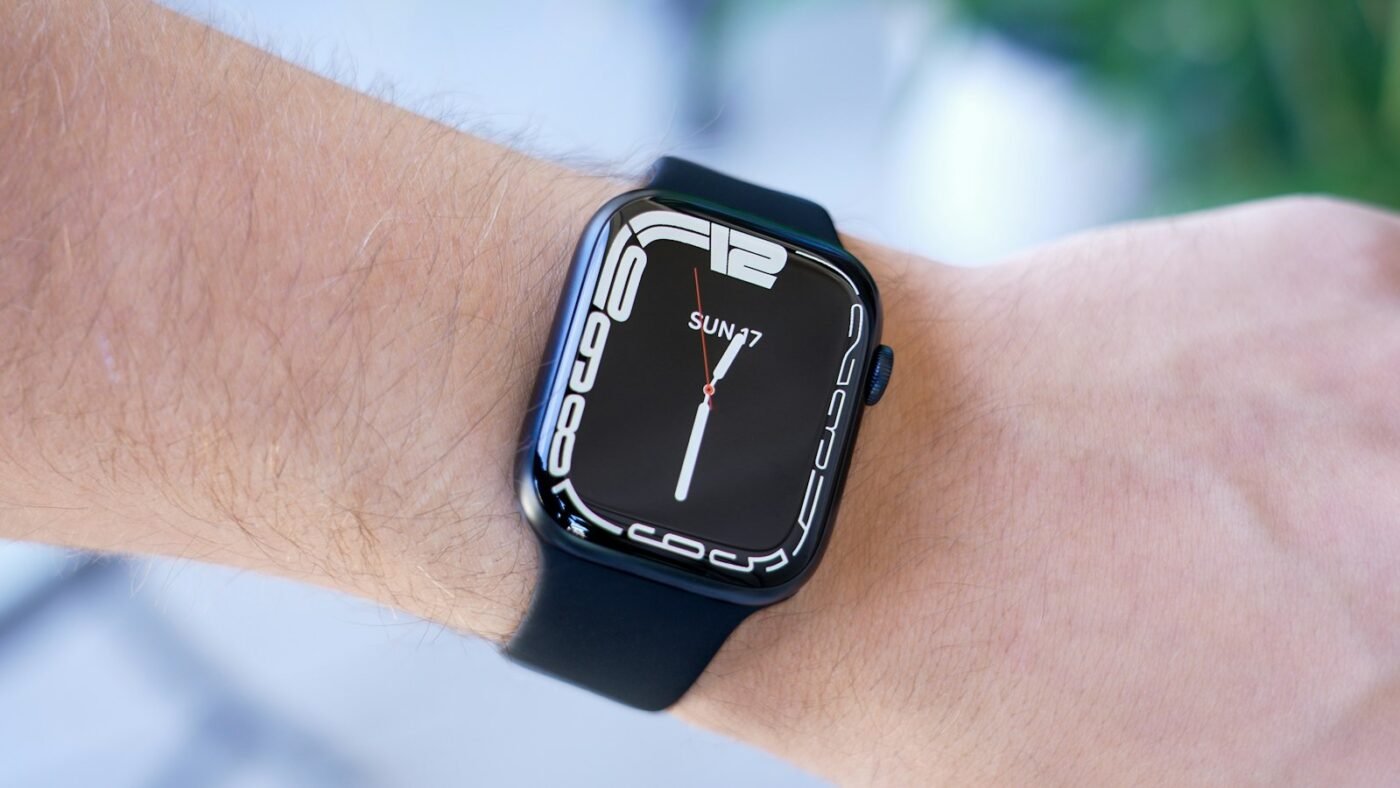
To clear storage on Apple Watch, first check Settings, General and Storage on the watch. Remove unneeded downloaded media, reduce synced photos and uninstall apps you no longer use. If an update is blocked, restart the watch and follow Apple’s update-specific guidance.
There is no need to begin by erasing everything. A full watch may simply contain more music, photos or apps than you currently need. Looking at the storage breakdown helps you choose a useful change rather than deleting small items at random.
Check What Is Using the Space
Open Settings on the watch, choose General and look for Storage. Read the available space and the list of items using it. Menu details may vary with watchOS.
Identify the largest categories before deciding what to remove. A few small apps may make little difference if downloaded media occupies most of the space. Conversely, deleting a playlist will not help much if the problem lies elsewhere. Review iPhone storage separately from the watch’s own storage so you do not assume that clearing one device has resolved a space problem on the other.
Apple’s storage and watchOS-update guidance gives the official starting points. Record the available space before changing anything so that you can compare the result afterward.
Watch a Storage-Cleanup Walkthrough
This 4RIL video introduces Apple Watch storage cleanup. Despite its short-cut title, review what is taking space on your own watch before removing anything. No single tap will resolve every storage problem.
Remove Downloads You No Longer Need
Start with music, podcasts or other media you deliberately downloaded for offline use. Think about what you actually need on the watch when the iPhone is not nearby.
For example, a playlist selected for a trip months ago may no longer be useful. Keep the material you use for a normal run or commute and remove the rest through the relevant app’s watch controls.
Read each confirmation carefully. Removing a download from the watch and deleting an item from a broader library can be different actions. If the wording is unclear, check the app’s instructions before proceeding.
After a change, allow the device time to update its storage information. Reopen the storage view and compare the available space instead of assuming every removal immediately produces a large difference.
Reduce Photo Syncing
A watch is a small screen, so it rarely needs the same photo selection as a phone. Review the album and photo-sync settings used for your watch, and keep only the images you want available there.
You do not need to delete favorite pictures from your main photo library just because you want fewer copies on the watch. Focus on the syncing choice and read the control’s description.
Apple’s Apple Watch User Guide includes photo-album and storage-management help. Use the instructions for your watchOS version, especially if the paired iPhone’s Watch app looks different from an older tutorial.
Remove Apps You Do Not Use
Review installed watch apps and consider which ones you use on the wrist. Some services are useful on a phone but add little to your watch routine.
Remove apps through the supported watch or paired-iPhone controls. Before doing so, check whether an app contains anything that needs to sync or be saved. If you rely on it during exercise, travel or work, arrange another method before removing it.
Make a short list of what you remove. That is useful if an update succeeds and you later want to add back the few apps or downloads you actually miss. A storage cleanup is easier to maintain when you understand what changed.
If a watchOS Update Needs More Space
Apple recommends restarting the watch and trying the update again as an initial step. If space remains a problem, its guidance points to removing music, turning off photo syncing and removing apps.
Once you have made room, retry the update using Apple’s normal instructions. Keep the watch and paired phone in the conditions required by the update process rather than interrupting it repeatedly to inspect storage.
Do not delete personal health information or erase the watch as a casual first experiment. A storage warning is a reason to examine the device, not a guarantee that every piece of information on it must be removed.
Treat Unpairing as an Escalation Step
Apple documents an unpair-and-setup process for cases where the update still cannot proceed. That is more involved than removing a playlist, so read the full current instructions before starting.
Make sure you understand the backup and setup choices and can access the account associated with the watch. For cellular models, pay particular attention to the plan-related instructions. Do not improvise those choices based on a short video.
If you are not comfortable with the process, ask Apple Support to walk you through it. Tell them the model, watchOS version, available storage and the exact update warning. That gives them a useful starting point.
Keep Storage From Filling Again
After cleanup, add back only what you need. A smaller regular selection of music and photos is easier to manage than repeatedly filling the watch and removing everything before an update.
Review the settings after a change in routine. A holiday playlist, an old training app or a large synced album may remain long after its original purpose has passed.
Leave some room for the device’s normal operation and updates rather than treating every available byte as space that must be filled. The appropriate amount varies, so follow the actual requirements shown by your watch instead of a generic storage target.
Check the Result Before Calling the Job Finished
Return to the storage screen and confirm that available space increased. Then open the apps you still depend on and check that the media you intended to keep remains available.
If the goal was an update, a cleaner storage screen is only an intermediate result. Confirm that the update completes and the watch reconnects normally afterward. Note any persistent warning and seek support rather than repeating broad deletion steps.
Frequently Asked Questions
Does clearing watch storage require deleting photos from my iPhone?
Not necessarily. Review what is synced to the watch before deleting anything from your main photo library.
Will restarting free all the space I need?
Not always. It is an official early check, but you may still need to remove unneeded media or apps.
Should I unpair the watch immediately?
No. Start with the less disruptive steps. Use Apple’s full escalation instructions if ordinary cleanup does not resolve an update problem.
Why is storage still low after deleting a few apps?
The largest category may be something else, such as downloaded media. Recheck the storage breakdown and target the items that matter.
Featured photo: Photo by Daniel Romero on Unsplash.

The Teck Hustlers Editorial Team covers technology, business, finance and gaming news for readers who want the story behind the headline. Every article is researched, written and edited by our in-house team, checked against company announcements, filings and reputable reporting, and updated when new facts emerge. We focus on what each development means for founders, professionals, investors and everyday users. Have a tip or a correction? Reach us through our contact page.


