
Unified memory and SSD storage are not substitutes for each other. Unified memory is the fast working memory used by the CPU, GPU, and other parts of Apple silicon while apps are running. SSD storage is the long-term space where macOS, apps, documents, photos, videos, and other files are stored.
If a Mac buyer has to choose where to spend more, extra unified memory is usually the better priority for demanding workloads because it cannot be upgraded later. SSD capacity can be supplemented with external drives or cloud storage.

Unified Memory vs SSD Storage at a Glance
| Feature | Unified Memory | SSD Storage |
|---|---|---|
| Main purpose | Holds data currently being processed | Stores apps and files long term |
| Used by | CPU, GPU and other processors | macOS, apps and user files |
| Keeps data after shutdown | No | Yes |
| Main effect | Multitasking and workload performance | Storage capacity and file access |
| Upgradeable internally later | Generally no on Apple silicon Macs | Generally no internally |
| External expansion possible | No | Yes, with external SSDs |
| Commonly confused with | RAM | Hard-drive storage |
The simplest way to think about it is this: unified memory determines how much work your Mac can comfortably handle at once. SSD storage determines how much data your Mac can keep locally.
What Is Unified Memory on a Mac?
Apple’s unified memory architecture gives the CPU, GPU, Neural Engine, and other parts of Apple silicon access to a shared pool of high-speed memory.
Traditional computer designs may have separate system RAM and graphics memory. Data sometimes has to be copied between those memory pools.
Apple silicon uses a more tightly integrated system-on-a-chip (SoC) design. The shared memory architecture allows processors to work with the same data without constantly duplicating it between separate memory areas.
This can improve efficiency for workloads such as:
- photo editing
- video editing
- software development
- 3D rendering
- machine-learning workloads
- large creative projects
- running many applications simultaneously
Unified memory should not be confused with SSD storage. It is closer in purpose to conventional RAM.
What Is SSD Storage?
An SSD, or solid-state drive, is the Mac’s permanent storage.
It contains:
- macOS
- installed applications
- documents
- photos
- videos
- games
- project files
- downloads
- other user data
Unlike working memory, SSD storage keeps its data after the Mac is shut down.
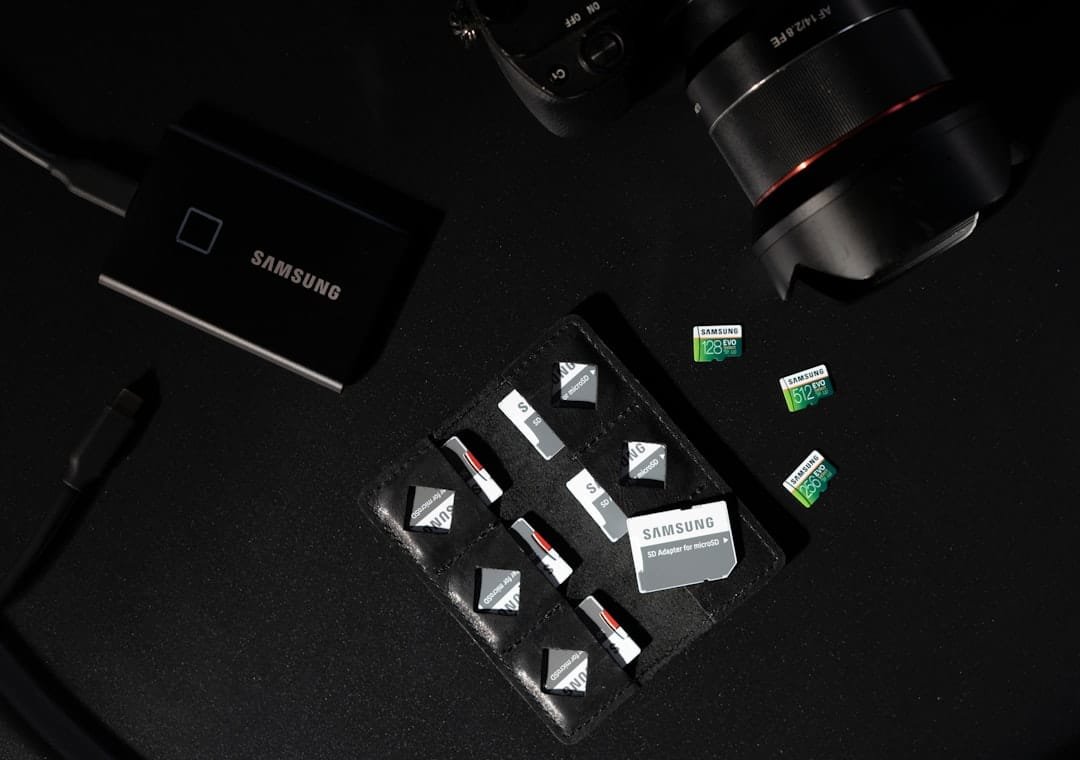
Modern SSDs use flash storage rather than the spinning magnetic disks used by traditional hard drives. This provides much faster access to files and applications.
However, a larger SSD does not automatically make a memory-intensive workload perform like a Mac with more unified memory.
Unified Memory vs SSD: Which One Affects Performance More?
For most demanding workloads, unified memory has the greater impact once the Mac has enough SSD capacity for the user’s files.
Consider a video editor working with several large 4K projects. A larger SSD allows more footage to be stored locally. More unified memory, however, gives macOS and editing applications more working space for active projects, effects, previews, and other processing tasks.
The same principle applies to developers running multiple development tools, designers working with large Photoshop files, and users running several demanding applications together.
SSD speed still matters. Fast storage improves:
- application launches
- file transfers
- project loading
- boot times
- saving large files
But it serves a different purpose from unified memory.
Can a Mac Use SSD Storage as Memory?
macOS can use part of the SSD as swap memory when physical memory becomes heavily used. Swap helps prevent applications from immediately failing when available unified memory becomes limited.
But an SSD is not a replacement for unified memory. Even a very fast SSD operates differently from the memory directly used by the processors. Heavy reliance on swap can therefore reduce performance compared with having enough physical unified memory available in the first place.
This distinction is particularly important when choosing a Mac because unified memory is normally fixed at purchase.
How Much Unified Memory Do You Need?
The right amount depends more on workload than on storage capacity.
16GB: Good for Everyday Mac Users
For many users, 16GB is suitable for:
- web browsing
- Microsoft Office or Google Workspace
- streaming
- light photo editing
- general productivity
- university work
- moderate multitasking
Apple’s current MacBook Air lineup starts with 16GB of unified memory, with higher-memory configurations available.
24GB to 32GB: Better for Heavier Multitasking
Consider this range for:
- software development
- larger photo libraries
- frequent creative work
- running virtualized development environments
- heavier multitasking
- moderate video editing
It also provides more room for applications and workflows that may become more demanding over several years.
36GB to 64GB: Professional Workloads
This range makes more sense for users regularly handling:
- professional video editing
- large RAW image workflows
- 3D applications
- large software projects
- complex music production
- heavier local AI workloads
64GB to 128GB or More: Specialized Work
High-memory configurations are mainly intended for demanding professional workloads. Current 2026 MacBook Pro configurations with M5 Pro and M5 Max can be configured with substantially more unified memory, including configurations up to 128GB. Most everyday Mac buyers do not need this much.
How Much SSD Storage Do You Need?
512GB
A good starting point for people who:
- mainly work with documents
- stream most media
- use cloud storage
- do not maintain large photo or video libraries
1TB
A strong general-purpose choice for:
- developers
- photographers
- gamers
- creative users
- people planning to keep the Mac for several years
It provides considerably more breathing room without requiring external storage immediately.
2TB or More
Consider 2TB or more if you regularly store:
- 4K or higher-resolution video
- large RAW photo libraries
- virtual machines
- large development projects
- games
- professional media libraries
Current MacBook Pro configurations can offer several terabytes of SSD storage, with some configurations reaching 8TB.
Should You Upgrade Unified Memory or SSD First?
If your budget only allows one upgrade, use this rule: upgrade unified memory first when performance is the concern. Upgrade SSD storage first when capacity is the concern.
Choose more unified memory if you regularly experience or expect:
- heavy multitasking
- large creative applications
- video editing
- software development
- 3D work
- professional production workloads
Choose more SSD storage if:
- your applications run comfortably already
- you maintain large local libraries
- you work with large video files
- you do not want to depend on external drives
- you want more local storage for several years
For many Mac buyers, a balanced configuration such as 16GB-24GB unified memory and 512GB-1TB SSD storage is more practical than maximizing one specification while minimizing the other.
Unified Memory vs RAM
Unified memory still serves the basic role people normally associate with RAM, but Apple’s architecture allows multiple processors on the chip to access the same memory pool. That distinction deserves its own explanation.
For a deeper comparison, read our guide to Unified Memory vs RAM. You can also read our dedicated overview of Apple Unified Memory.
Is More Unified Memory Always Better?
More memory provides additional headroom, but buying far more than your workload needs may not provide a noticeable everyday benefit. Someone browsing the web and writing documents will not receive the same value from 64GB or 128GB as a professional working with enormous video, 3D, or development projects.
The goal is therefore not to buy the largest specification. It is to choose enough memory that your expected workload remains comfortable throughout the useful life of the Mac.
Frequently Asked Questions
Is unified memory the same as SSD storage?
No. Unified memory temporarily holds information being actively processed. SSD storage permanently stores applications and files.
Is unified memory basically RAM?
It performs the role normally associated with RAM, but Apple silicon uses a shared-memory architecture that lets several processing components access the same memory pool.
Is SSD storage considered memory?
In everyday computer terminology, SSD capacity is storage, not system memory. An SSD keeps data after shutdown, while working memory does not.
Can an external SSD replace unified memory?
No. An external SSD can provide additional storage space but cannot increase the Mac’s physical unified memory.
Can unified memory be upgraded later?
On Apple silicon Macs, buyers should generally treat unified memory as fixed at purchase. This is why choosing enough memory at the beginning is important.
Can SSD storage be expanded?
Although the internal SSD is generally not intended as a user upgrade on modern Macs, external SSDs can provide additional storage.
Should I get more memory or more storage for video editing?
If adequate storage is already available, additional unified memory usually provides more benefit to active editing workloads. Large video libraries may still justify a larger SSD.
What is the best balance for most users?
For everyday and moderate professional use, configurations around 16GB-24GB of unified memory with 512GB-1TB of SSD storage provide a sensible balance. More demanding workflows may justify substantially more memory and storage.
Final Recommendation
Unified memory and SSD storage solve two different problems. Unified memory is the workspace. SSD storage is the filing cabinet.
More unified memory allows the Mac to keep more active data available to its processors. More SSD capacity lets the Mac permanently store more applications and files.
If choosing between upgrades, prioritize unified memory for demanding workloads because it cannot simply be added externally later. Prioritize SSD capacity when local storage space is the main limitation.
The best Mac configuration is therefore not the one with the largest number in a single category. It is the configuration that gives your workload enough working memory and long-term storage without paying for resources you are unlikely to use.

The Teck Hustlers editor oversees publishing, fact-checking and corrections across Teck Hustlers, making sure every story on technology, business, finance and gaming meets our editorial standards before it goes live.