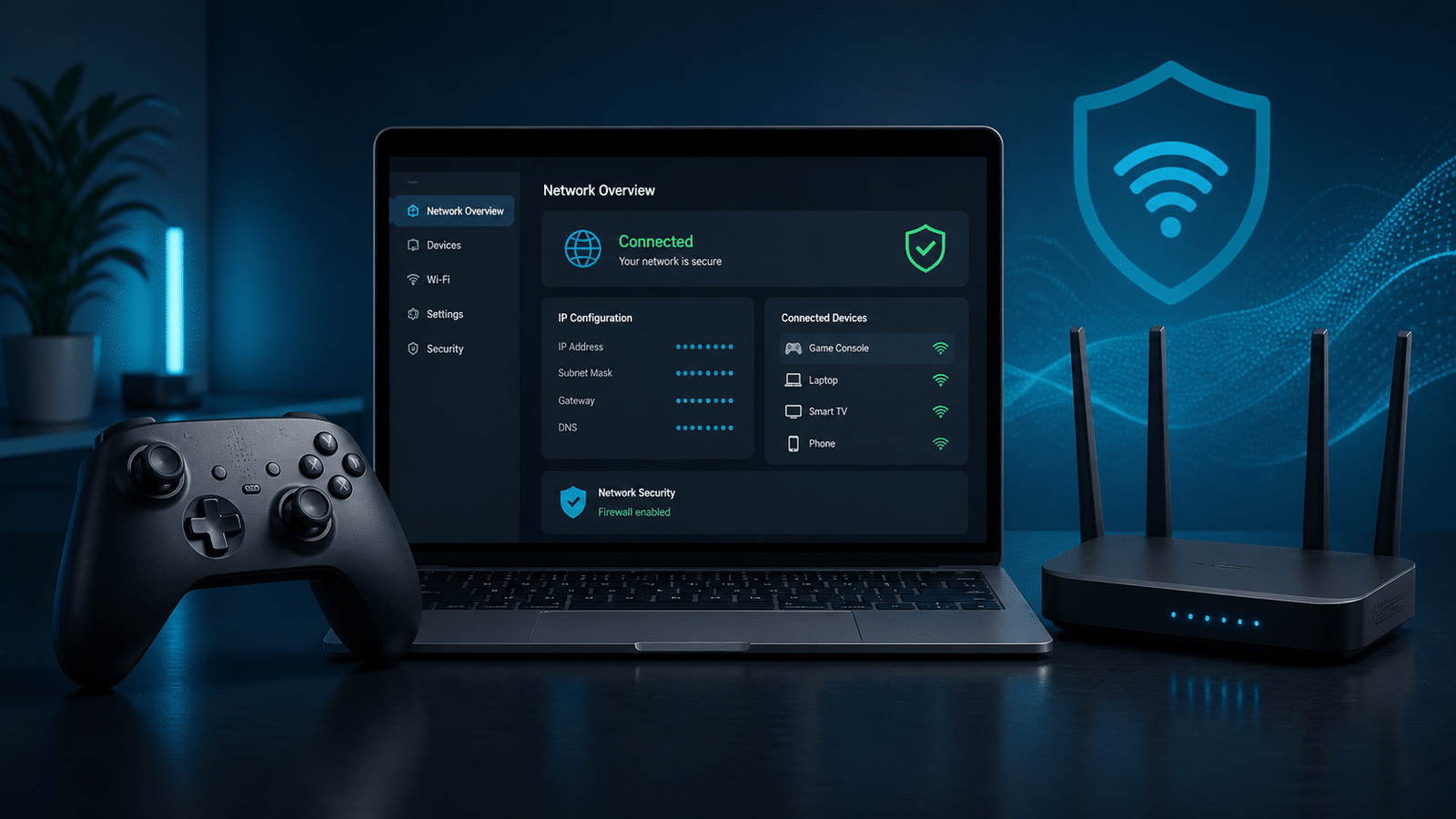
An “Xbox IP finder” should mean finding the IP address of your own console for network setup, not tracking another player. Xbox does not provide a public tool that converts a Gamertag into a player’s current IP address. Sites claiming to do that may rely on old, leaked, inaccurate, or unlawfully collected data.
If you need your console’s IP address, Xbox shows it in Network settings. If you are troubleshooting lag, NAT errors, disconnects, or suspected harassment, use the safe steps below instead of IP loggers, resolver databases, or packet-capture tricks aimed at other players.
Updated October 10, 2026: facts re-checked; guidance still current.
How to Find Your Own Xbox IP Address
- Press the Xbox button to open the guide.
- Open Profile & system > Settings > General > Network settings.
- Select Advanced settings.
- Read the console’s current IP address, subnet mask, gateway, DNS settings, and MAC address.
Microsoft maintains an official guide to Xbox advanced network settings. Menu wording can vary slightly by console and system update, but Advanced settings is the correct place to inspect your own connection.
Private vs Public IP Addresses
Your Xbox usually has a private IP address assigned by your router, often beginning with 192.168, 10, or 172.16–172.31. This address identifies the console only inside your home network.
Your internet connection also has a public IP address assigned by your internet service provider. Devices in your home normally share that public address through network address translation (NAT). A public IP can suggest an approximate region or ISP, but it does not reveal an exact home address by itself.
Can You Find Someone’s IP Address from an Xbox Gamertag?
Not through an official Xbox feature. A Gamertag is an account identifier, not a public directory entry for a live IP address. Third-party “resolver” databases may claim to associate the two, but their records can be stale, wrong, or obtained without consent.
Do not send disguised tracking links, use ARP spoofing, intercept another person’s traffic, or capture network data you do not own or administer. Those actions can violate privacy, platform rules, workplace or school policy, and applicable law.
Why IP Grabbers and Resolver Sites Are Risky
- Privacy: collecting another person’s network information without permission is intrusive.
- Security: download sites and “free resolver” tools can expose you to malware, credential theft, or scams.
- Accuracy: dynamic IP addresses change, VPNs and carrier networks obscure attribution, and database matches may be outdated.
- Account safety: deceptive links, harassment, and attempts to identify other players can breach Xbox community standards.
- Legal exposure: unauthorized interception or misuse of network data may be unlawful in your jurisdiction.
How to Troubleshoot Xbox Network Problems Safely
Run the Built-In Network Tests
Open Settings > General > Network settings, then run Test network connection and Test multiplayer connection. These checks are more useful for gaming problems than trying to identify other players’ addresses.
Check NAT Type
An Open NAT generally provides the fewest multiplayer restrictions. Moderate or Strict NAT can contribute to party-chat or matchmaking problems. Restart the console and router first, then review UPnP or port-forwarding guidance from Xbox and your router manufacturer. Avoid opening unnecessary ports.
Use a Stable Connection
Ethernet is usually more consistent than Wi-Fi. If you must use wireless, move the console closer to the router, reduce interference, and prefer an uncongested 5 GHz or 6 GHz band when supported.
Reserve Your Console’s Private Address
If port rules or parental controls depend on a fixed local address, create a DHCP reservation in your router for the Xbox. This is safer than manually assigning a random static address because it avoids address conflicts.
Analyze Only Networks You Own or Manage
Network analyzers such as Wireshark are legitimate diagnostic tools when used with authorization. They can help an administrator examine their own network, but they should not be used to identify or monitor other Xbox players. See our Wireshark network analysis guide for defensive troubleshooting basics.
What to Do If You Suspect a DDoS Attack
- Disconnect and restart your router if it is safe to do so. Some providers assign a new public IP after reconnection, though this is not guaranteed.
- Contact your ISP and report the time, symptoms, and affected service. The ISP can confirm whether unusual traffic reached your connection.
- Report and block the player through Xbox rather than confronting them.
- Preserve evidence such as messages, Gamertags, timestamps, and case numbers. Do not retaliate.
- Secure your account with a unique password and two-step verification.
A VPN may hide your home public IP from some peer-to-peer connections, but it can add latency and does not replace reporting, router security, or ISP support.
How Grabify Works in an Authorized Test
Grabify-style links route a visitor through a tracking service before sending them to a destination page. Like ordinary web-server logs, the service may record the request’s public IP address, browser or user-agent details, referral information, and timestamp.
Use this type of service only for a transparent test involving your own link and an informed participant. Do not disguise the tracking link, disable a consent notice, or send it to an Xbox player to identify them.
- Define the test. Use a page you own or are authorized to test as the destination.
- Obtain informed consent. Tell the participant what request data will be recorded and why before sending the link.
- Keep consent and safety notices enabled. Do not use URL cloaking or misleading messages.
- Send the link only to the consenting tester. Never post it publicly or target an unsuspecting person.
- Review only the expected test visit. An IP address is approximate network information, not proof of identity or a street address.
- Delete or minimize the data afterward. Do not retain or share request information longer than the authorized test requires.
For website analytics, a privacy-respecting analytics platform or your own server logs are usually more appropriate because they provide clearer retention, access-control, and consent options.
How to Protect Your Xbox Privacy
- Do not click unexpected links sent through party chat, messages, Discord, or social media.
- Keep the console, router firmware, and account recovery information up to date.
- Review Xbox privacy and online-safety settings for communication and multiplayer access.
- Use strong, unique passwords and enable two-step verification for your Microsoft account.
- Avoid third-party resolver and “IP puller” downloads, especially cracked or password-protected archives.
For background on the risks of console packet sniffers, read our OctoSniff network safety guide.
Frequently Asked Questions
What is an Xbox IP finder?
The safe meaning is a way to locate your own console’s private IP address in Xbox Network settings. Xbox does not offer an official Gamertag-to-IP lookup service.
Can a Gamertag reveal someone’s home address?
No. A Gamertag does not contain a home address. Even a public IP usually provides only approximate network or regional information, not a verified street address.
Can Command Prompt find another Xbox player’s IP?
No reliable command turns a Gamertag into a player’s current IP address. Commands such as netstat list connections involving your own computer; they do not prove which address belongs to a particular Xbox user.
Is Wireshark illegal?
Wireshark is a legitimate protocol analyzer. Legality and ethics depend on authorization and use. Capture traffic only on networks and devices you own or are expressly permitted to administer.
Should I use XResolver or an IP logger?
No. Resolver records may be inaccurate or collected without consent, while IP loggers commonly rely on deceptive clicks. Use Xbox reporting tools, your router, and your ISP for legitimate safety or troubleshooting needs.
Bottom Line
Use Xbox Network settings to find your own console’s IP address. Do not try to pull another player’s IP through tracking links, resolver databases, spoofing, or packet interception. For lag, NAT, account abuse, or suspected attacks, the safe path is Xbox diagnostics, router administration, Xbox reporting, and ISP support.

The Teck Hustlers editor oversees publishing, fact-checking and corrections across Teck Hustlers, making sure every story on technology, business, finance and gaming meets our editorial standards before it goes live.